From the Admin Center, you can manage all training actions for your team's Excel learning paths. To get started, you must create and configure the training plans to grant access to your students. You must have sufficient credits to perform this action. If you don't have enough, we will show you how to purchase them during the process.
Before starting, keep in mind these key concepts:
Students: These are the users being trained who will access the Ninja Excel platform using their email addresses.
Licenses: These provide students with access to the training. Licenses are redeemed using credits.
In this article, you’ll learn:
How to create, configure, assign, and confirm a training plan
How to grant access to your users to the Ninja Excel training plans
1. Create the Training Plan
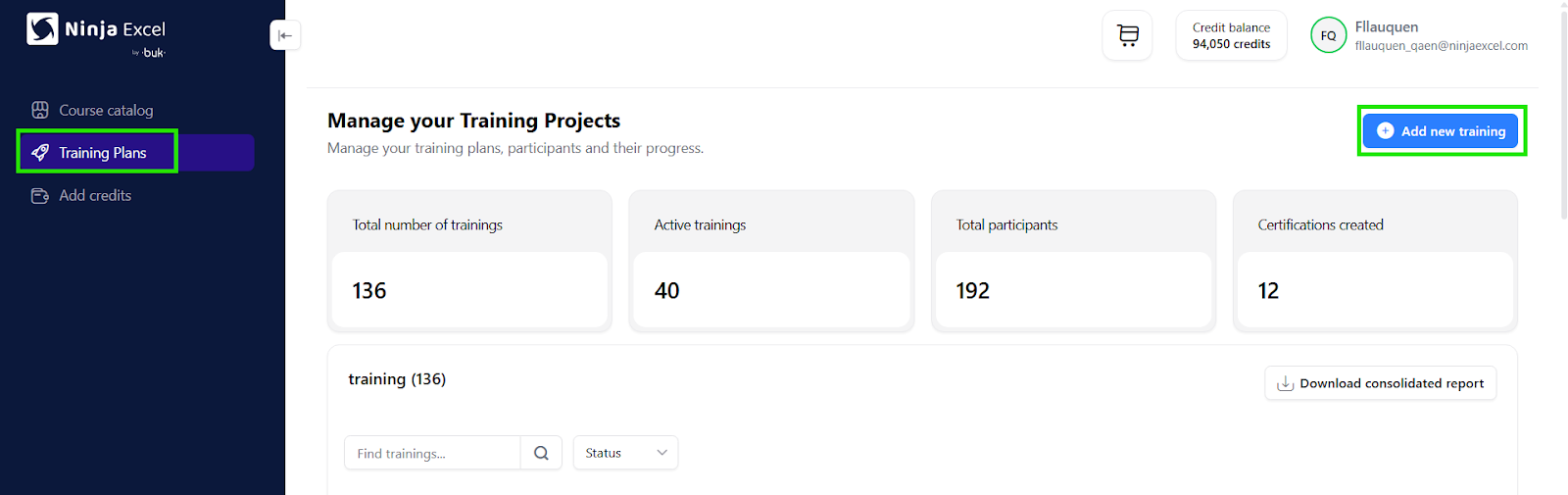
After logging into your Admin Center, you will see a blue sidebar menu on the left. From there:
Select Training plans.
Click the Add New Training button.
2. Configure the Training Plan
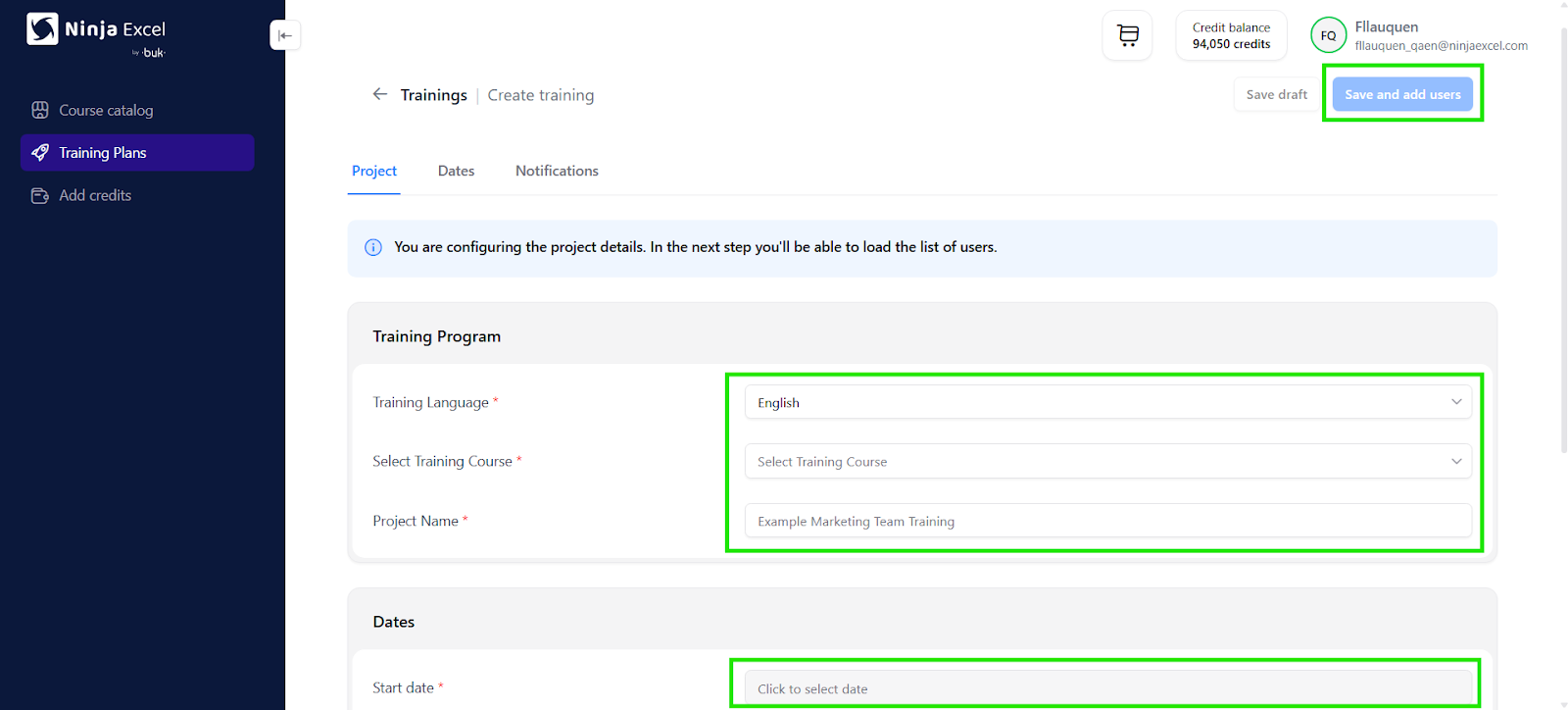
Before confirming the creation of a training project, complete the following configurations:
Language: Choose the language for the training plan. Note: A user cannot have multiple training programs in different languages simultaneously.
Select Training plan: Choose the desired course. We recommend browsing our Course Catalog for details and pricing.
Project Name: Assign a name to differentiate this project (e.g., distinguishing between two identical courses assigned to different departments).
Start Date: Select when the training should begin.
Click Save and Add Users.
Optional: Check the "Enable course reminders" box to send automated emails to students based on inactivity. Click here to learn more about this feature.
3. Add Users
Once you click “Save and Add Users,” two things will happen:
The training will be created in Draft status (it is not yet confirmed).
The Users Module will be enabled.
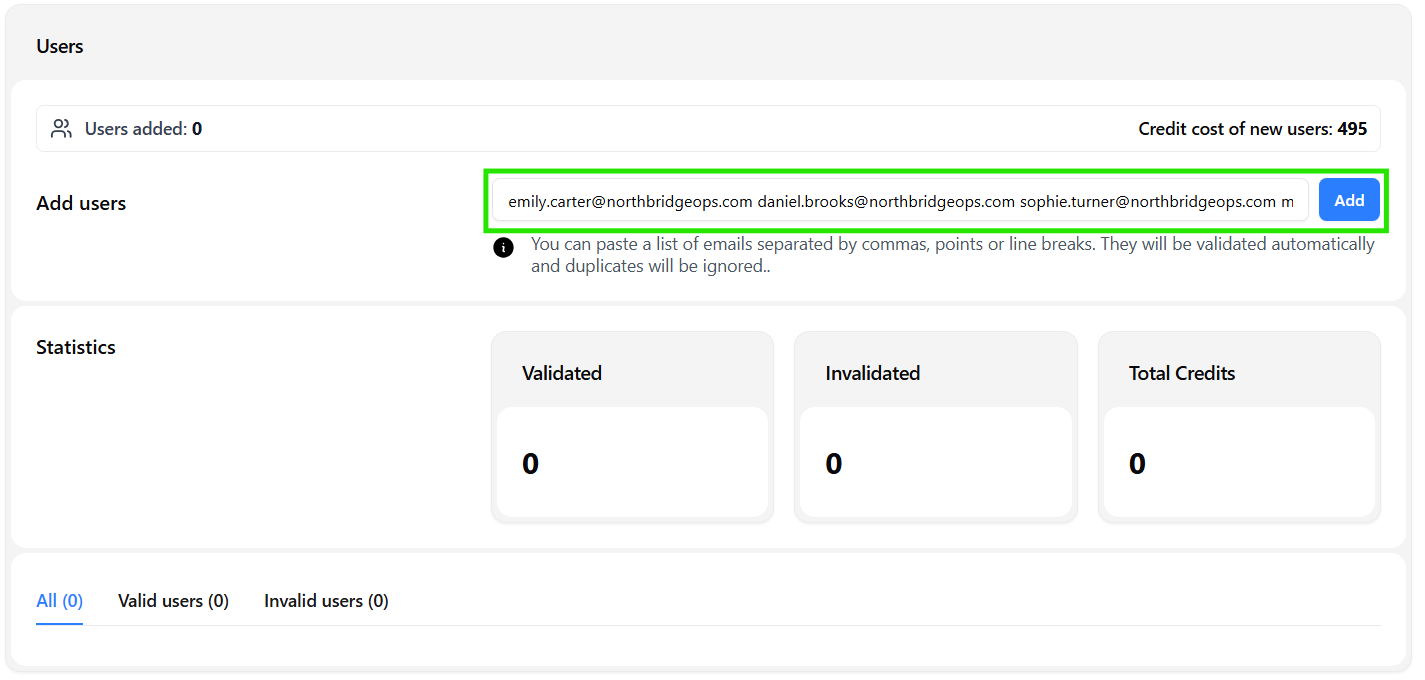
The Users Module allows you to redeem credits for licenses and grant access. To do this:
Locate the Users Module on the same page.
Copy and paste the list of email addresses for the students you wish to enroll into the text bar.
Click Add.
4. Purchasing Credits
If you reach this step and do not have enough credits, the platform will initiate a payment flow:
A message on the left will display the number of credits required.
Click the “Buy Credits” button.
After clicking “Buy Credits,” your Shopping Cart will appear with the details.
Click “Top up credits” to proceed.
This will redirect you to the checkout page where you can:
Click “Pay and get credits” for the exact amount needed, or choose a Package.
Complete the payment via the Stripe gateway. If you are not sure of the steps, review items 2 and 3 of this link.
Tip: We will always recommend the package closest to your needs, but you can click “See more package options” to access higher volume discounts.
After payment is complete:
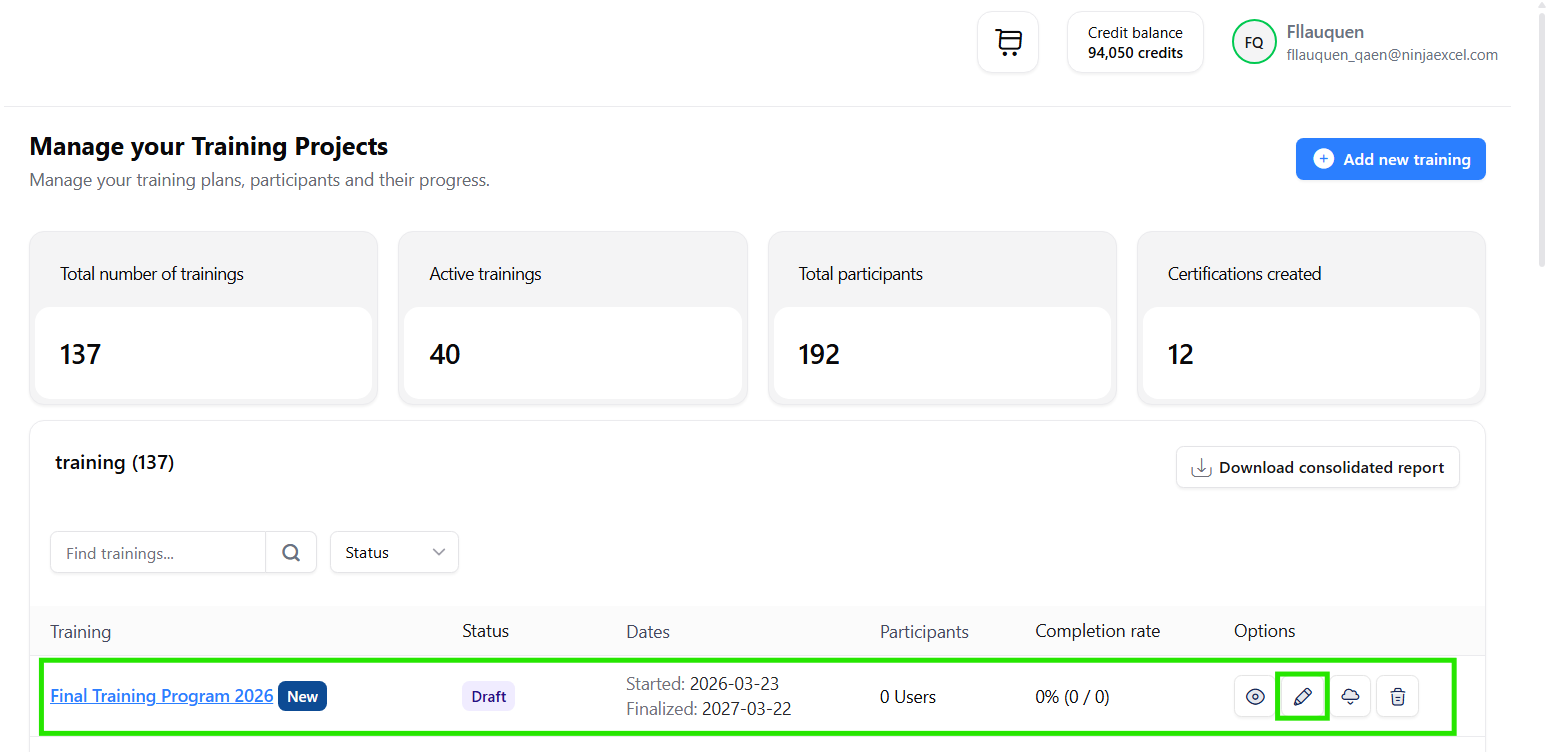
Select Training Plans from the sidebar to return to your dashboard.
Locate your draft training project.
Click the Pencil icon (Edit) to continue to Step 5.
5. Confirm the Training Plan
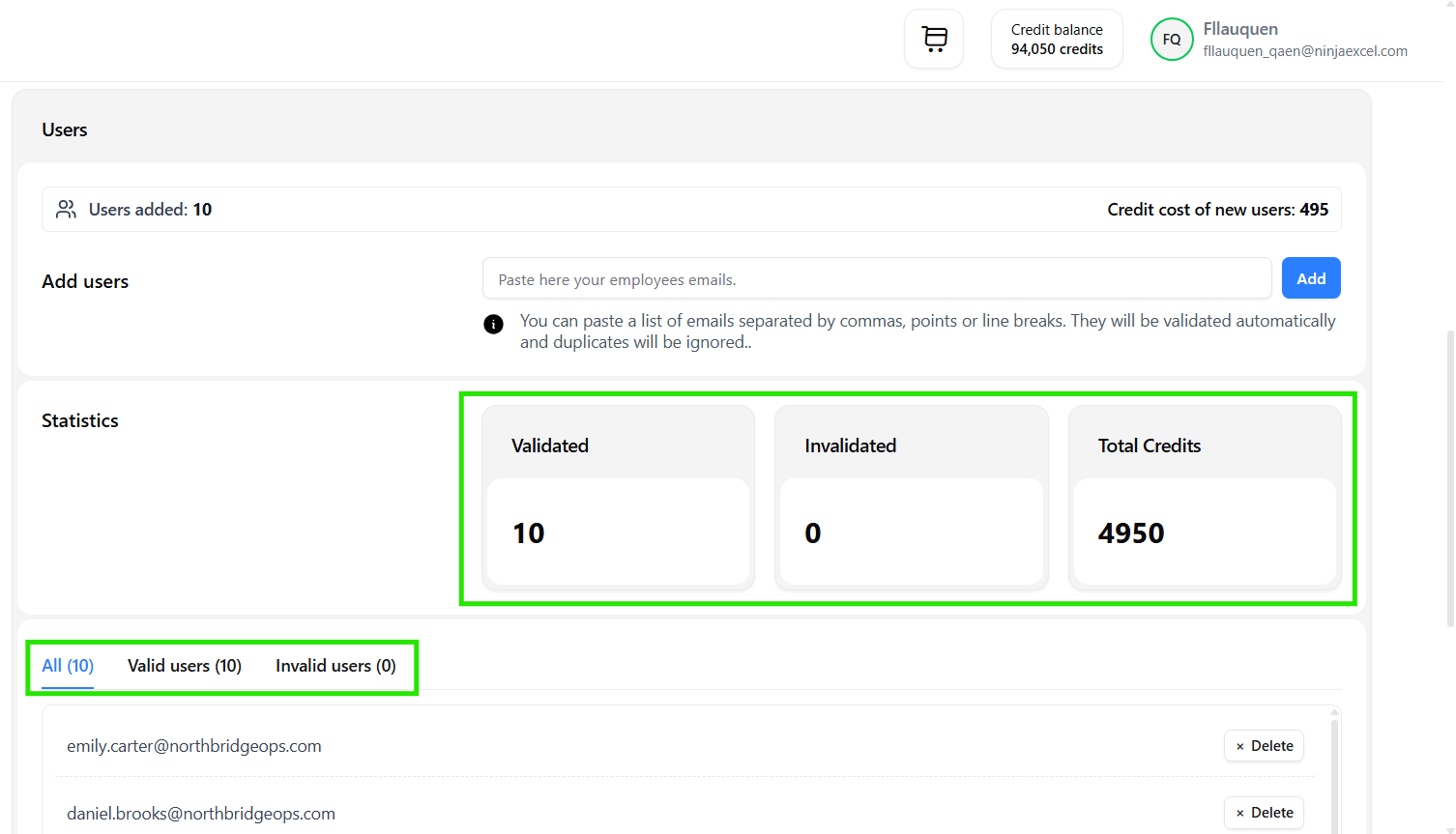
When adding users, the system will verify the number of valid emails (ready to be added) and invalid emails (which will not be added). It will also show the cost per user and the total credit amount.
Here you can also:
Remove users.
Review and correct invalid emails, then re-add them.
Tip: If you want to remove all invalid users at once, simply proceed to the next step, and they will be deleted automatically.
To save without enrolling users yet, scroll to the top and click “Save Draft” (Image 1). This DOES NOT consume credits and allows you to edit everything except the specific course and language. If you need to change the course or language, delete the draft and return to Step 1.
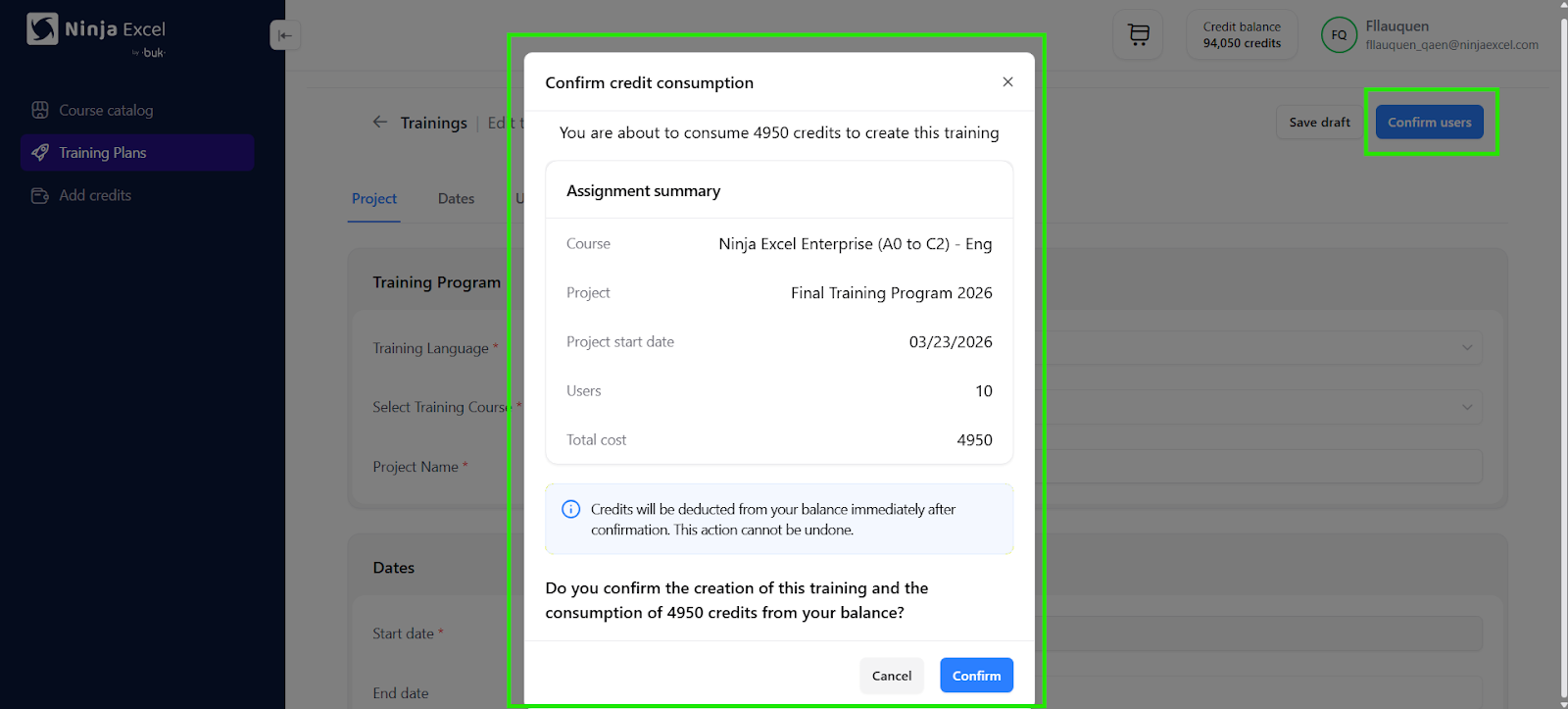
To grant access, click “Confirm Users” (Image 2). This WILL consume credits and lock the configuration (you will only be able to add more participants or change the start date up until the day before the scheduled start).
Image 1
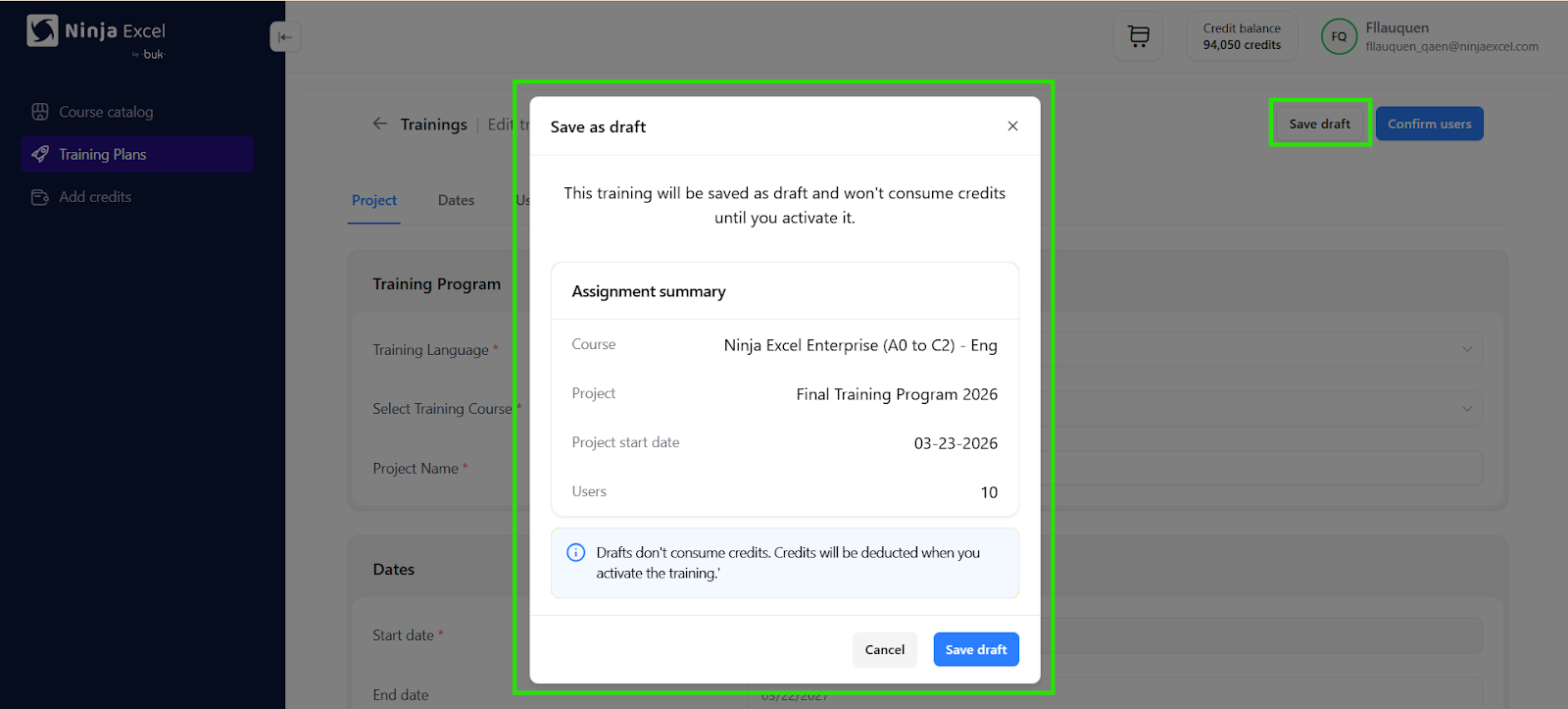
Image 2
Recommendations
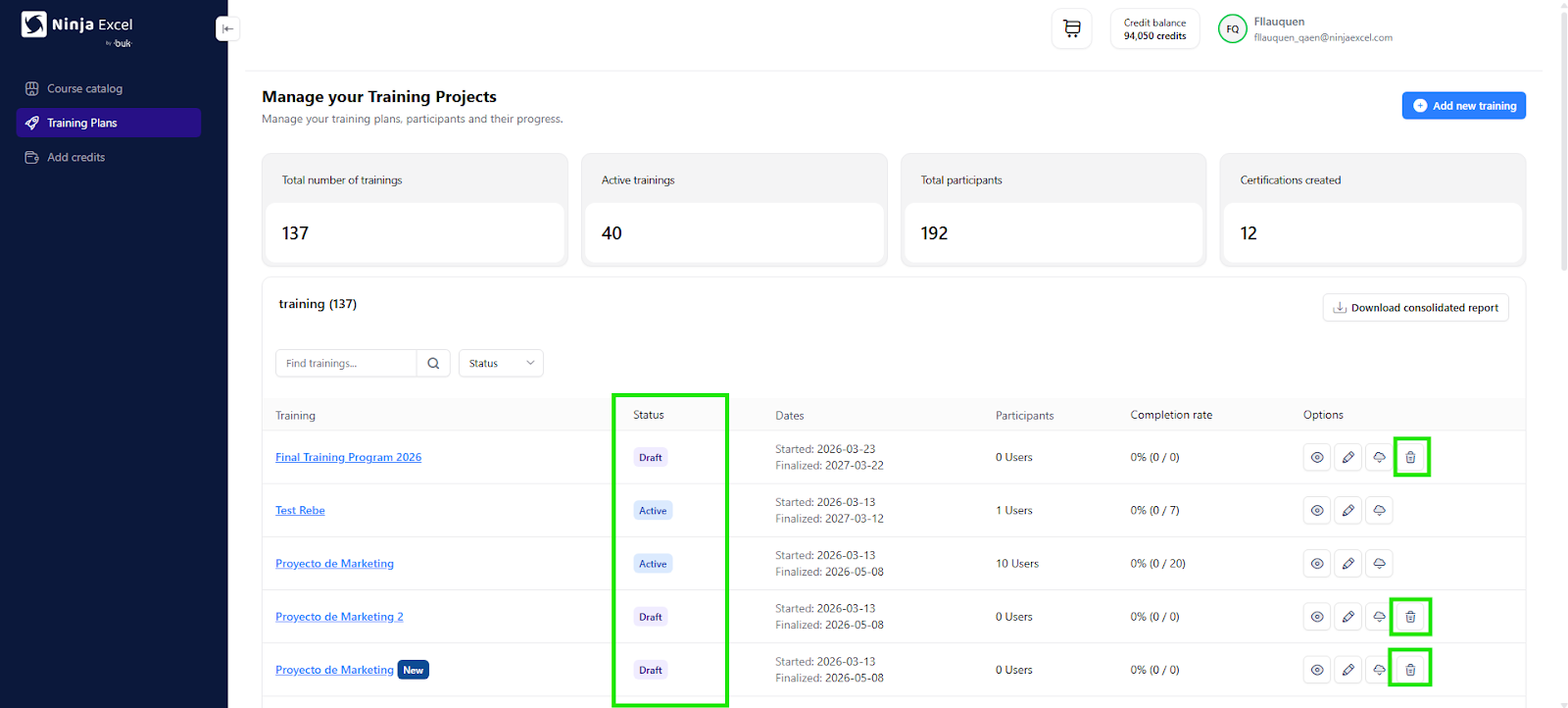
You can track your training programs in the Status column of the Training tab.
Drafts: Can be deleted using the Trash Can icon in the Options column (far right).
Processing: Please note that the system may take a few minutes to load participants. Larger groups will require more processing time.
Confirmed Statuses: Confirmed training will show as Not Started, Active (In Progress), or Completed.
Now that you know how to set up your team's learning path, log into your Admin Center and get started!
Was this article helpful?
That’s Great!
Thank you for your feedback
Sorry! We couldn't be helpful
Thank you for your feedback
Feedback sent
We appreciate your effort and will try to fix the article