The credit model is the system used to assign licenses and grant your team access to the Ninja Excel platform. Each license has a specific credit value that varies depending on the Training plan you choose. Understanding how this model works is essential for creating your training plans.
Tip: You can find license costs and full details for every available program in the Catalog tab on the left sidebar of your Admin Center.
In this article, you will learn:
What a credit is.
How to purchase credits.
How to use your credits.
1. What is a credit?
Credits are the "internal currency" of your Admin Center. You can purchase them at any time via the Add credits tab.
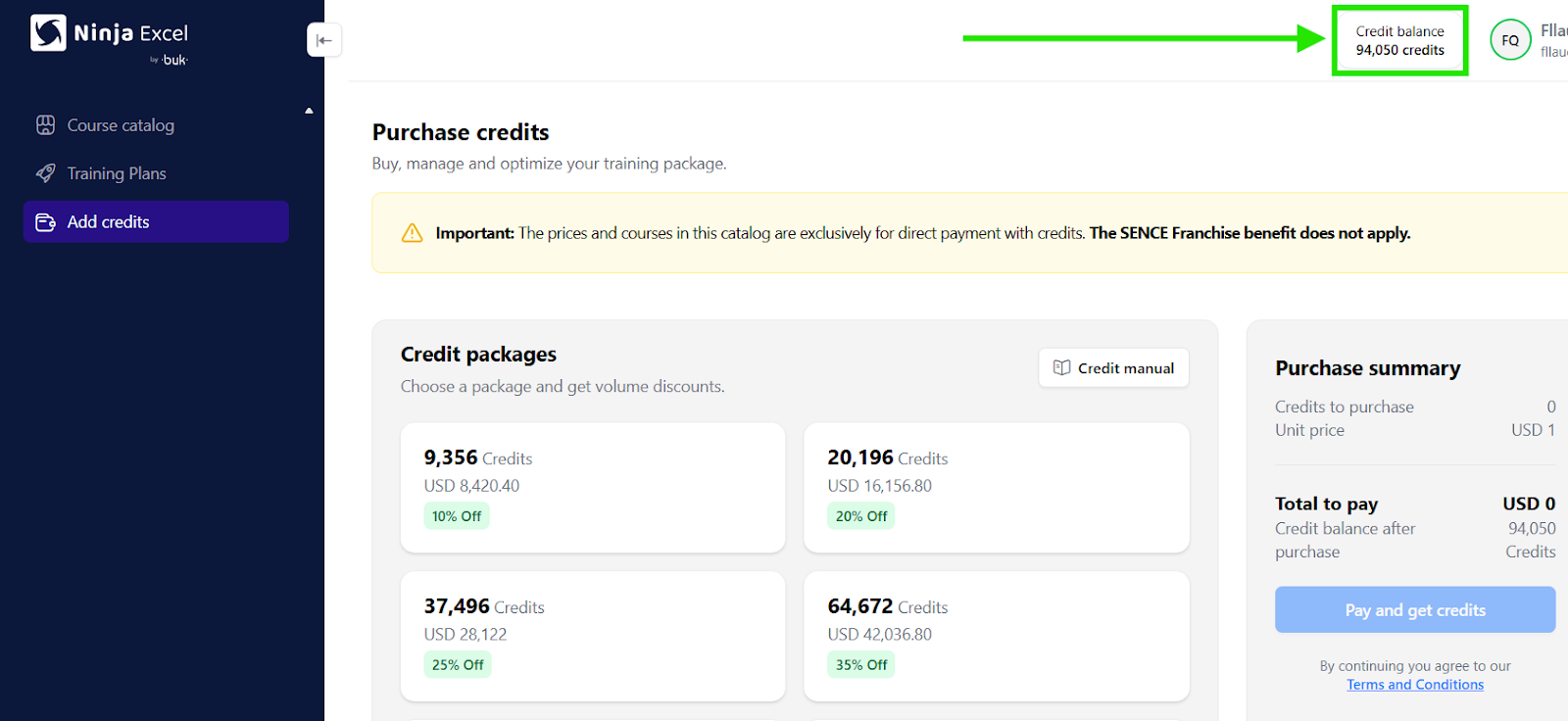
Having a credit balance allows you to redeem licenses (accesses) for your users (students) for your chosen Training plan. You can check your available Credit balance at any time in the top-right corner of your screen across all tabs (see Image 1).
Tip: Every Training plan has a different license cost. You can find specific pricing in the Catalog on the left sidebar.
Image 1
2. Purchasing credits
There are several ways to add to your credit balance. In this guide, we will focus on the most direct method; but there are other two ways of purchasing credits.
To make a purchase:
Log in to the Admin Center.
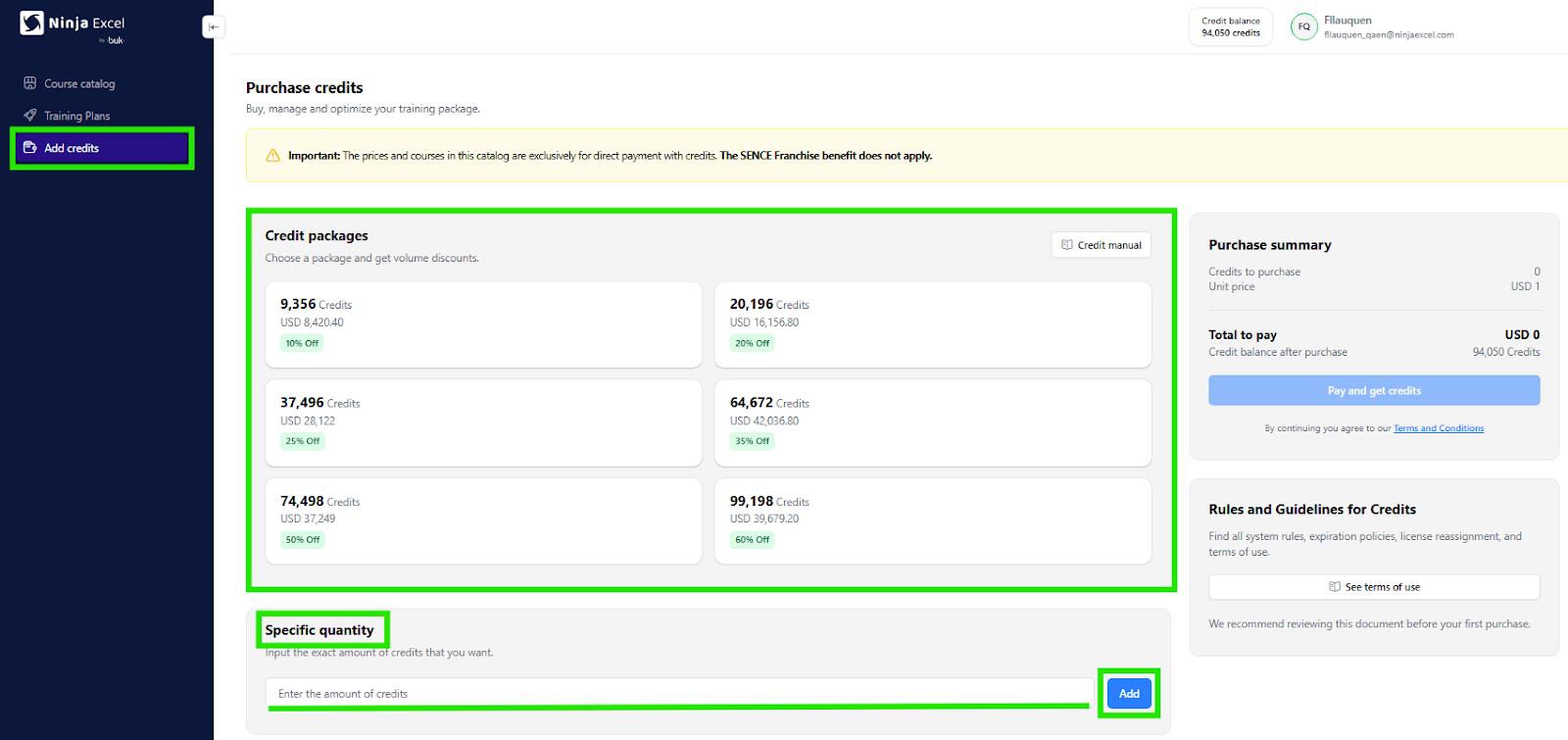
Go to the left sidebar and select Add credits.
You will see two ways to buy:
Packages: These allow you to access volume discounts.
Specific quantity: This lets you enter the exact number of credits you need.
Select a package or enter a custom amount and click Add.
Tip: Keep in mind that volume discounts in our credit packages automatically apply to all purchase methods.
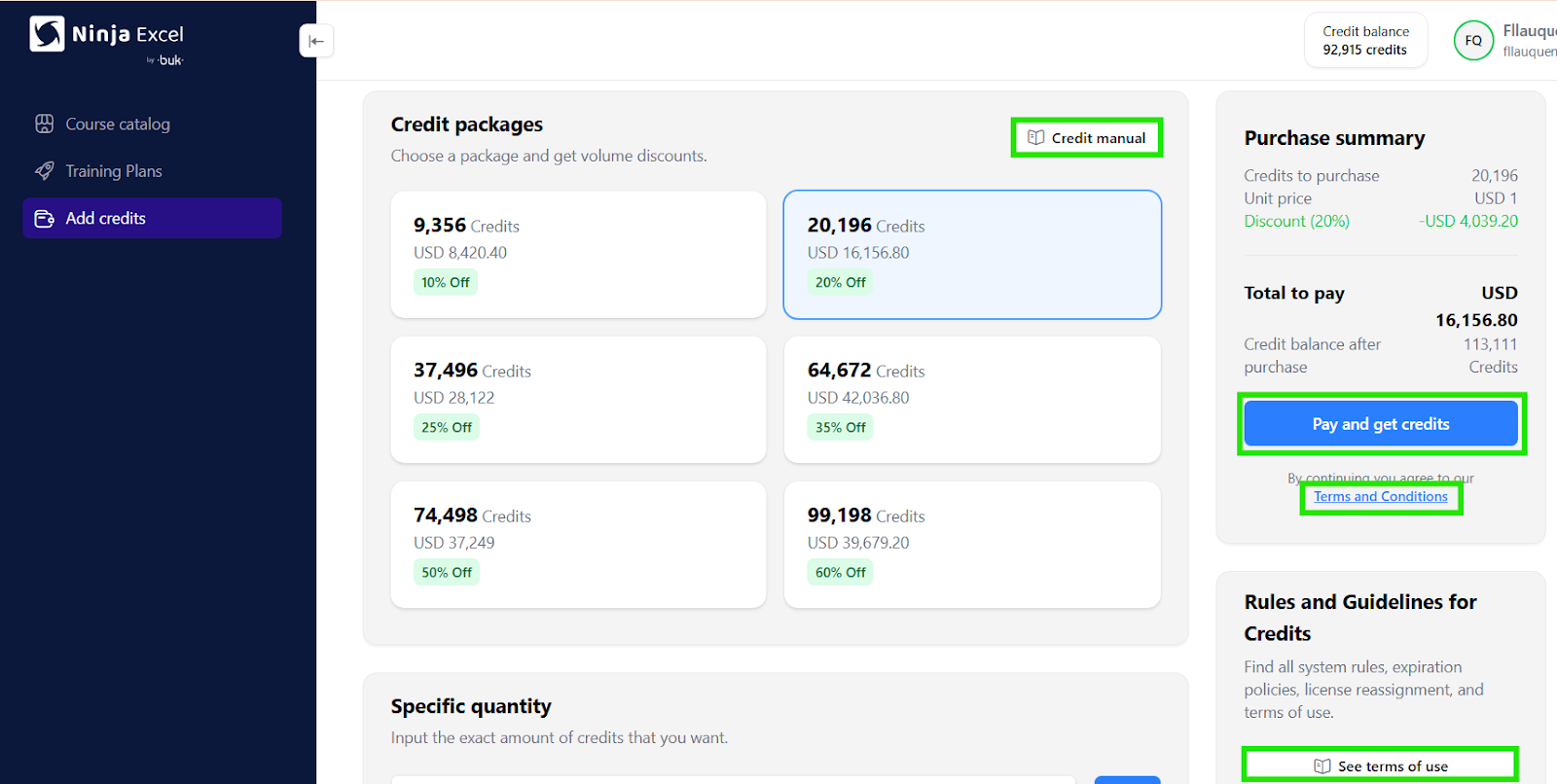
Once you’ve made your selection, the Purchase Summary will show a detailed breakdown before you pay (including the total due and any discounts in both credits and your local currency). After reviewing the details, click Pay and get credits.
Note: By completing the payment, you agree to our Terms and Conditions. We also suggest reviewing our Credit Manual and Rules and Guidelines for Credits for a deeper look at the model.
3. Payment Gateway
The previous steps will redirect you to the Stripe payment gateway. Here, you can choose from the payment methods offered by Stripe and click Pay to complete the payment.
Once the transaction is complete, you will receive a confirmation message. If you don't see this message, don't worry—we recommend trying again. If the issue persists, contact us via Support Chat so we can assist you.
Recommendations
You can actually buy credits while you are in the middle of creating a Training plan, allowing you to purchase the exact amount needed for that specific group.
Once you have your credits, you’re ready to start redeeming licenses and creating your Training plans.
If you have a set budget, remember you can take advantage of volume discounts!
Was this article helpful?
That’s Great!
Thank you for your feedback
Sorry! We couldn't be helpful
Thank you for your feedback
Feedback sent
We appreciate your effort and will try to fix the article