The Admin Center is your central hub for monitoring your team's training plan development. From here, you can track real-time user progress, access course information, and export detailed progress reports.
In this article, you will learn:
How to access the Training Plans section.
How to download the training plans' detailed reports.
How to monitor participant progress in the platform.
1. Accessing the Admin Center
All your team’s learning data is housed within the Training Plans section of your Admin Center.
To get there:
Open the blue sidebar menu on the left.
Select Training Plans
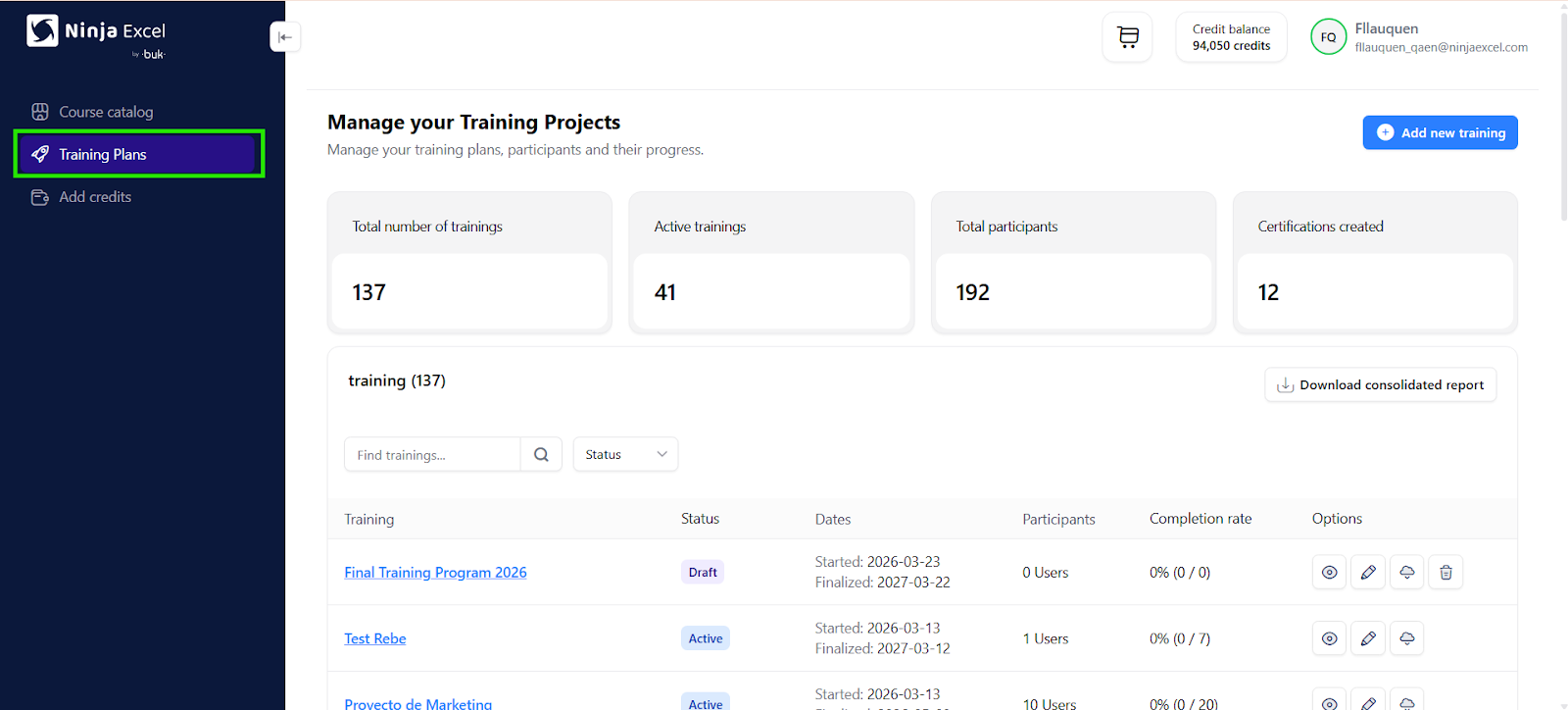
Training Plans section overview
In this area, you can view and manage all Training plans associated with your company and supervise user progress.
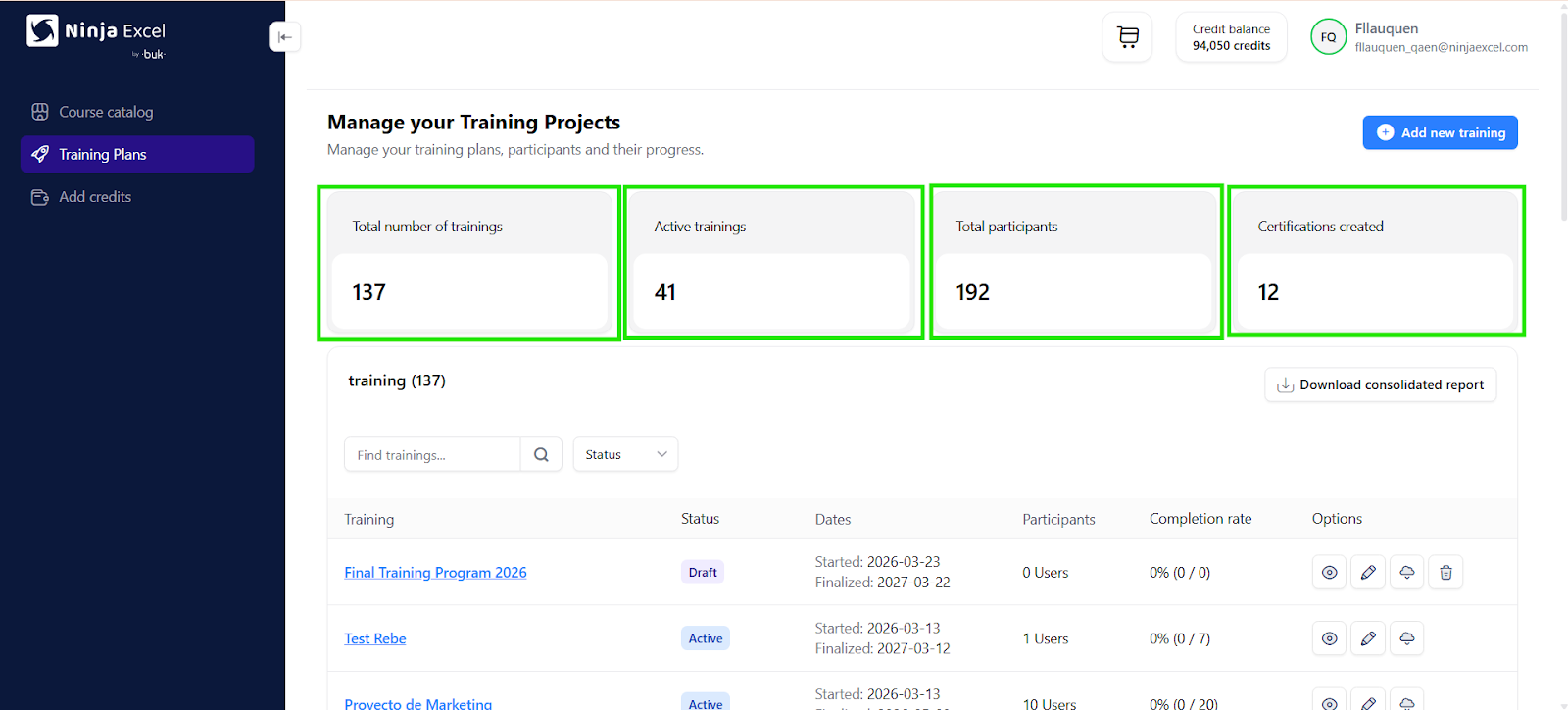
At the top of the page, the summary panel shows you four key metrics:
Total number of trainings: The total number of Training plans created or available for your company, including those that are active or completed.
Active training: The number of Training plans currently in progress and available for users to access.
Total participants: The historical total of employees enrolled in your company’s Training plans via the platform.
Certifications created: The historical total number of certificates issued to participants who have successfully completed a Training plan.
2. Downloading reports
From the Training Plans section, you can also download reports to analyze the status and progress of the users.
The platform offers two ways to extract data depending on the level of detail you need:
Consolidated Training Plan Report: Best for a "big picture" view of all your company’s training plans. It includes:
Available Training Plans.
Number of participants per Training Plan.
Status of the Training Plans.
Completion rates.
Progress Report by Training Plan: Best for a "deep dive" into progress for one specific Training plan. It includes:
Individual user progress.
Progress within the training plan.
Total time spent learning.
Which report should I use?
Use the Consolidated Report for executive summaries and the Progress Report for granular, person-by-person performance reviews.
How to download the Consolidated report
Follow these steps:
Go to the Training plans section.
Click Download Consolidated Report.
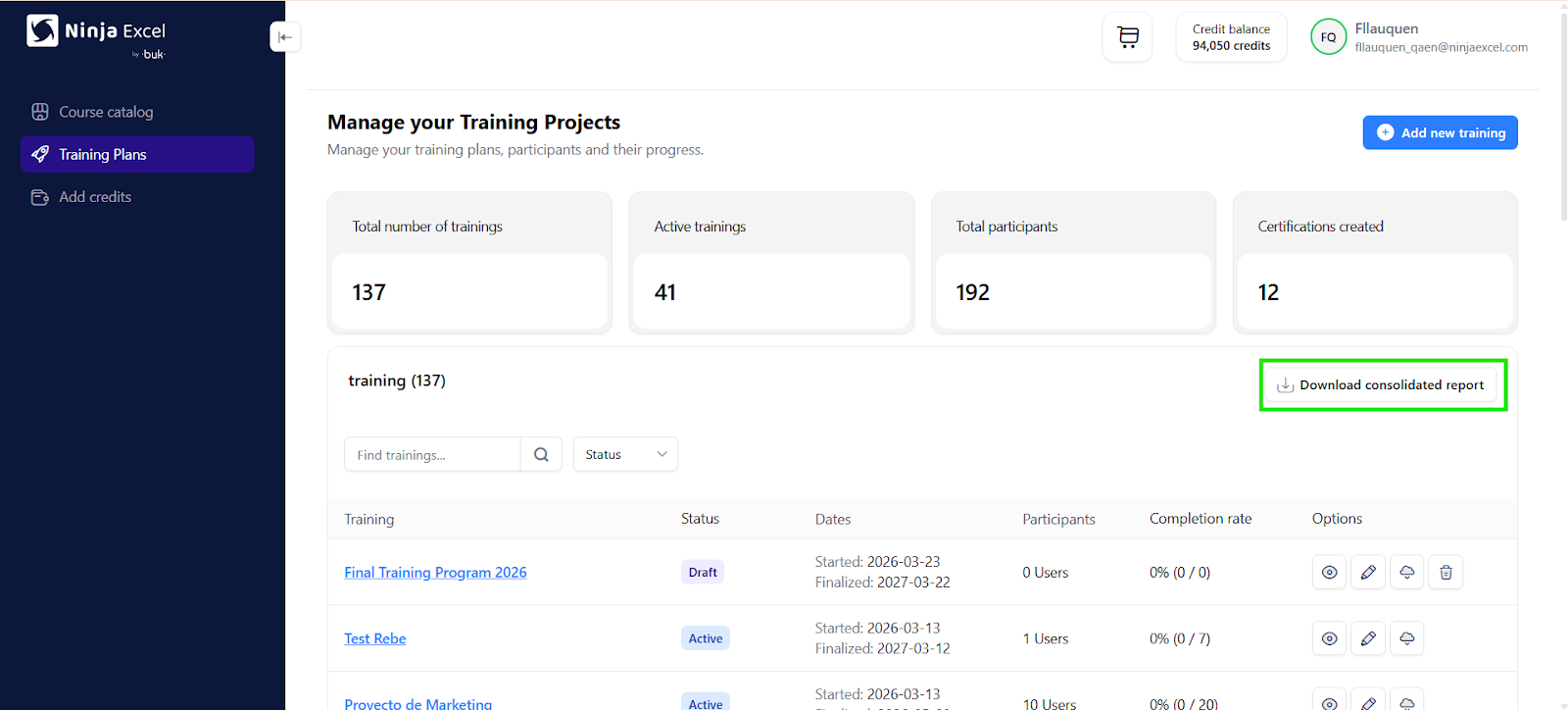
Once requested, the platform will display a message indicating that the file generation has begun. The system will process the data and email the report directly to you.
Note: Reports are sent from noreply@ninjaexcel.com. Please add this address to your Safe Senders list to ensure it doesn't get flagged as spam.
How to download Reports by Training Plan
Follow these steps:
Go to the Training plans section.
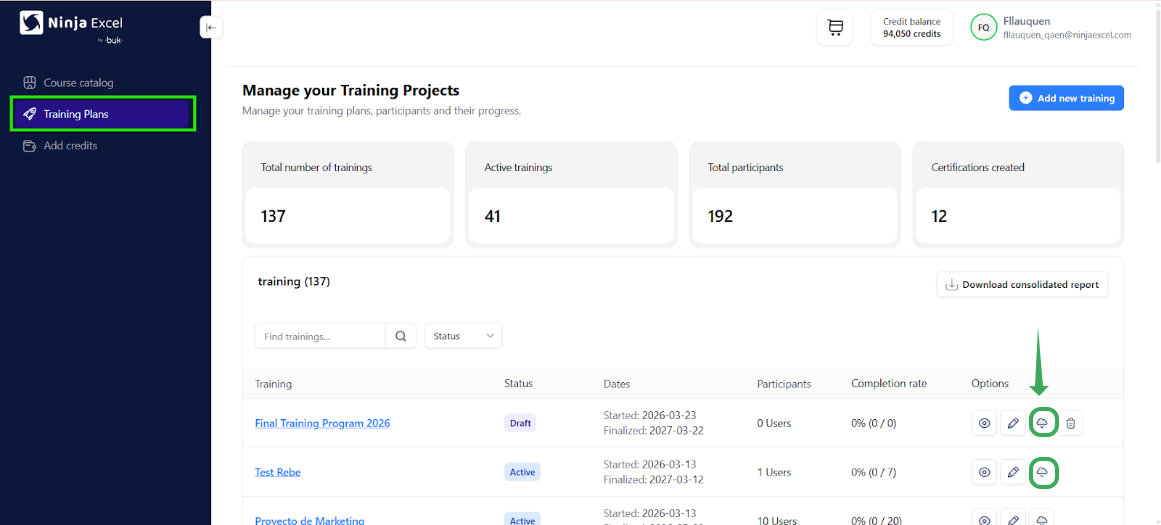
Locate the respective Training row for which you need the report.
Go to the Option column.
Select the Cloud symbol.
This will trigger the browser to download an Excel file with the report.
3. Real-Time Progress Tracking
You don't need to wait for a report to see how your team is doing. You can monitor live activity directly on the dashboard to spot delays or low engagement early.
To drill down into a specific plan:
Enter the Training Plans section.
Locate the Training Plan you wish to review.
Click on the name of the Training plan.
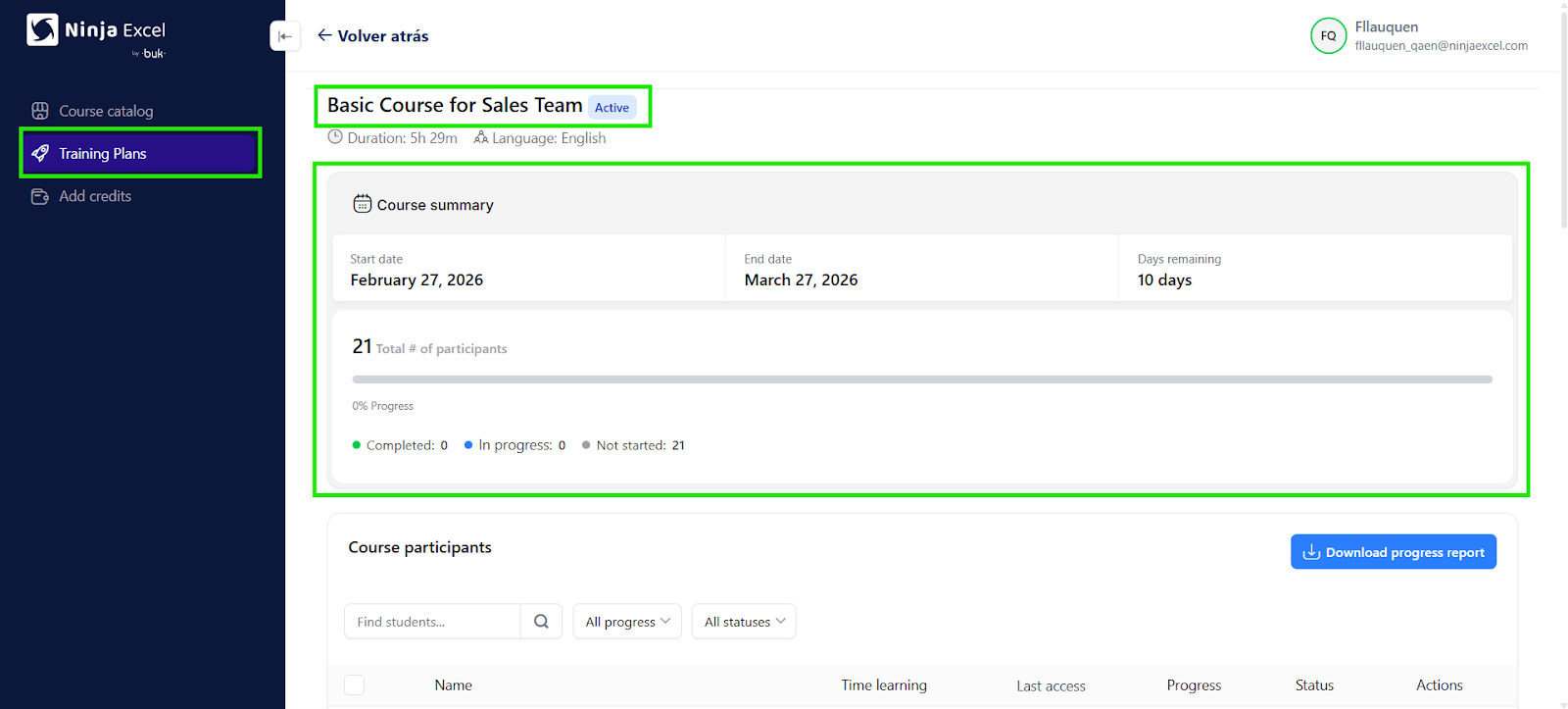
View the status in the Course Summary.
Course Summary
Upon entering a course, you will see a summary panel that provides a snapshot of general progress, including:
Course Start Date: The day the Training plan began or became available to users.
Total Participants: Number of users in that specific Training plan.
Overall Progress Percentage: The completion percentage across the entire group.
User Breakdown (Completed, In Progress, or Not Started):
- Completed: Users who finished the course.
- In Progress: Users who have started but not yet finished.
- Not Started: Users who haven't opened the course yet.
Course participants section
Below the summary, the Course Participants table provides the specifics for every student:
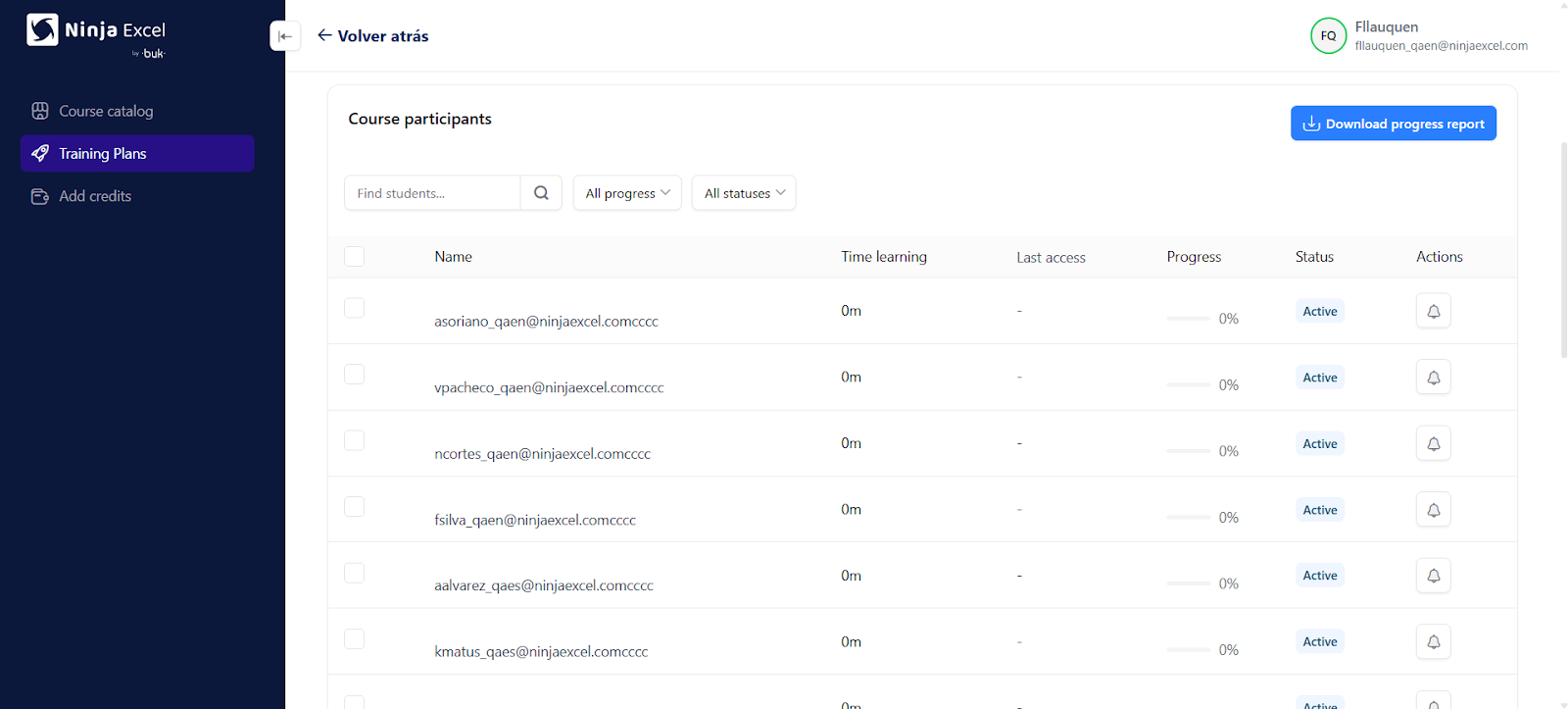
Here you’ll find:
Name and Email.
Registered learning time.
Last Access date.
Progress Percentage.
User Status.
And you can use tools such as:
Search students: Find a user quickly by name or email.
Progress filter: View users based on their completion percentage.
Status filter: View users with Completed, In Progress, or Not Started statuses.
Best practices for Admins
To maintain a high-quality learning process, we recommend:
Checking progress weekly on their training plans.
Identifying users who have Not Started the training plans.
Following up with those showing low activity levels.
Ninja Excel helps drive completion rates through automated tools like automated inactivity reminders and progress tracking, designed to re-engage students and nudge them toward the finish line.
Ready to check your team's latest stats? Head over to your Admin Center to get started!
Was this article helpful?
That’s Great!
Thank you for your feedback
Sorry! We couldn't be helpful
Thank you for your feedback
Feedback sent
We appreciate your effort and will try to fix the article