Level changes allow you to reassign a participant to a different training plan. This process is handled by our support team and must be completed within a specific timeframe after the course begins.
In this article, you will learn:
The eligibility window for requesting a level change.
How to submit a request via the Admin Center.
Next steps based on the new target plan for the participant.
Requesting a level change
If you find that a participant is enrolled in the wrong level, you can request a change directly through the Help Chat.
Steps to follow:
Log in to the Admin Center.
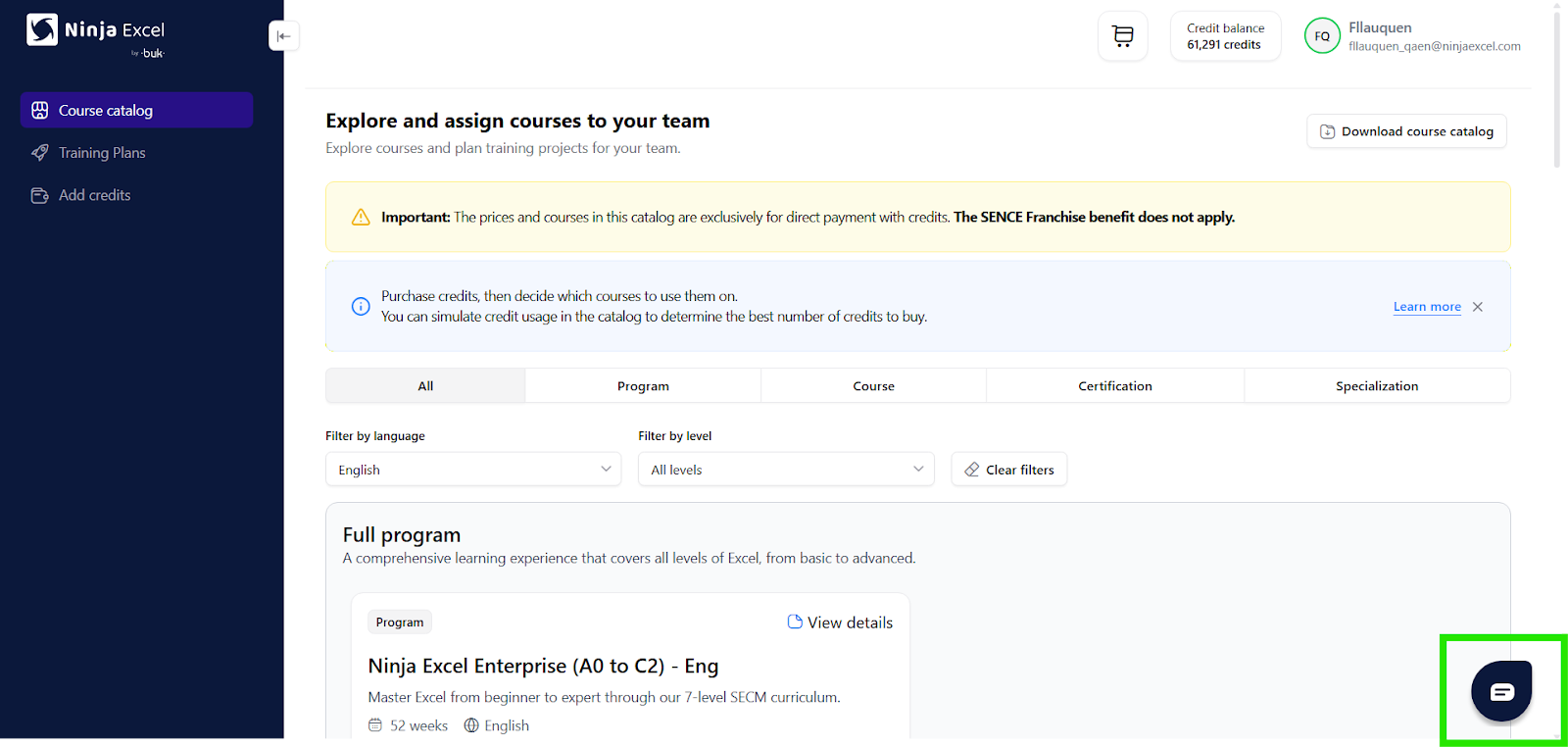
Open the Help Chat by clicking the icon in the lower-right corner.
Provide the participant's details and the specific level or plan you want to move them to.
Important considerations
Before submitting your request, please keep the following rules in mind:
Request window: Level changes can only be processed within the first 7 days after the training plan start date.
Support management: All changes are manually reviewed and processed by the Ninja Excel support team.
Notifications: Once the update is complete, the participant will receive an automated notification regarding their new assignment.
Handling Target Plans
The process varies depending on whether the plan you want to move the participant to already exists in your account:
Scenario A: The target plan DOES NOT exist
You must first create the new training plan before support can move the user.
Go to the Training plans tab.
Click Add New Training (Image 1).
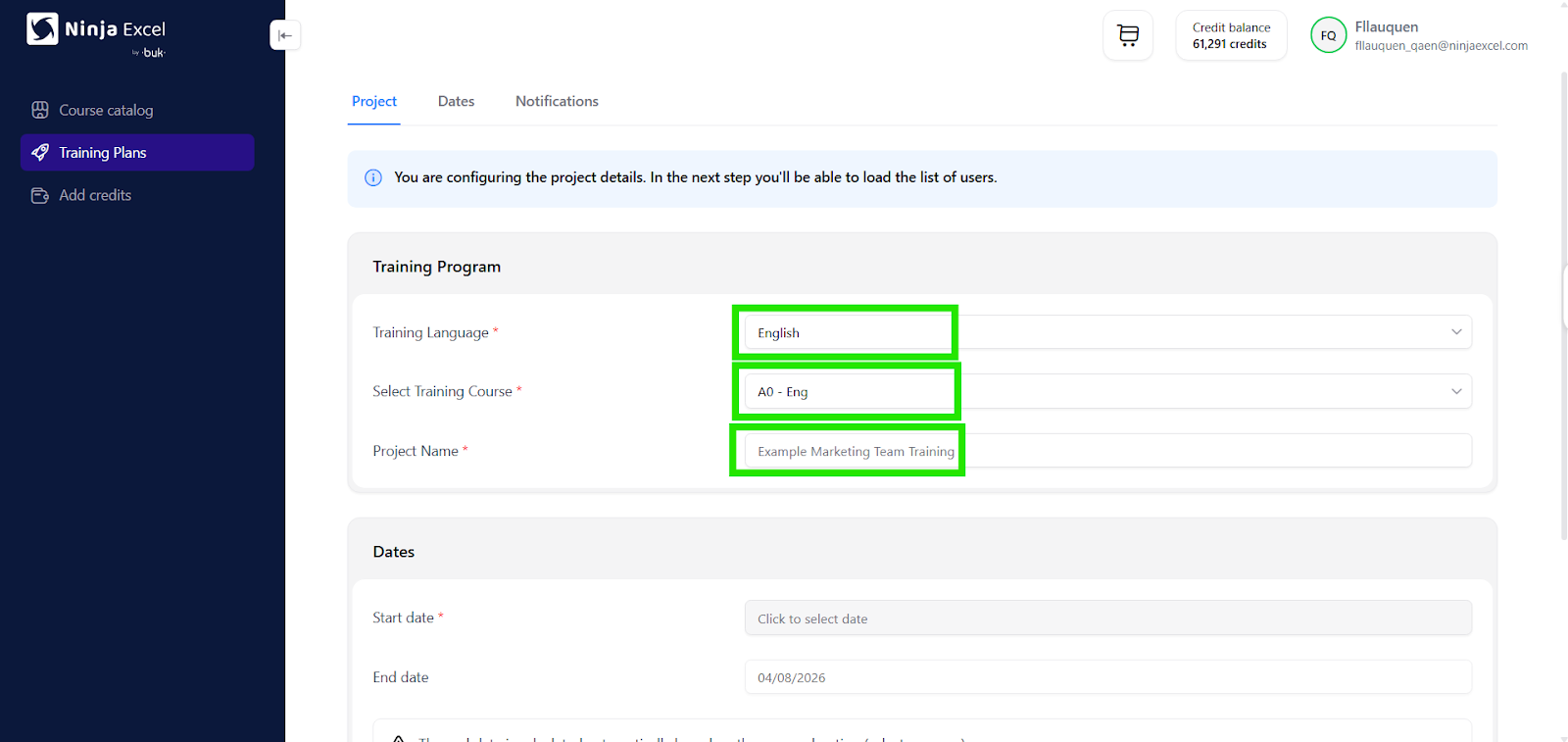
Configure the training with the correct plan, language, and a new project name (Image 2).
Once created, notify support through the chat that the plan is ready. They will then transfer the participant.
Image 1.
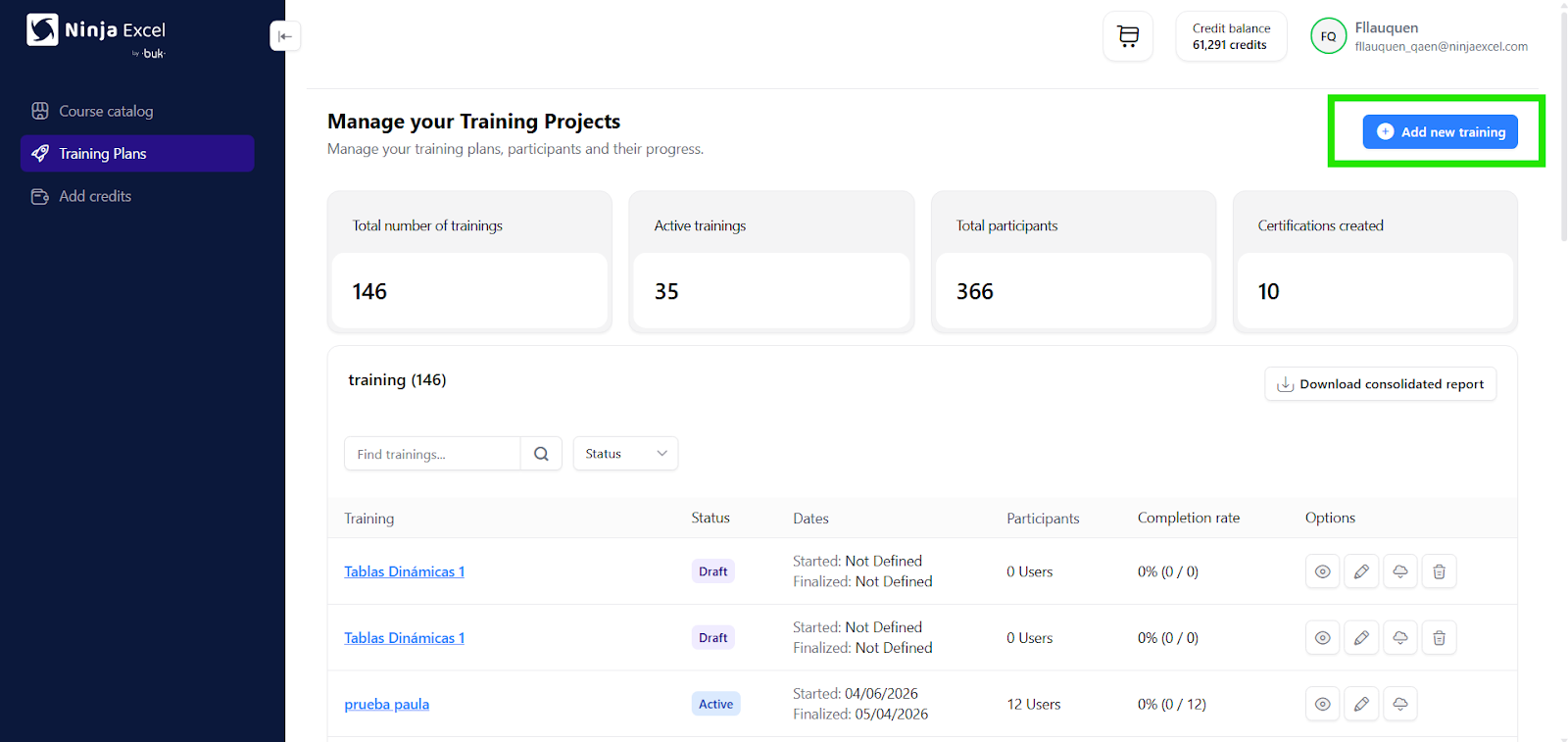
Image 2.
Scenario B: The target plan ALREADY exists
The process is more direct:
Provide support with the name of the existing plan where the participant should be moved.
Our team will handle the reassignment immediately.
Pro-Tips for creating Training plans
When setting up a new plan specifically for a level change:
Route: Always use Training > Add New Training instead of the Catalog.
Credit Efficiency: Creating the plan through this route ensures the setup is correct for the reassignment without unnecessary credit complications.
Best practices for smooth management
Early audit: Review participant levels at the start of the plan.
Strict deadlines: Ensure all requests are submitted within the 7-day window to avoid rejection.
Pre-check plans: Verify if you already have an active plan for the target level to save time during the support request.
Now that you know how to handle level changes, log in to your Admin Center and ensure your team is on the right learning path!
Was this article helpful?
That’s Great!
Thank you for your feedback
Sorry! We couldn't be helpful
Thank you for your feedback
Feedback sent
We appreciate your effort and will try to fix the article