The Admin Center allows you to access and manage certificates for any user who has successfully completed their Training plans.
This feature supports both individual and bulk downloads, making it easy to keep your internal records up to date.
In this guide, you will learn:
Where to find certificates within the Admin Center.
How to perform bulk certificate downloads.
How to download an individual certificate.
1. Accessing the Training Plans
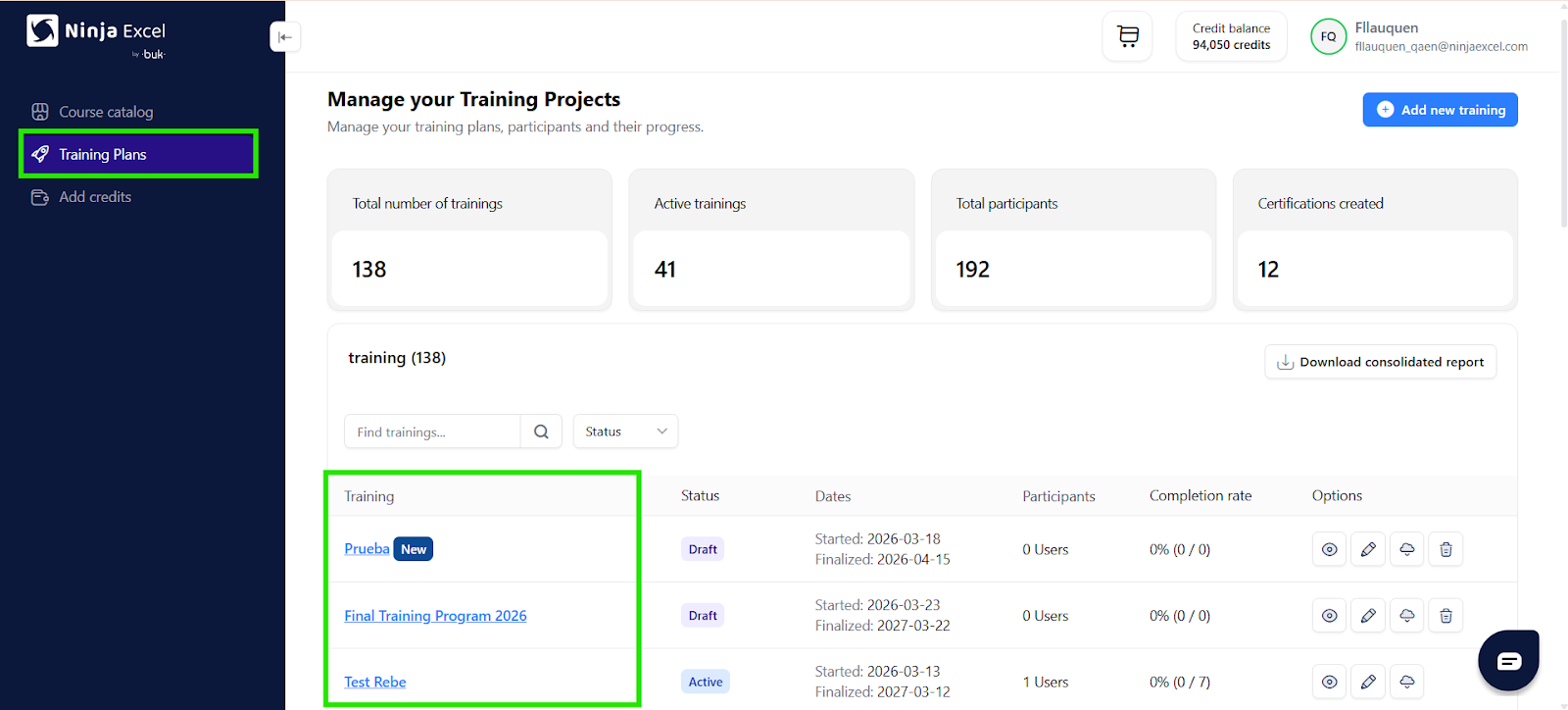
To view and download certificates, first navigate to the management area for your active programs.
Go to the sidebar menu on the left.
Select Training plans.
Find your plan in the list.
Click on the Training plan name to open the user's details.
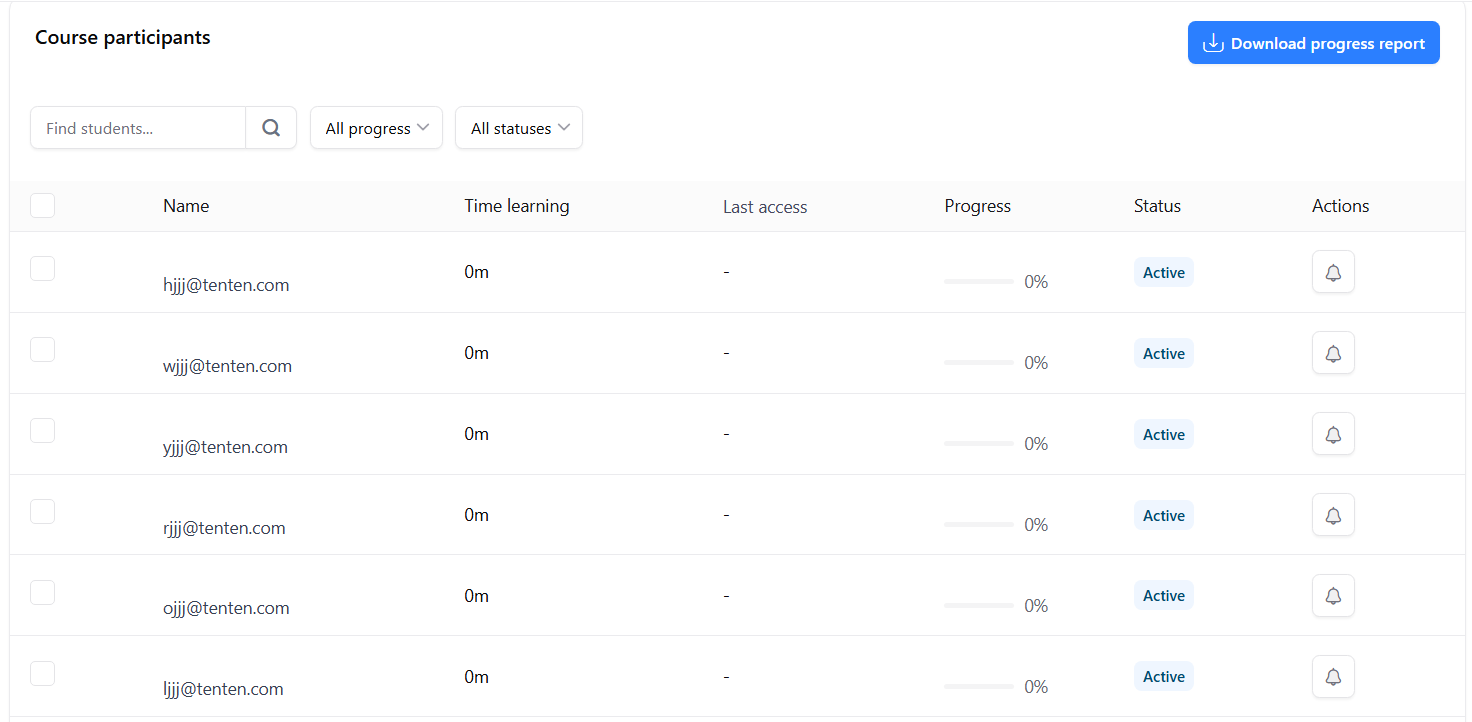
Once inside, you will see a full list of enrolled users and their current progress.
2. Bulk certificate downloads
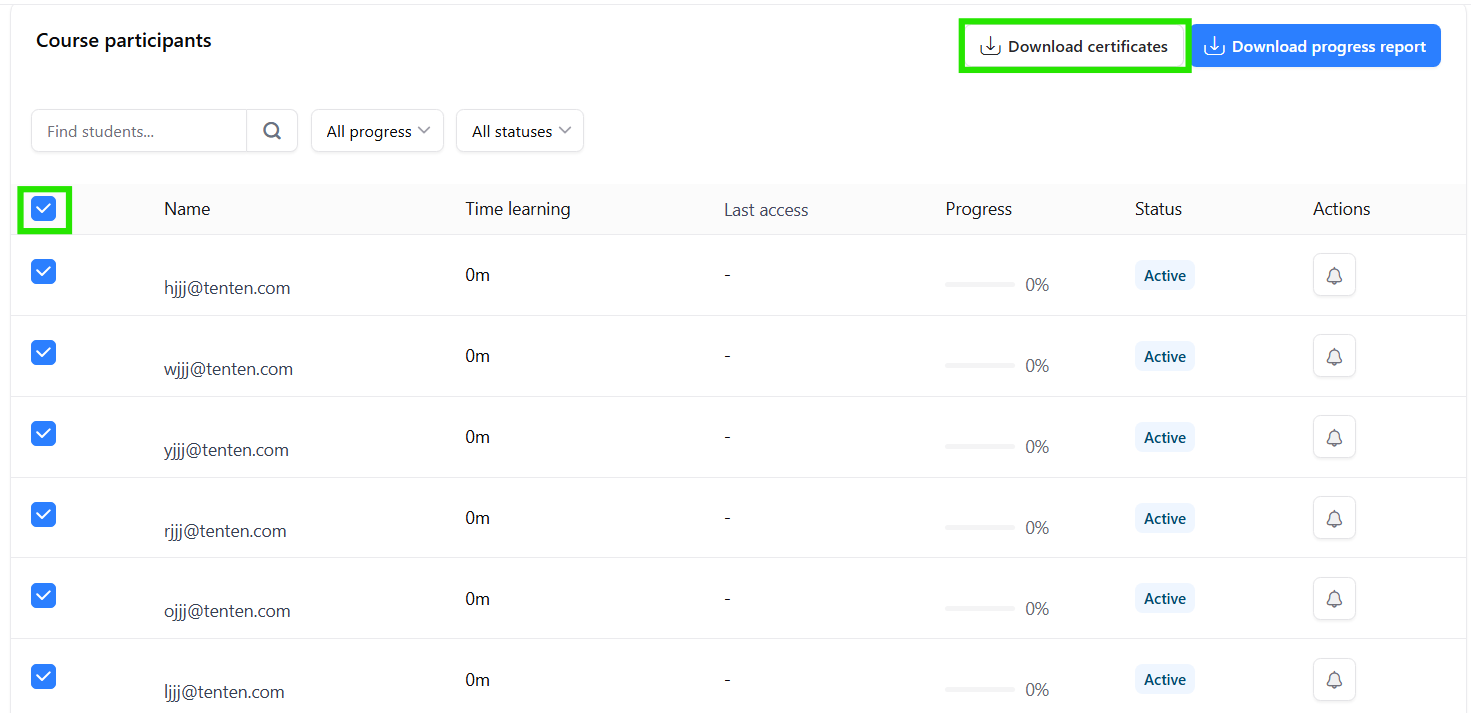
If you need to collect certificates for several users at once, the bulk download tool is the most efficient option. To do it:
Navigate to the participant list within a specific Training plan.
Check the box to the left of the "Name" header to automatically select everyone on the current page.
Click Download certificates.
What happens next?
The system will confirm that the certificate generation process has started.
You will receive an automated email containing a ZIP file with all the selected certificates.
You can verify the number of selected users at the bottom of the table.
Note: The platform displays up to 250 users per page.
3. Individual certificate downloads
If you only need a certificate for a specific user, you can pull it directly from their record.
Locate the user in the participant list.
Hover over the specific user’s name.
Select the user.
Click Download certificate.
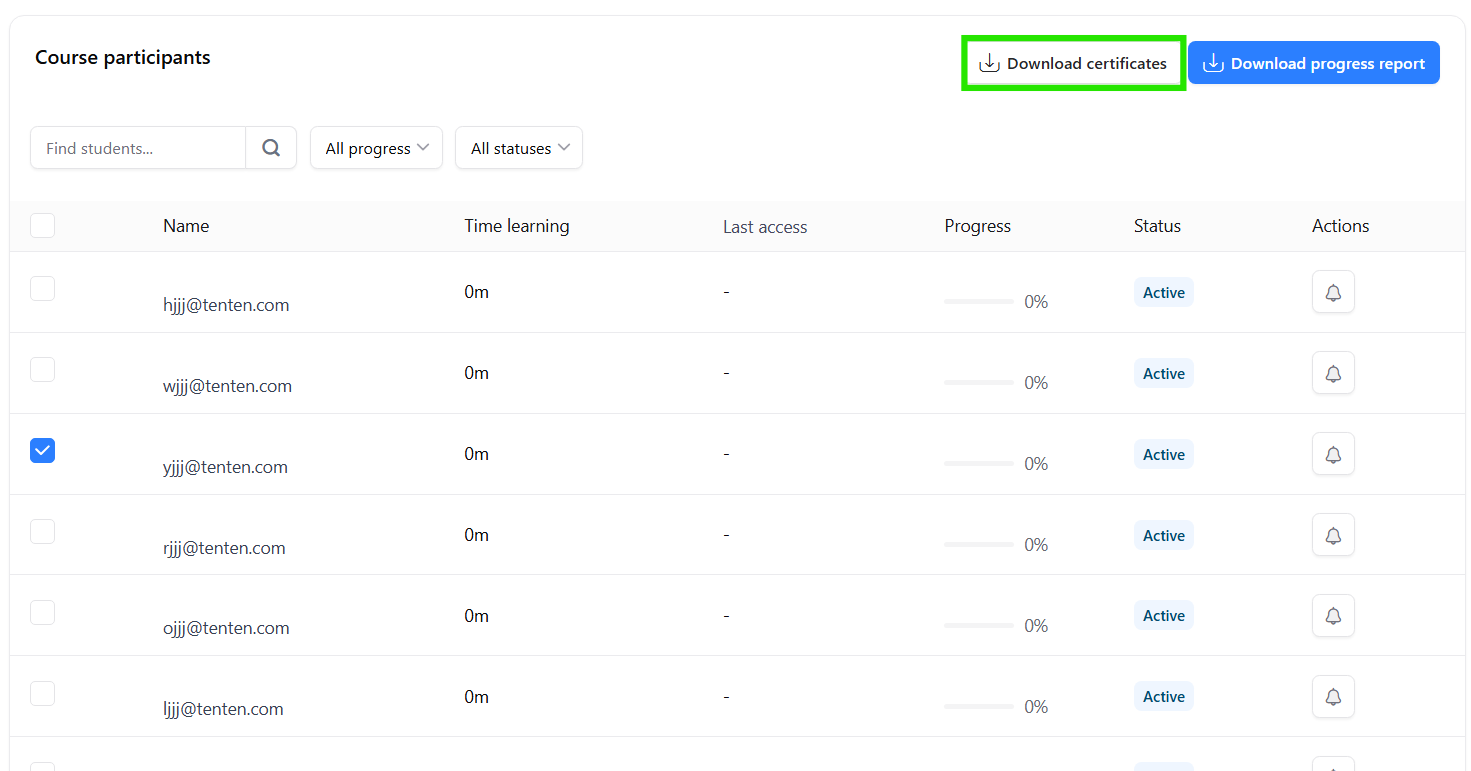
The system will immediately generate the specific certificate for you.
Tips for Admins
Always use bulk downloads for large groups to save time.
Ensure the participant has reached 100% progress. Certificates are only generated once the Training plan is fully completed.
Now that you’re set to manage your team's certificates, head over to the Training plans section in your Admin Center to get started!
Was this article helpful?
That’s Great!
Thank you for your feedback
Sorry! We couldn't be helpful
Thank you for your feedback
Feedback sent
We appreciate your effort and will try to fix the article