The Admin Center allows you to configure automated inactivity reminders. These are designed to re-engage students and keep your Training plans moving forward.
Reminders are triggered based on:
Days of inactivity.
Total duration of the training plan.
Current user progress.
In this article, you will learn:
How our reminder logic works based on student engagement.
How to access the Training Plan Editor from your dashboard.
How to enable automated alerts for a specific plan.
How to customize delivery schedules and progress-based criteria.
1. Navigating to Training Settings
To manage notifications, you must first access the settings for your specific training plan in your Admin Center. For this:
Log in to your Admin Center.
Go to the blue sidebar on the left.
Select Training Plans.
Find your plan in the list.
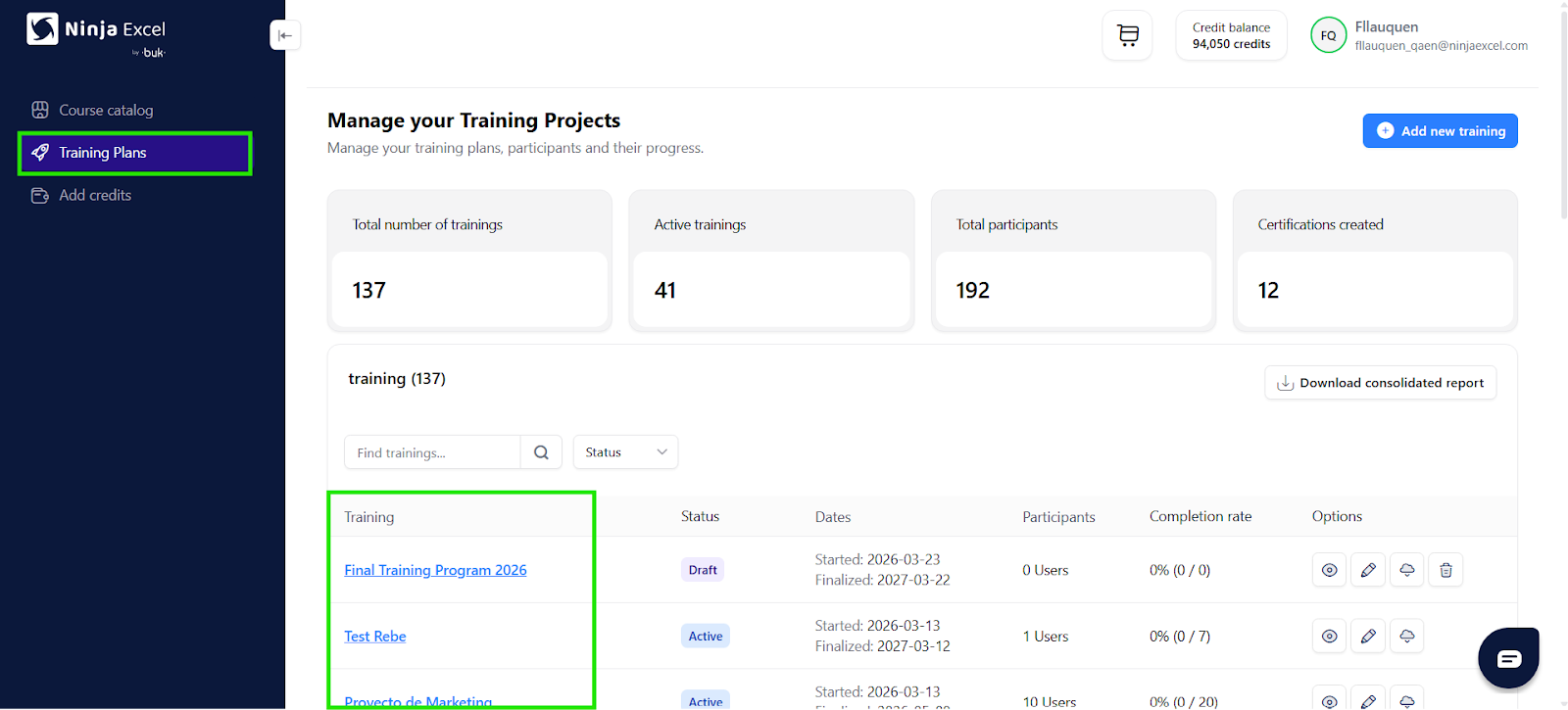
Once you’ve found the training plan you want to check, follow these steps to edit it:
Scroll to the Options column on the far right.
Click the Pencil icon (Edit).
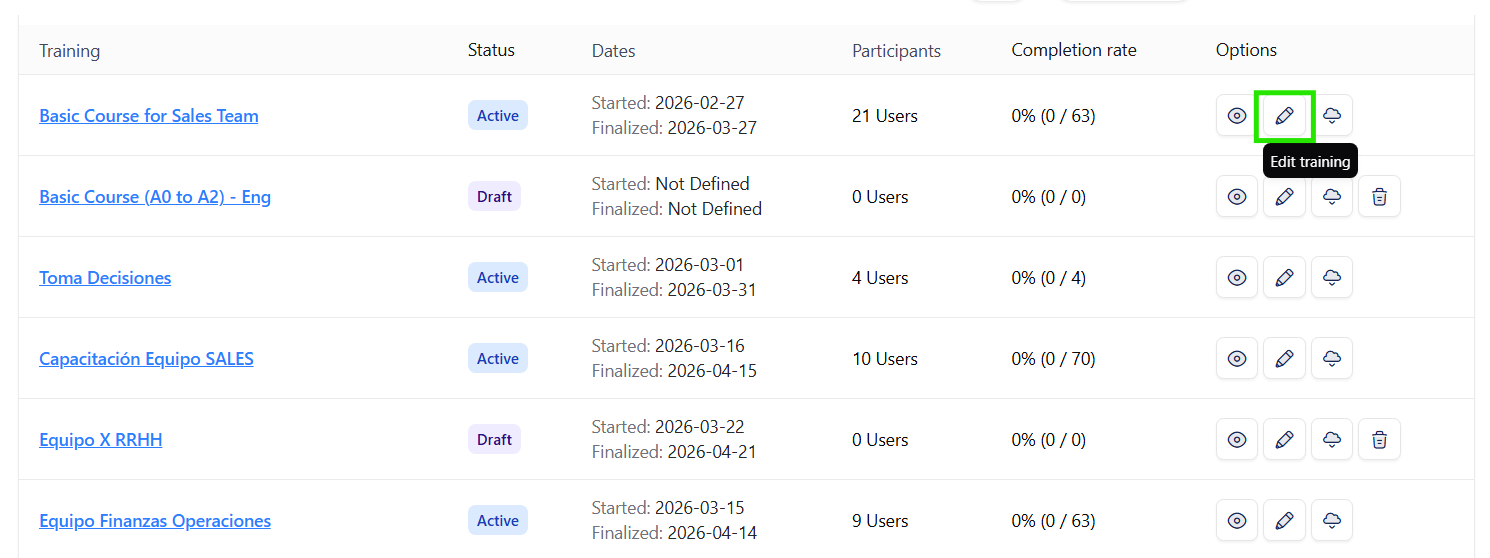
This will open the Edit view.
2. Enabling automated reminders
Once in the Edit view, you will see tabs for Project, Dates, Users, and Notifications. In this last section, you’ll be able to manage automated reminders.
Click the Notifications tab.
Toggle or check the Enable course reminders option.
Set your preferred Send time.
Verify that the status shows as Active.
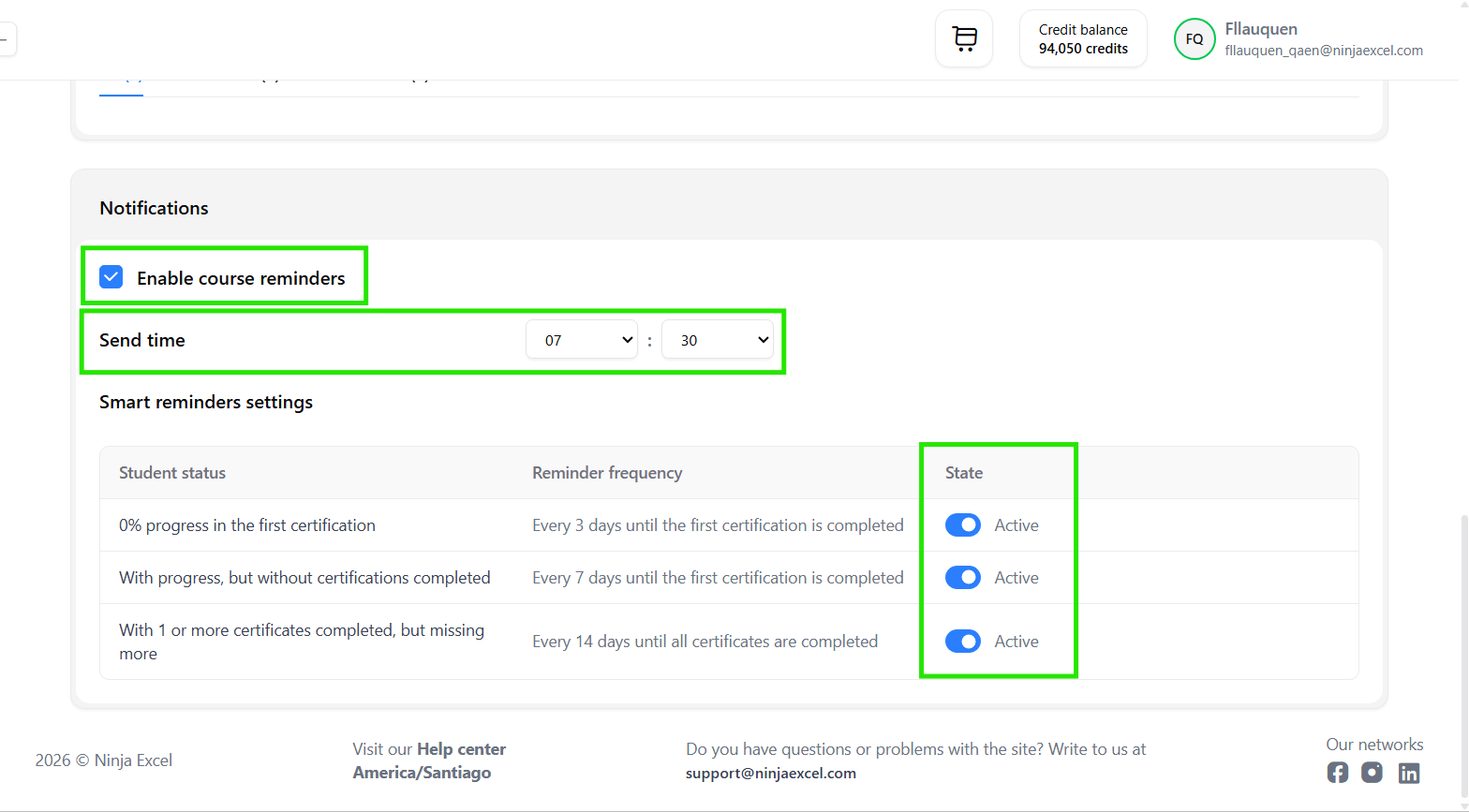
3. Engagement Logic: When are reminders sent?
The system automatically adapts its messaging based on the student's progress and the specific plan type.
Use the table below to understand the inactivity criteria for each plan.
3.1. Scheduling send time
When you enable reminders, you can choose exactly when the emails hit your students' inboxes, keeping in mind that:
Available Window: Between 7:00 AM and 7:00 PM (UTC).
Intervals: You can schedule in 15-minute increments (e.g., 7:00, 7:15, 7:30).
Global Setting: This time applies to all reminders within that specific training plan.
Note: If you don't manually select a time, the system will automatically assign a default one.
Tips for Admins
Automated reminders are your best tool for ensuring students don't fall behind.
Periodically check your Training plans' progress to ensure notifications remain active.
Ready to automate your follow-ups? Head over to your Admin Center now to set up your reminders!
Was this article helpful?
That’s Great!
Thank you for your feedback
Sorry! We couldn't be helpful
Thank you for your feedback
Feedback sent
We appreciate your effort and will try to fix the article