Conditional Formatting is a tool found on the Home tab in Excel. Simply put, it allows you to highlight specific data within your cells to make information more "scannable," helping you spot patterns and trends instantly.
For example, we can apply a rule to automatically highlight all sales amounts greater than 3,000 in red:
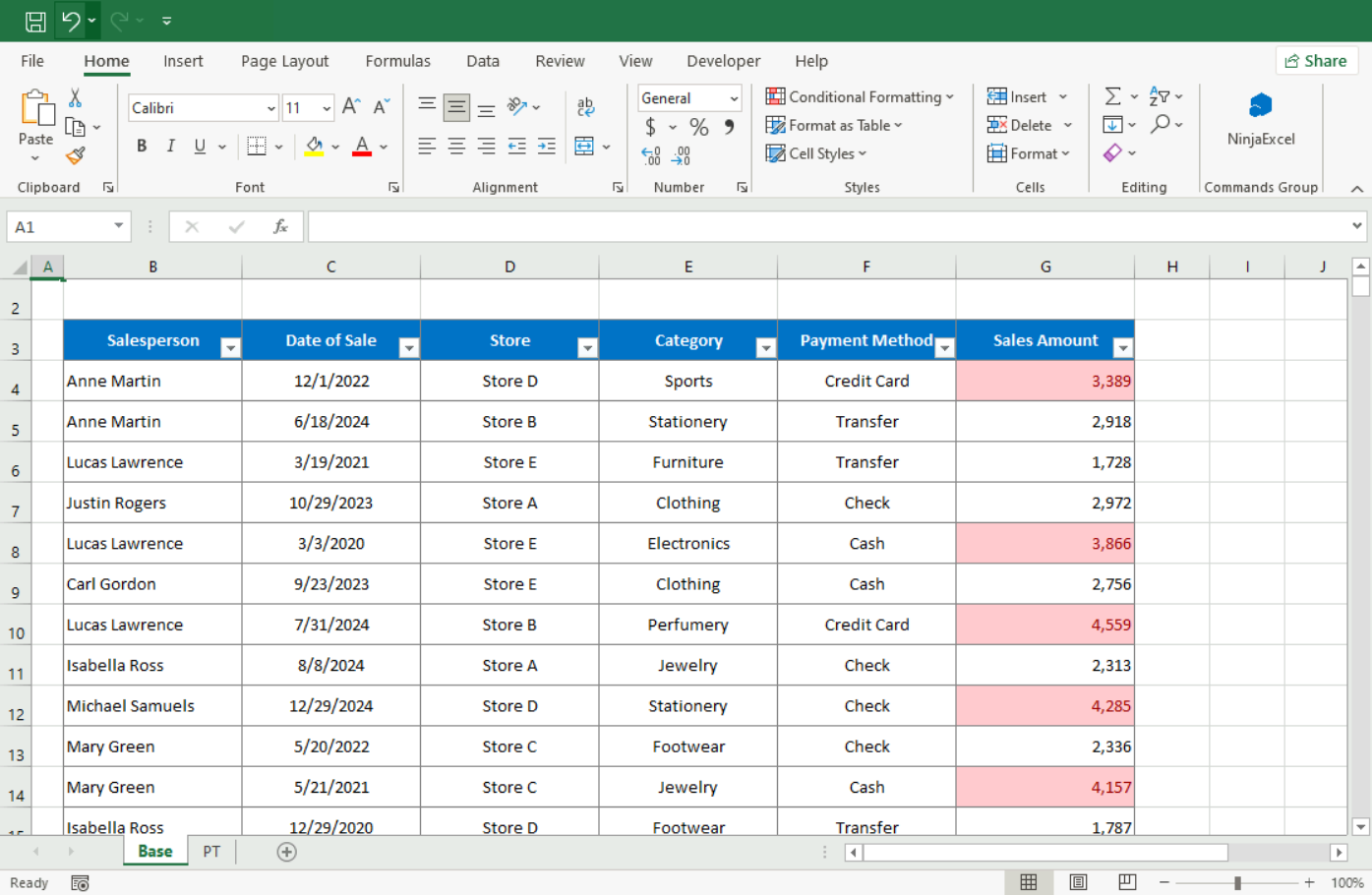
Whether you want to apply conditional formatting to a range of cells, an Excel table, or even a PivotTable report, you do so by creating rules. These rules determine the cell's format based on the values they contain.
To apply these rules, follow the path: Home > Conditional Formatting. From there, you can choose from various preset options—such as highlighting cells that are greater or less than a value—or use visual aids like data bars, color scales, and icon sets. For more advanced needs, you can use "New Rule" to write your own formulas to determine which cells get formatted.
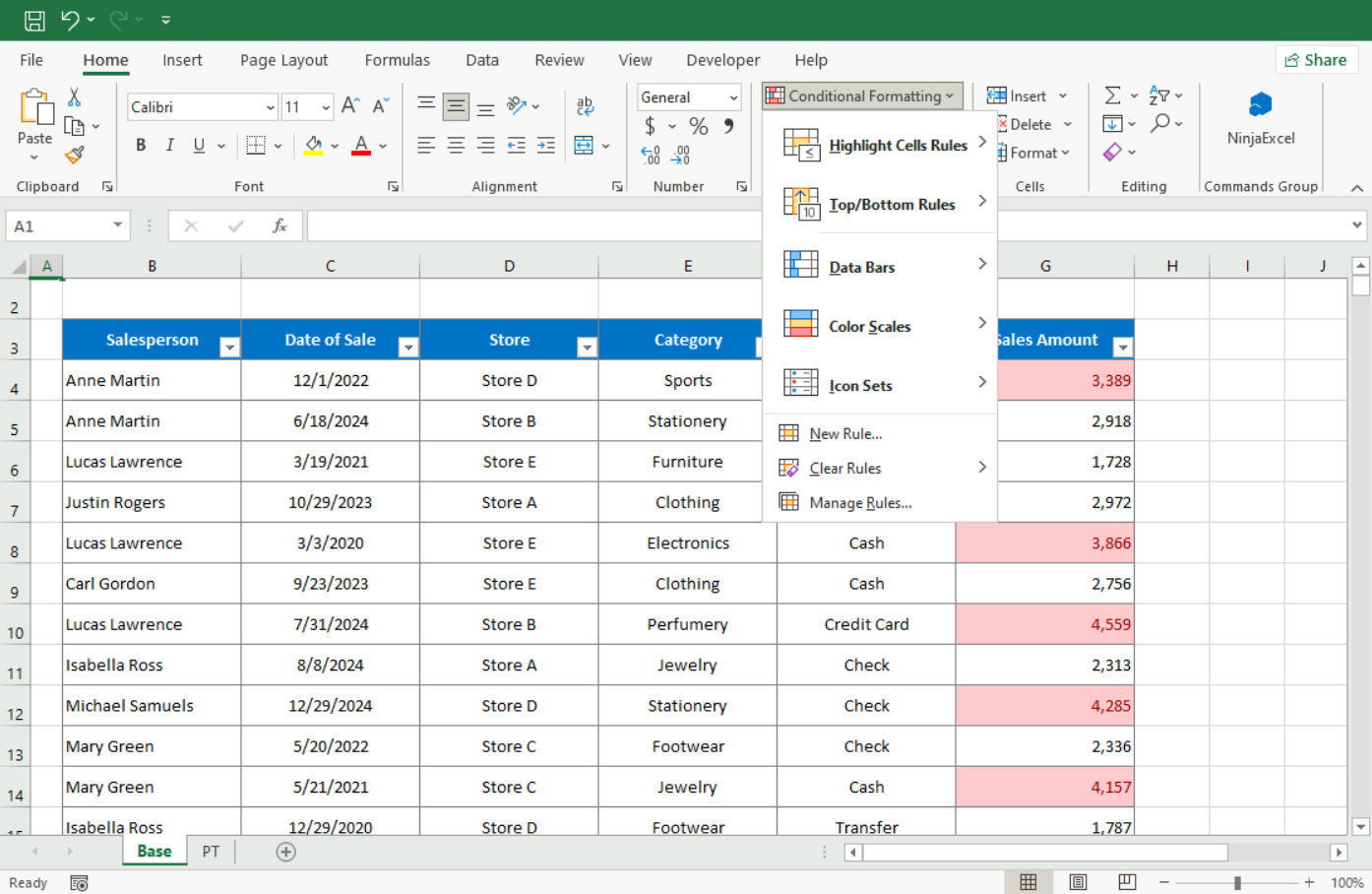
Here are some of the most common rules and their uses:
There is a rule for every need. If you need to catch data entry errors, use Duplicate Values. To spot quick trends, use Icon Sets. To compare quantities side-by-side, use Data Bars.
However, keep these two tips in mind:
Clarity first: Always establish what you need to highlight so the sheet remains understandable for other users. Over-formatting can lead to "visual noise."
Order of precedence: When applying multiple rules to the same range, Excel processes them in descending order. Use the up and down arrows in the Conditional Formatting Rules Manager to set which rule takes priority.
Interested in more? To create powerful, custom rules, you need to understand how Excel makes decisions. We invite you to read our article on logical operators in Excel to master the foundation of advanced formatting.
Was this article helpful?
That’s Great!
Thank you for your feedback
Sorry! We couldn't be helpful
Thank you for your feedback
Feedback sent
We appreciate your effort and will try to fix the article