If you're having trouble with an exercise—regardless of your level—start by asking yourself these baseline questions:
Syntax: Did you start your formula with an equal sign (=)? (Do not use the "+" sign).
Case sensitivity: Did you match the uppercase and lowercase letters exactly as required within the cells?
Invisible spaces: Are there any extra spaces inside your formulas or text strings? (Trailing spaces are the #1 cause of validation errors).
Validation workflow: Did you click "Validate answers" before trying to move to the next class?
The active cell: Did you hit Enter or Tab to exit the cell before validating?
If you’ve cleared the checklist but are still stuck, here are the most common hurdles in the A1 (Beginner) Certification:
1. Cell Formatting & Data Visualization
Problem: Leading zeros are "disappearing."
Solution: When you enter codes or phone numbers starting with "0," Excel automatically deletes them because the cells are set to "General" or "Number." To fix this, change the Cell Format to "Text" for that range before or after typing. This tells Excel to keep the zeros exactly as entered.
Problem: Text looks cut off after changing the orientation.
Solution: Hover your mouse over the column or row headers and double-click the boundary line to "Autofit" the size.
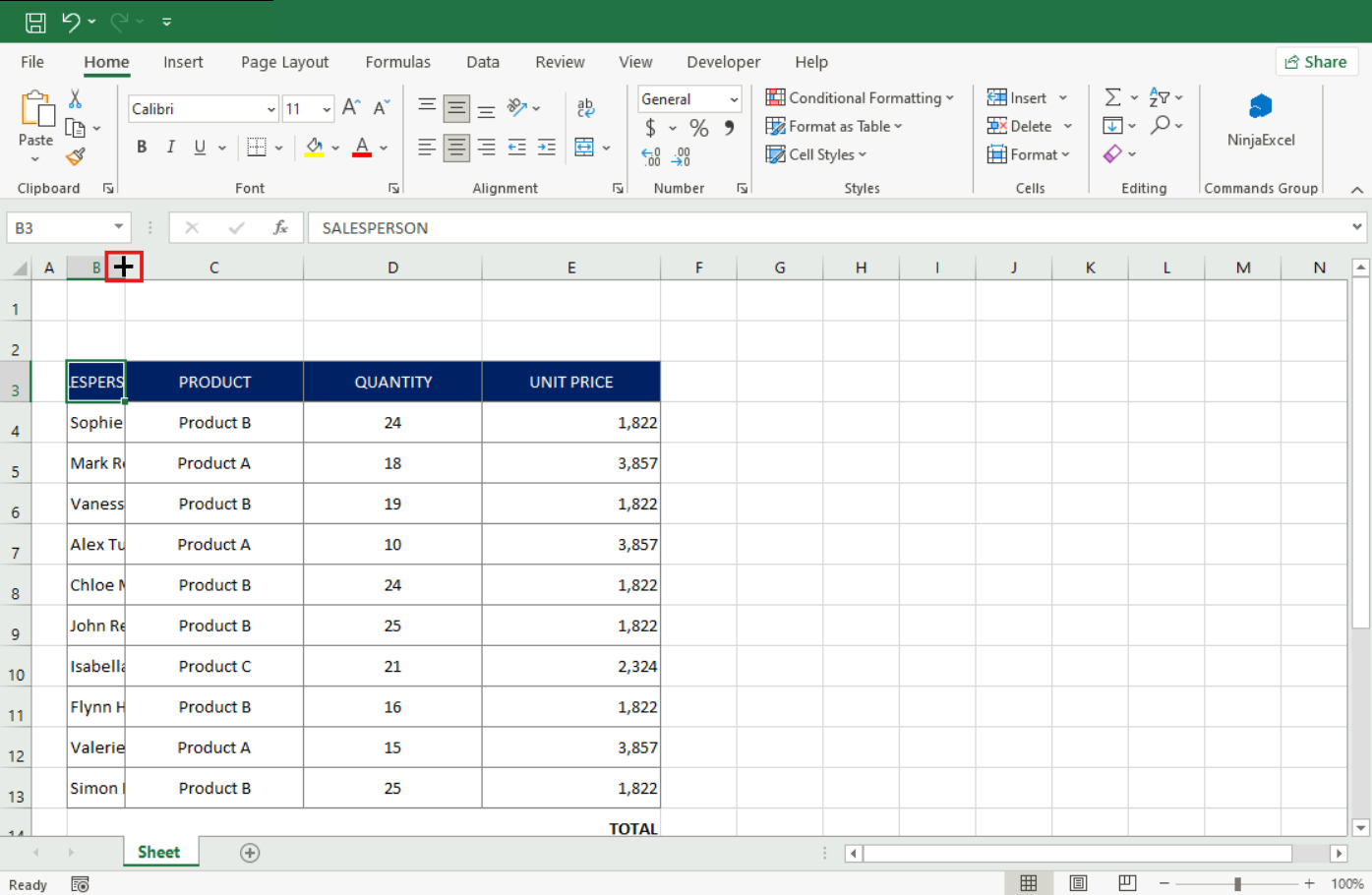
Problem: I’m confused by the difference between the "formatted" number and its "actual" value.
Solution: Remember that formatting (like adding decimals or thousand separators) is purely visual. To see the true value used for calculations, look at the Formula Bar; the number there will always be clean and without separators.
2. Percentages & Currency
Problem: Percentages are suddenly multiplying by 100. (e.g., I type "89," apply the percentage format, and it shows "8900%").
Solution: Either apply the Percentage format to the empty cells before you type the number, or type the number as a decimal (e.g., 0.89) before clicking the % button.
Problem: I applied the wrong currency symbol.
Solution: Don't just click the $ button. Open the Accounting/Currency dropdown menu and select the specific country or symbol required so the decimal and thousand markers align correctly.
3. Sorting & Data Prep
Problem: My data isn't sorting correctly across the whole table.
Solution: This usually happens because you manually selected a range. Instead, click on a single cell within the column you want to sort. Excel will then move the entire rows together, keeping your data intact.
Problem: Flash Fill isn't working.
Solution: Before activating Flash Fill, you must provide a clear pattern. Manually type the first one or two examples in the adjacent cell so Excel "understands" what you are trying to extract.
4. Filtering Information
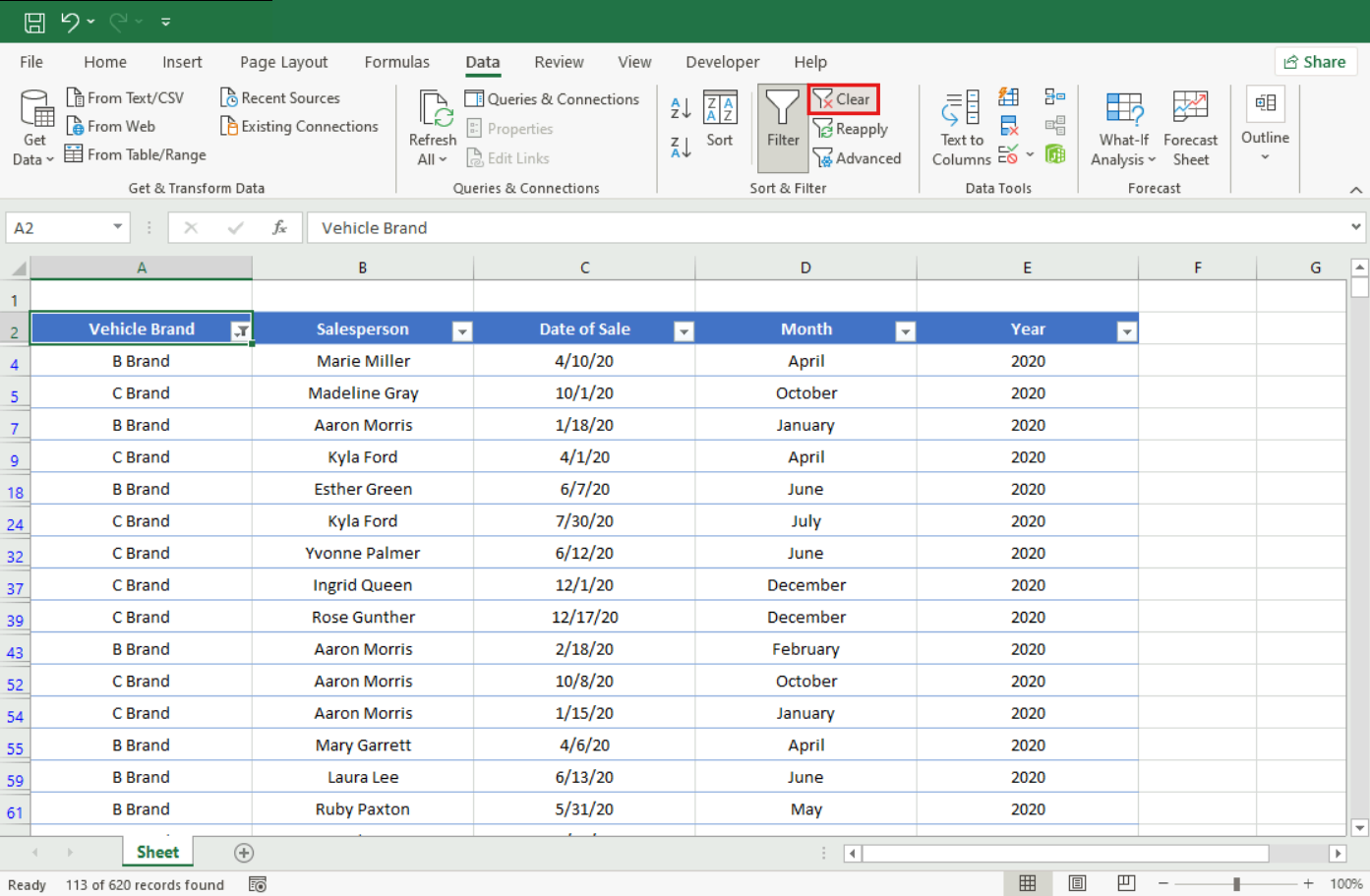
Problem: My data is gone! It looks like everything was deleted.
Solution: If you have filters applied, it might look like data is missing. Check the column headers for the "Funnel" icon. Go to the Data tab and click "Clear" (Filter) to reveal all your information again.
5. Formulas & References
Problem: I got a different result than expected when using multiple operations.
Solution: Remember the PEMDAS rule (Parentheses, Exponents, Multiplication/Division, Addition/Subtraction). If you have several operations in one cell, use parentheses to tell Excel which part to calculate first.
Problem: When I drag my formula, the cell reference "moves" and breaks the result.
Solution: Use an Absolute Reference by adding dollar signs ($) with the F4 key (or Fn + F4). This "anchors" the cell so it stays put while you drag the formula down—perfect for fixed values like tax rates or currency conversions.
Note for Mac Users: While we recommend using Windows, please note that the "F" keys function differently on Mac. You may need to enter the dollar signs manually. For more details, see our "Excel Command Guide: Mac Keyboard Shortcuts."
6. Protection & Security
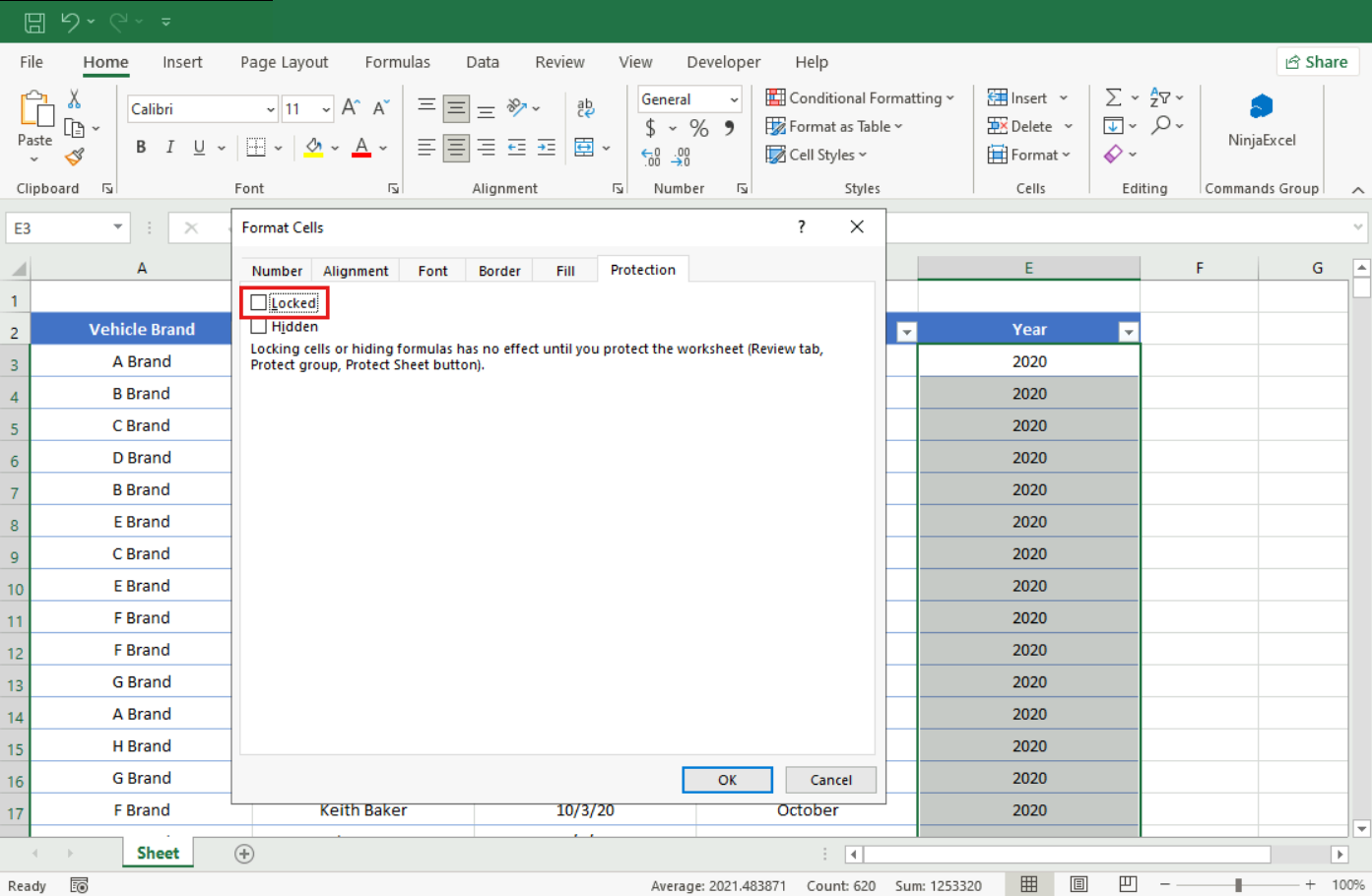
Problem: I protected the sheet and now I can't edit any cells.
Solution: Before protecting the sheet, highlight the cells you want to keep editable. Go to Format Cells > Protection and uncheck the "Locked" box. Only then should you activate Sheet Protection.
Problem: Formulas are still visible even though I selected "Hidden."
Solution: Formulas only become hidden once the sheet is actually protected with a password via the Review tab. Selecting the "Hidden" attribute is just the first step.
Problem: Data from another workbook isn't updating or gives an error.
Solution: Ensure the source file hasn't been deleted or moved to a different folder. Excel needs the exact file path to stay the same to maintain the link.
Are you having problems specifically with an A1 Certification Final Exam exercise? Review “Guide to solve the most common exam errors in A1 - Beginner”.
Was this article helpful?
That’s Great!
Thank you for your feedback
Sorry! We couldn't be helpful
Thank you for your feedback
Feedback sent
We appreciate your effort and will try to fix the article