If you're having trouble with an exercise—regardless of your level—start by asking yourself these baseline questions:
Syntax: Did you start your formula with an equal sign (=)? (Do not use the "+" sign).
Case sensitivity: Did you match the uppercase and lowercase letters exactly as required within the cells?
Invisible spaces: Are there any extra spaces inside your formulas or text strings? (Trailing spaces are the #1 cause of validation errors).
Validation workflow: Did you click "Validate answers" before trying to move to the next class?
The active cell: Did you hit Enter or Tab to exit the cell before validating?
If you’ve cleared the checklist but are still stuck, here are the most common hurdles in the A2 (Elementary) Certification:
1. Function Syntax Errors
"Syntax" refers to the specific way you arrange arguments and separators within a formula. For example, if you are using the COUNTIFS function, the syntax looks like this:
=COUNTIFS(criteria_range1, criteria1, [criteria_range2, criteria2], ...)
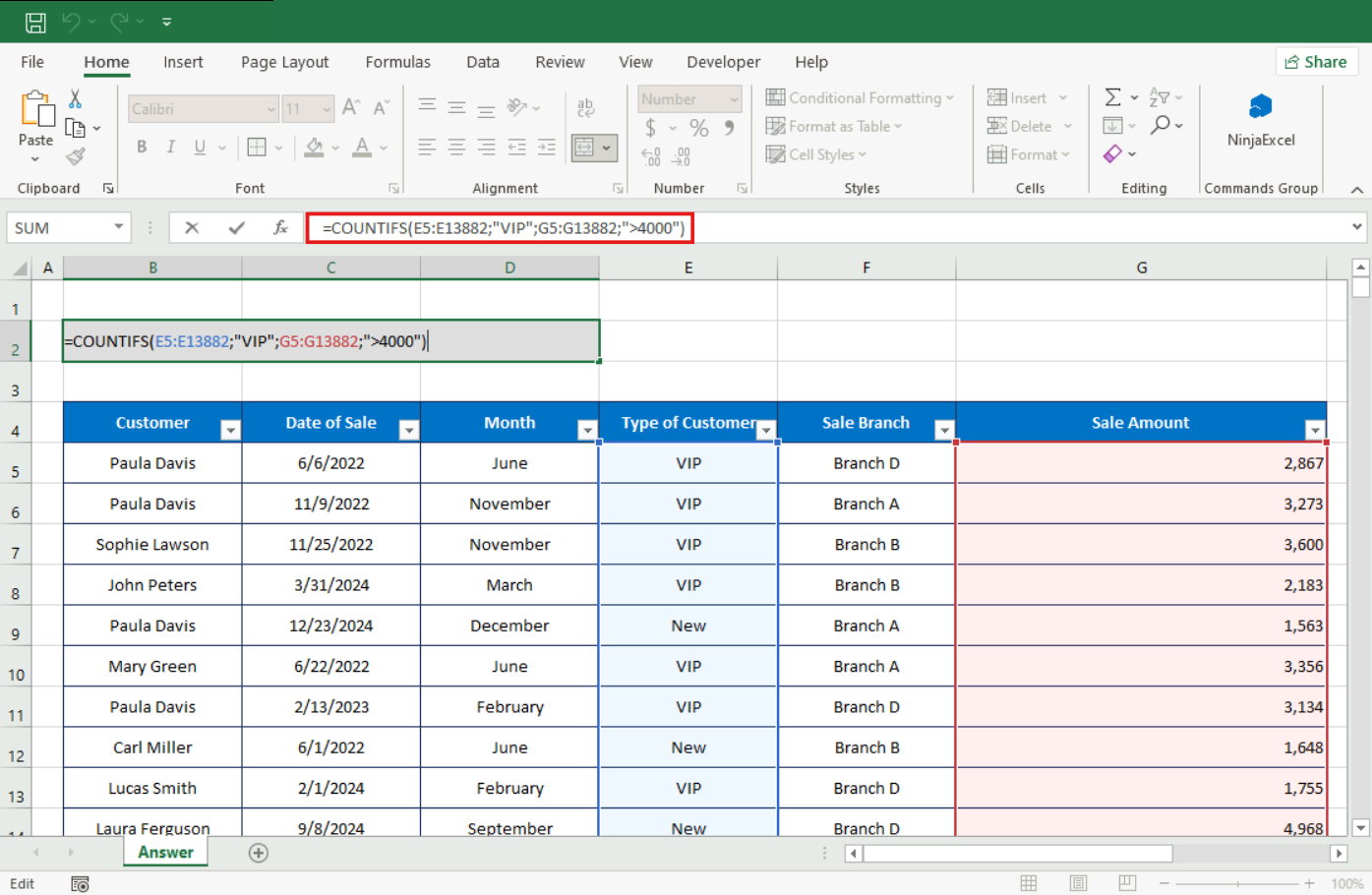
In this specific exercise, the goal is to count "VIP" customer records with amounts greater than 4,000. Here is how the arguments break down:
E5:E13882 (Criteria_range1): The first group of cells Excel will inspect.
"VIP" (Criteria1): The condition to be met. Excel looks for cells containing exactly the text "VIP." Because this is text, it must be in double quotes.
G5:G13882 (Criteria_range2): The second group of cells to evaluate. It must be the exact same size as the first range (rows 5 to 13882) for the function to compare row-by-row correctly.
">4000" (Criteria2): The condition for the second range. Because this includes a logical operator (>), Excel syntax requires the entire argument to be enclosed in double quotes.
Problem: Excel won't accept my formula when I use a comma (,) as a separator.
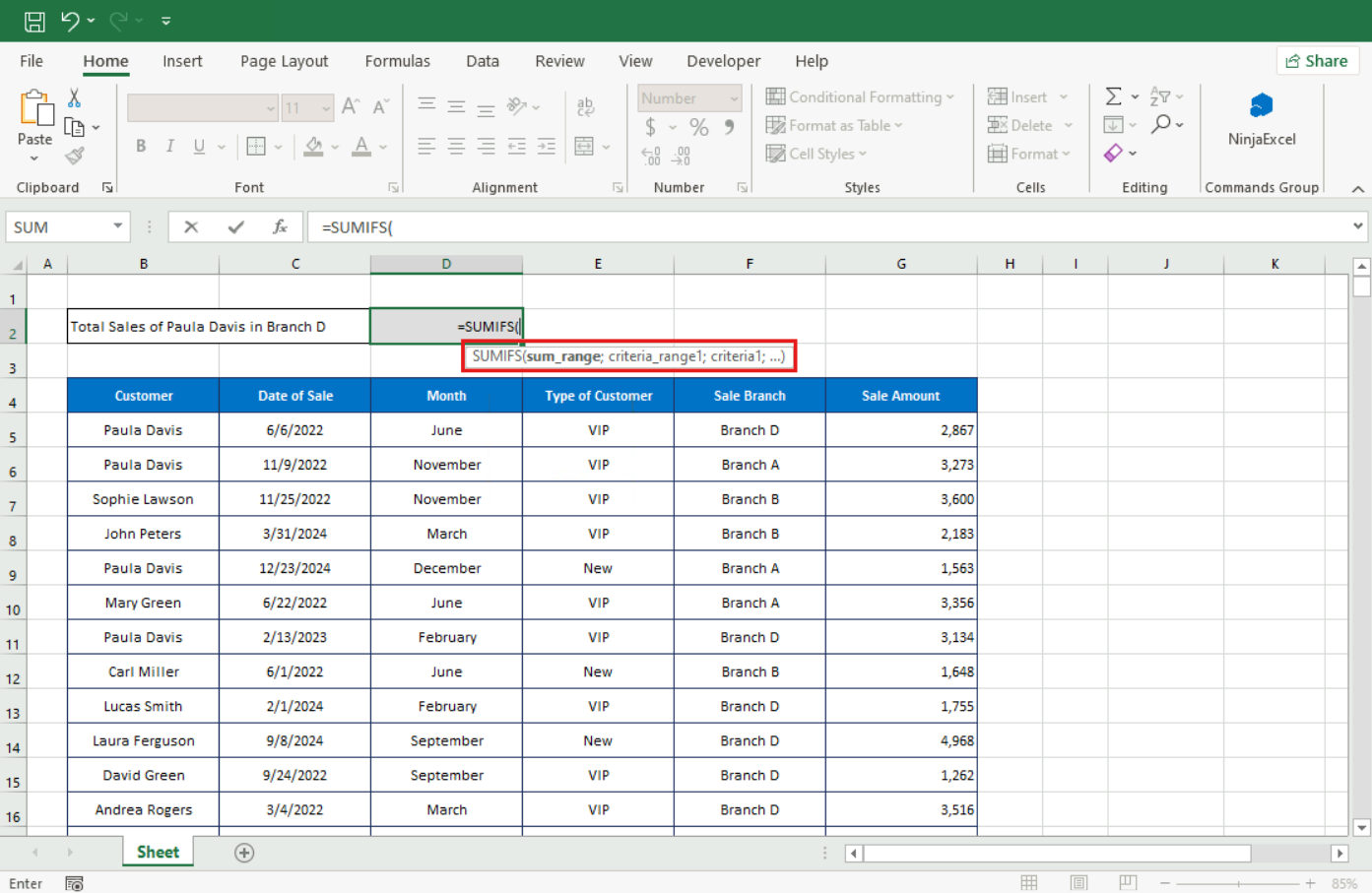
Solution: While US Excel typically uses a comma, our platform specifically requires the semicolon (;) to validate the function correctly. Always look at the small tooltip that appears as you type your function; it will show you exactly which separator to use.
Problem: My function returns an error when using text or alphanumeric criteria.
Solution: Remember that all text (e.g., "Approved" or "VIP") or criteria using logical operators (e.g., ">3000", "<>Andrew Rogers") must be wrapped in double quotes so Excel can read the operation correctly.
2. Confusing similar tools
Problem: I only changed one argument and the formula failed.
Solution: Even if functions look similar, their argument order may differ. For example, in SUMIF, the "sum_range" is the last argument. In SUMIFS, the "sum_range" is the first argument.
=SUMIF(range, criteria, [sum_range])
=SUMIFS(sum_range, criteria_range1, criteria1, ...)
Question: Why can't I use COUNT instead of COUNTA?
Answer: COUNT only counts cells containing numbers. COUNTA counts all cells that aren't empty, whether they contain numbers, text, dates, or even errors. If you want to know more about this, check this article.
3. Autofill and reference issues
Problem: When I drag a formula down, the results turn into errors.
Solution: For functions like LARGE and SMALL, you must "lock" your lookup range using the F4 key (or Fn + F4). This creates an absolute reference (marked by "$" signs), preventing the range from moving as you drag the formula. If you need more help with absolute references, check this article.
4. Troubleshooting visual errors (#DIV/0!, #VALUE!, #NULL!)
Problem: I got a #DIV/0! error.
Solution: This happens when you try to divide by zero or an empty cell. Check if you referenced the wrong cell or forgot to enter a divisor.
Problem: I got a #VALUE! error.
Solution: This occurs when a formula uses the wrong data type—like trying to add a number to a cell that contains text or an invisible space. Make sure your calculation range contains only numeric values.
Problem: I got a #NULL! error.
Solution: This usually happens when you miss a separator (like a colon ":") between cell ranges (e.g., writing A2 C8 instead of A2:C8).
5. Challenges with charts and tables
Problem: I can't select ranges that aren't next to each other for a chart.
Solution: Hold down the Ctrl key while selecting the second range. This allows you to highlight non-adjacent data before inserting your chart. For Mac users, key combinations could change. Check this guide to learn which ones to use.
Problem: I can't rename my Table.
Solution: Excel table names must start with a letter and cannot contain spaces. We recommend using an underscore (e.g., TOTAL_SALES) instead of a space.
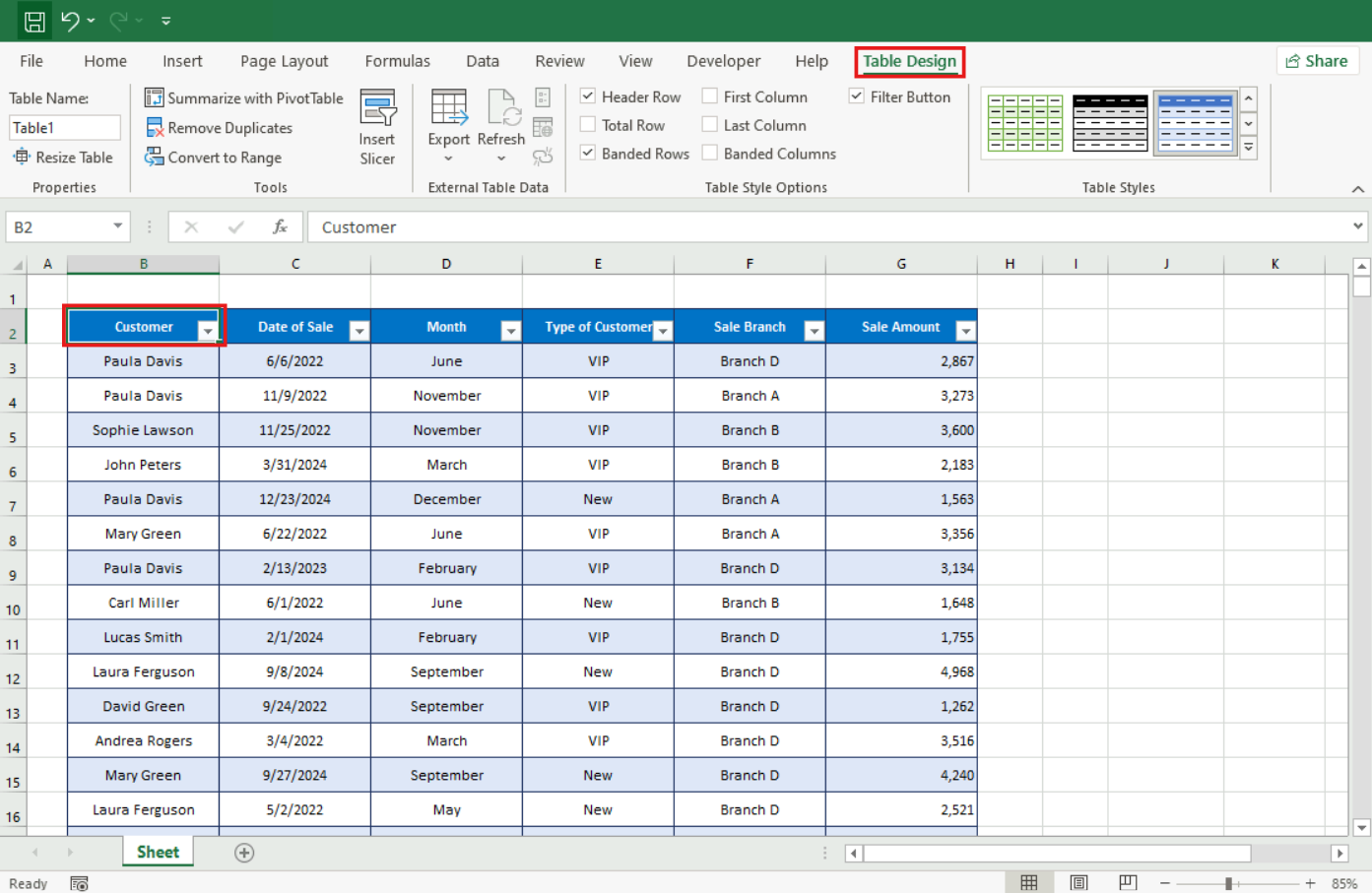
Problem: I can't find the "Table Design" or "Chart Design" tabs.
Solution: These contextual tabs only appear when you have actually clicked inside the table or chart.
6. Nested functions logic
Problem: I don't know where to put the parentheses in a nested function.
Solution: When nesting AND or OR inside an IF statement, you must close the parentheses immediately after listing your conditions and before entering the "Value_if_true" for the IF function. In this article, you can check more details about nested functions.
Are you having problems specifically with an A2 Certification Final Exam exercise? Review “Guide to solve the most common exam errors in A2 - Elementary”.
Was this article helpful?
That’s Great!
Thank you for your feedback
Sorry! We couldn't be helpful
Thank you for your feedback
Feedback sent
We appreciate your effort and will try to fix the article