As of 2026, the Microsoft 365 Excel catalog features over 530 functions, and it is constantly evolving. Some functions have arrived to replace legacy tools (like XLOOKUP, which surpasses VLOOKUP by searching in any direction), while others are evolutions that allow you to handle multiple conditions simultaneously.
Here is a breakdown of functions that often confuse due to their similarities, and when you should use each one:
The SUM function and its variations
The SUM function, much like AVERAGE and COUNT, serves as the foundation for conditional math:
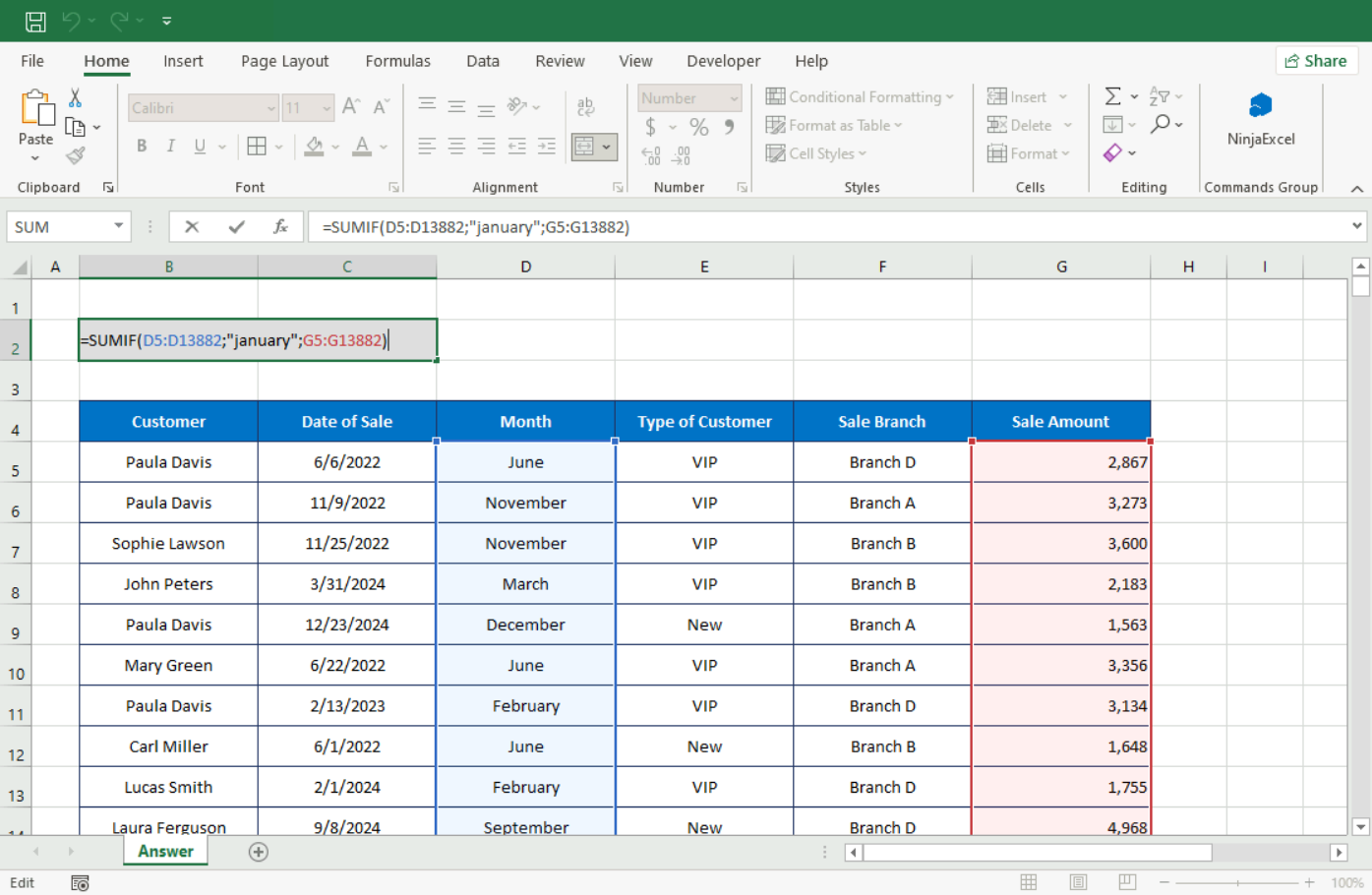
SUMIF: Designed to sum based on a single criterion. For example, if you have a table with "Salesperson," "City," and "Sales Amount," you can calculate the total for just one specific salesperson.
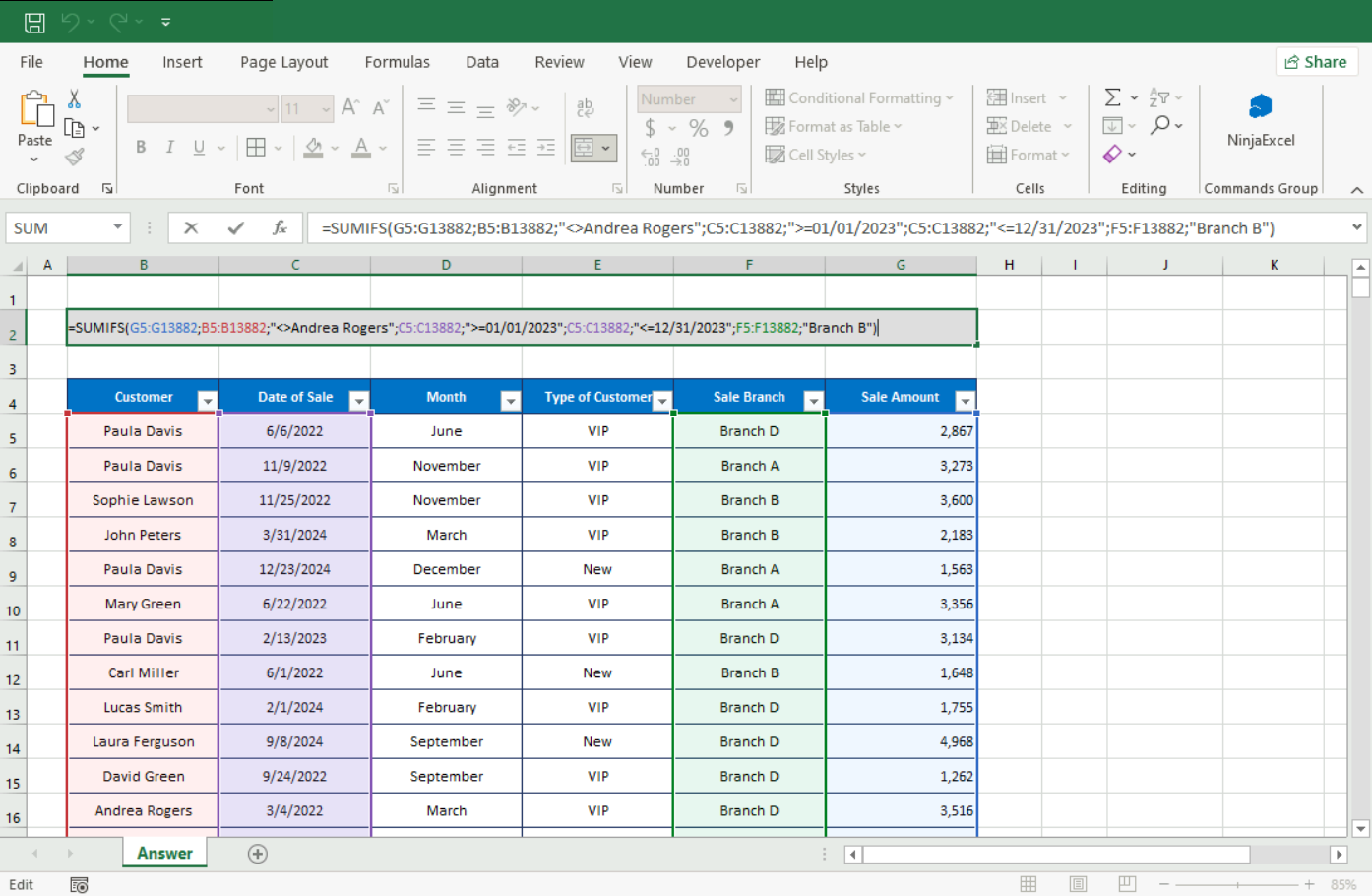
SUMIFS: This function allows you to sum based on up to 127 criteria. Using the same example, you could sum sales for a specific salesperson, in a specific city, for a specific product.
Technical difference: In SUMIF, the sum_range is the last argument and is optional (indicated by brackets []). In SUMIFS, the sum_range is the first argument and is mandatory.
Rounding with precision
Just like with the SUM family, rounding variations depend on how you want to display your data.
ROUND rounds a number to a specified number of digits (rounding up if the next digit is 5 or more, and down if it is less).
Structure: =ROUND(number, num_digits)
=ROUND(3.14159, 2) results in 3.14
=ROUND(7.8, 0) results in 8 (nearest integer)
=ROUND(649, -1) results in 650 (nearest ten)
ROUNDUP / ROUNDDOWN: These force rounding in a specific direction, regardless of the decimal's value.
=ROUNDUP(3.14159, 2) results in 3.15
=ROUNDDOWN(3.14159, 2) results in 3.14
MROUND: Rounds a number to the nearest multiple of another (e.g., rounding prices to the nearest .05).
=MROUND(2.3, 0.5) results in 2.5
COUNT vs. COUNTA
The COUNT function identifies how many cells in a range contain numeric values. This includes numbers and dates. It automatically ignores blank cells, text, logical values (TRUE/FALSE), and errors. It is the ideal tool for verifying the volume of purely quantitative data entries.
Let’s look at an example of a warehouse inventory where column B contains the Products and column C contains the Status/Stock:
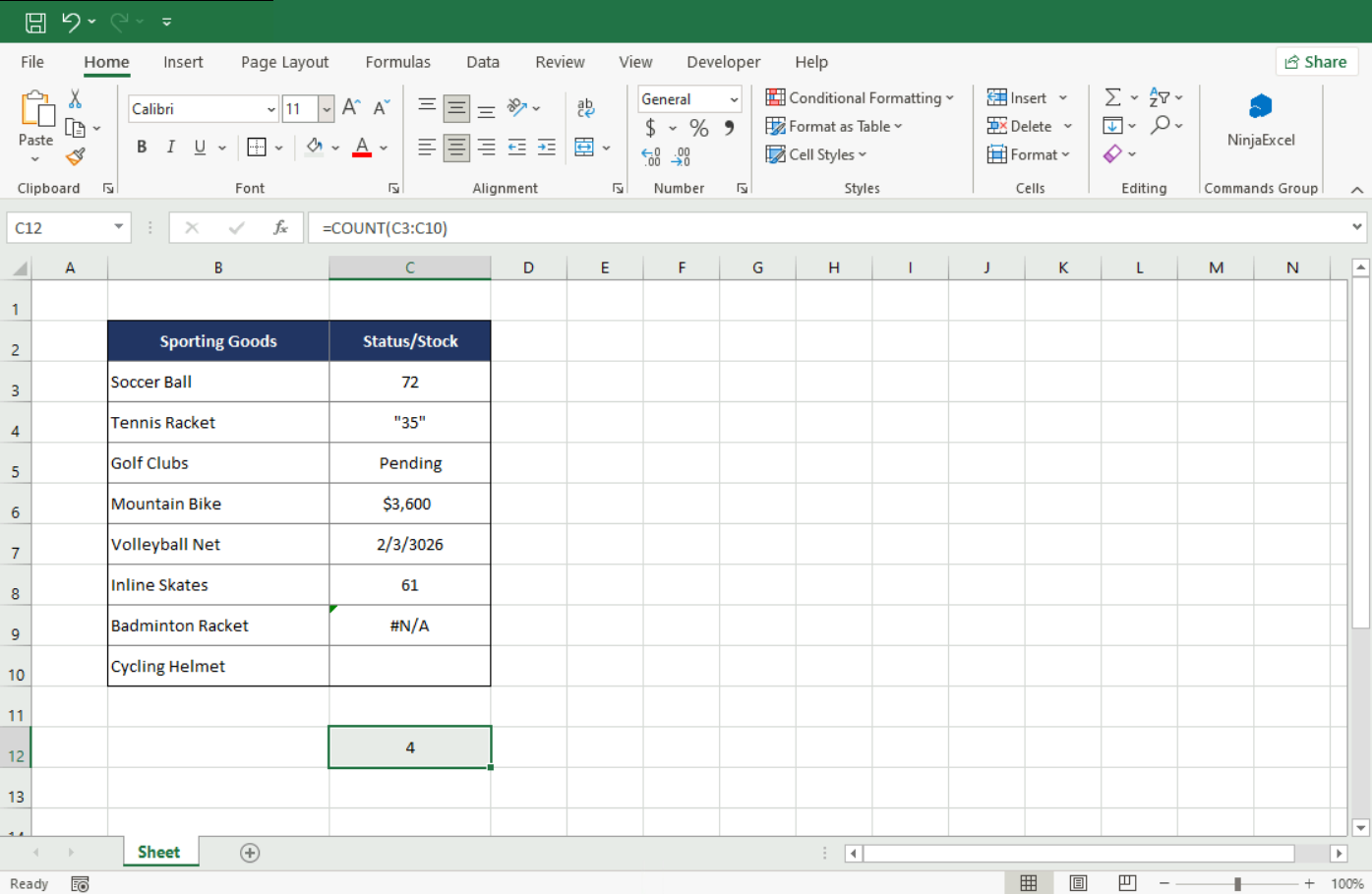
As you can see, the result of the function is 4, because COUNT has a very strict criterion: it only quantifies values that Excel can interpret mathematically.
The rules of COUNT:
What it counts: Integers, decimals, currency formats, and dates.
What it ignores: Any cell Excel reads as text (like 35" in quotes or words like "Pending").
What it skips: Blank cells and error values (like #N/A).
If you want to count everything, regardless of these restrictions, you need to use a function that looks very similar to COUNT, which is COUNTA.
The COUNTA function counts cells that contain any type of information, including error values and empty text (""). For example, if the range has a formula that returns an empty string, the COUNTA function counts that value. The biggest restriction here is that COUNTA does not count empty cells.
Let's look at how COUNTA works using the same example from above:
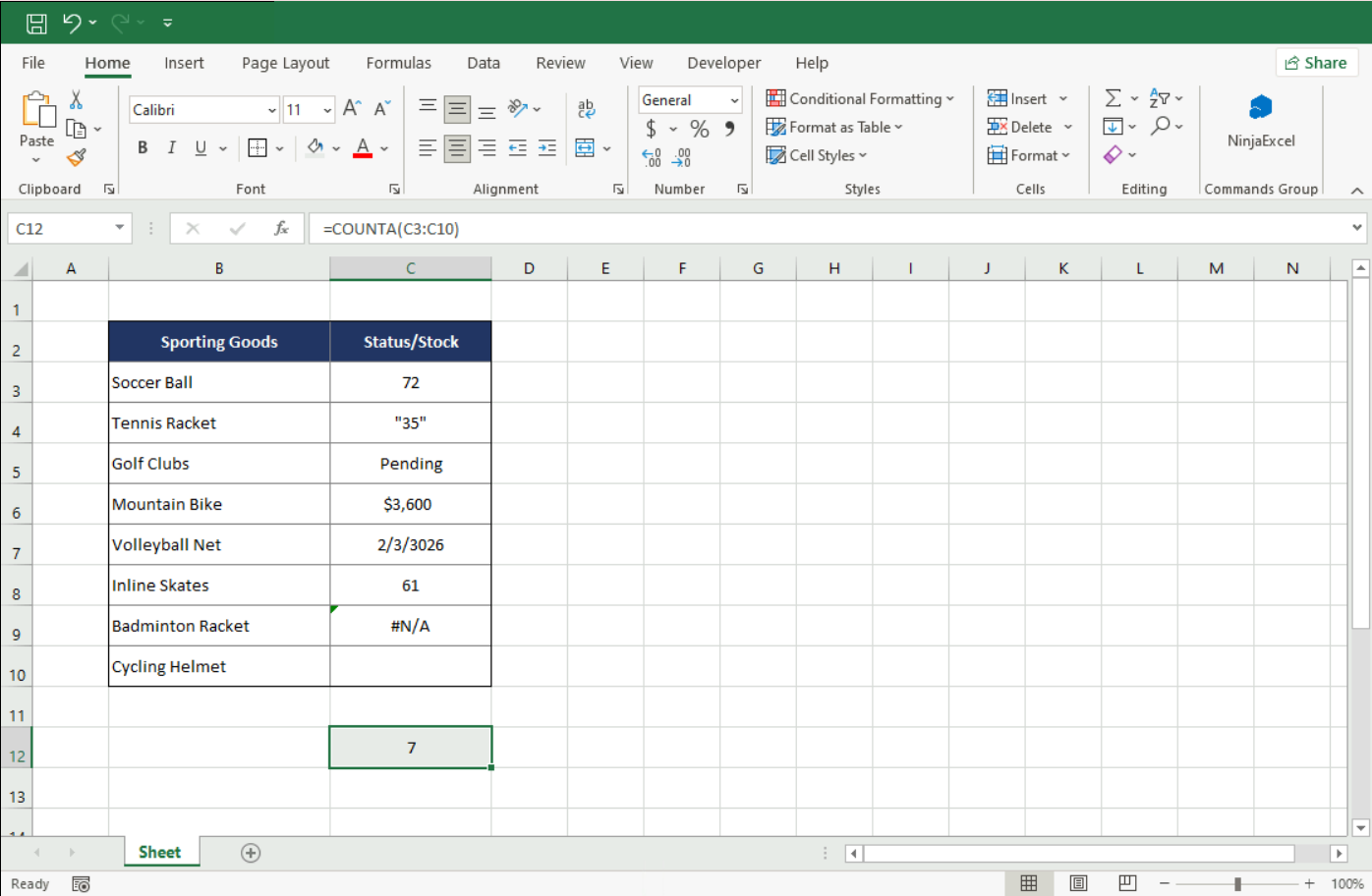
In this case, the result is 7. Unlike the previous function, COUNTA doesn’t differentiate data types; it just identifies if the cell has content or not.
Here are the rules of COUNTA:
The "occupied" rule: If a cell has content—whether it's a name, a date, or an error code—COUNTA will count it.
The exception: The only value that COUNTA ignores is a truly empty cell.
Note: If you only want to count empty cells, use the COUNTBLANK function.
The evolution of text functions
One of the most notable improvements in modern Excel is how we "glue" cells together.
CONCATENATE (Legacy): Before 2016, this was the primary tool, but it did not accept ranges. You had to type =CONCATENATE(A1; A2; A3), which was tedious for large datasets.
CONCAT: Introduced to replace CONCATENATE, this version can read entire ranges (e.g., =CONCAT(A1:A10)).
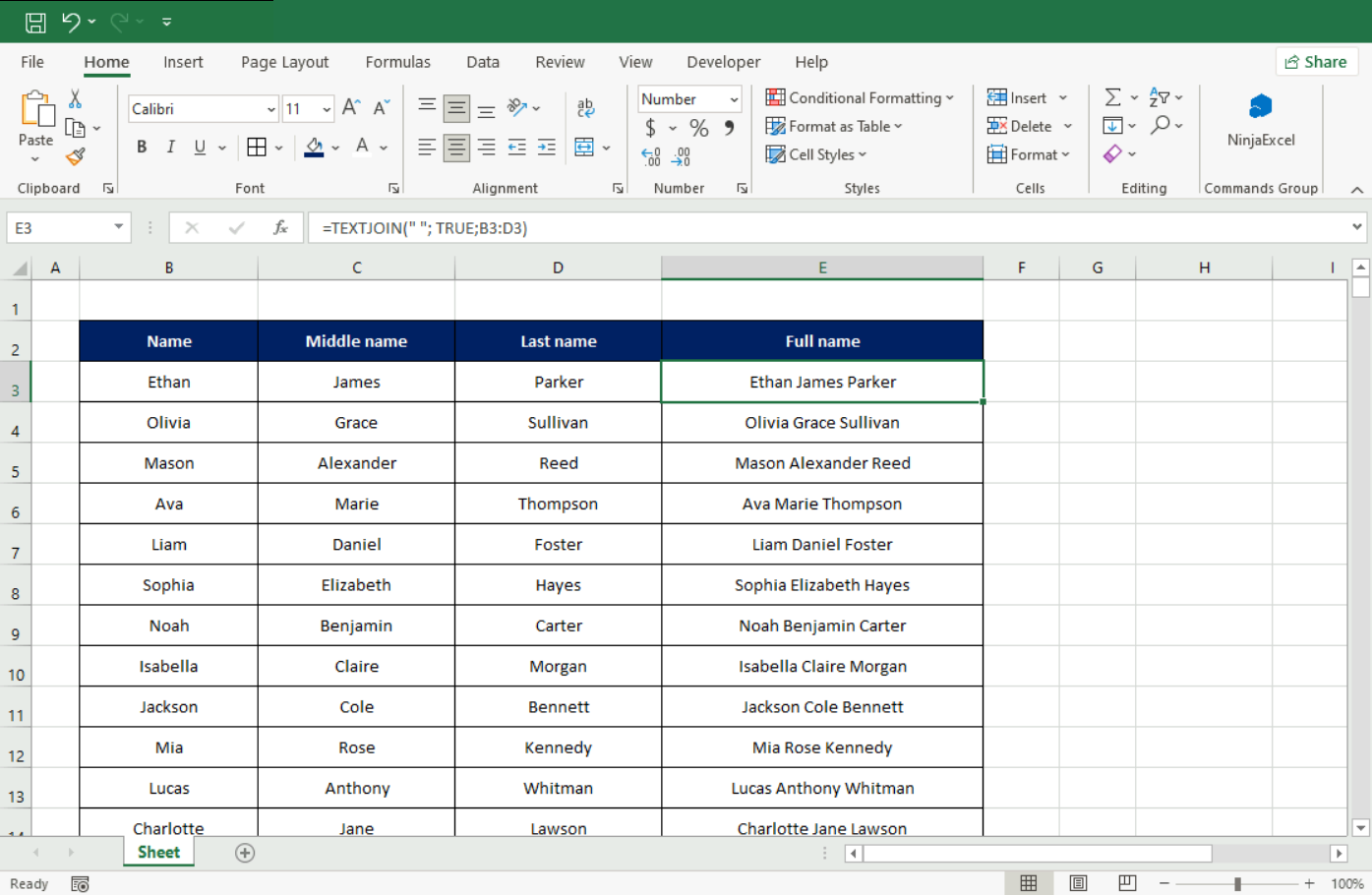
TEXTJOIN (Modern Standard): Neither CONCAT nor CONCATENATE includes automatic separators. TEXTJOIN solves this by allowing a delimiter (like a space or comma) and an option to ignore empty cells.
This function’s full syntax is: =TEXTJOIN(delimiter; ignore_empty; text1; ...), and this is what it looks like on the spreadsheet:
Whether they allow for more criteria or simplify complex operations, function updates are always focused on increasing specificity and reducing your workload.
Was this information helpful? You might also be interested in learning about Nested Functions to combine these tools for even more powerful results!
Was this article helpful?
That’s Great!
Thank you for your feedback
Sorry! We couldn't be helpful
Thank you for your feedback
Feedback sent
We appreciate your effort and will try to fix the article