In Excel, logic operators are symbols used to compare two values (such as =, >, and <). These comparisons always return one of two results: TRUE or FALSE.
To turn these TRUE/FALSE results into something useful, we build them into logical and conditional functions. Think of these as decision trees that take arguments (input data) separated by commas (or semicolons, depending on your regional settings). Essentially, these functions use the operator’s comparison as an instruction, telling Excel to trigger a specific action or return a certain value based on whether the condition is met.
Crucial functions like IF, AND, OR, SUMIFS, and COUNTIFS rely on these operators to filter data and calculate results based on specific requirements.
While IF, AND, and OR check if a statement is true or false, SUMIFS and COUNTIFS perform math (adding or counting) only when data matches your defined criteria.
So what are logical operators?
Here are the symbols Excel uses for comparisons:
Real-world application: criteria and quotation marks
One of the biggest hurdles for users is correctly writing these operators inside a formula. Here is how they look on the spreadsheet:
1. Logical functions (IF, AND, OR)
The real power of these symbols comes when you combine them with functions to set dynamic conditions.
A. IF Function
This function evaluates a condition and returns one value for TRUE and another for FALSE.
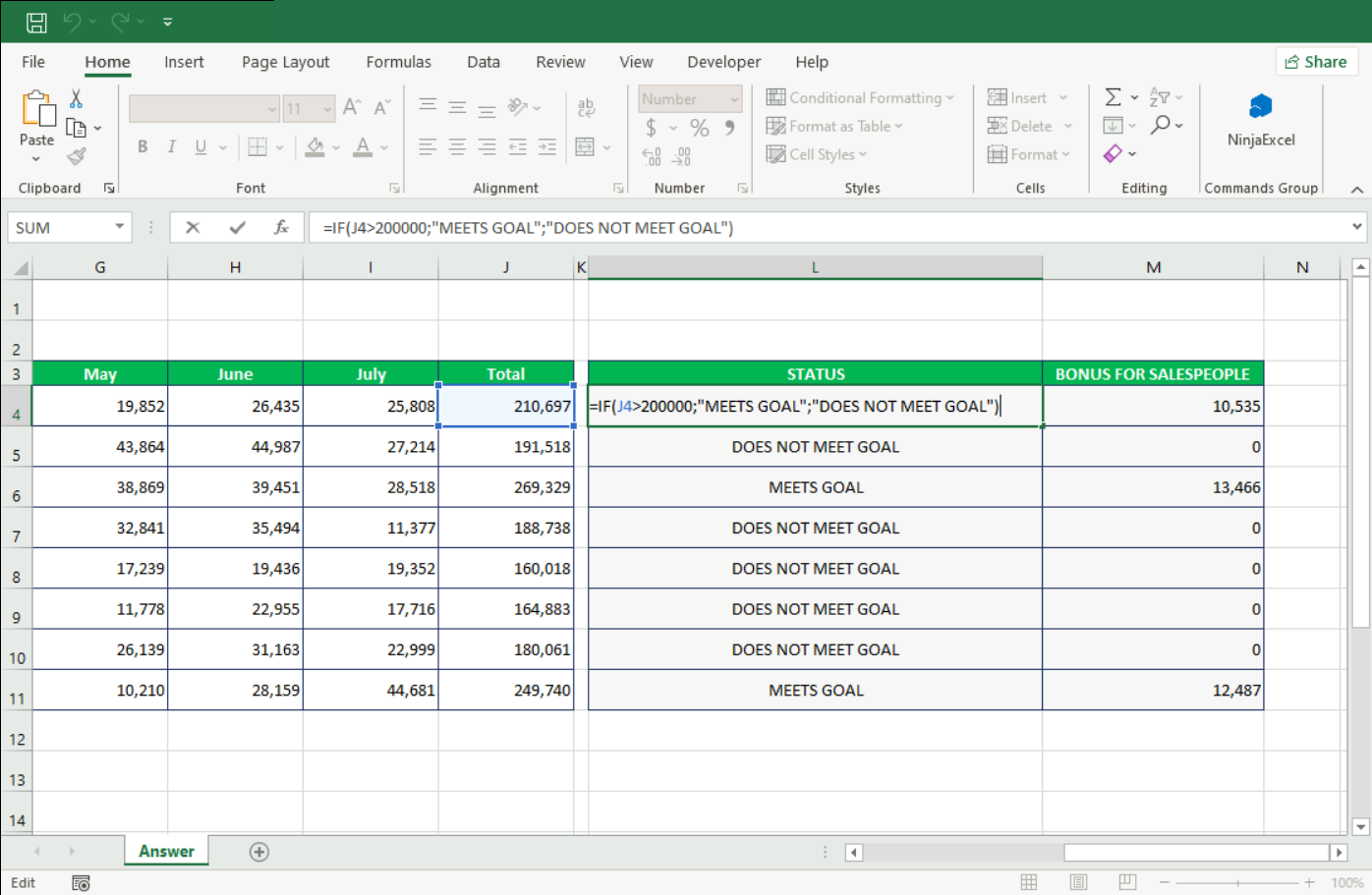
Structure: =IF(logical_test, value_if_true, value_if_false)
Example: If the amount in cell J4 is greater than 200,000 (>), the cell will display “MEETS GOAL”. Otherwise, it shows “DOES NOT MEET GOAL”.
B. AND Function
Use this function when all conditions must be true.
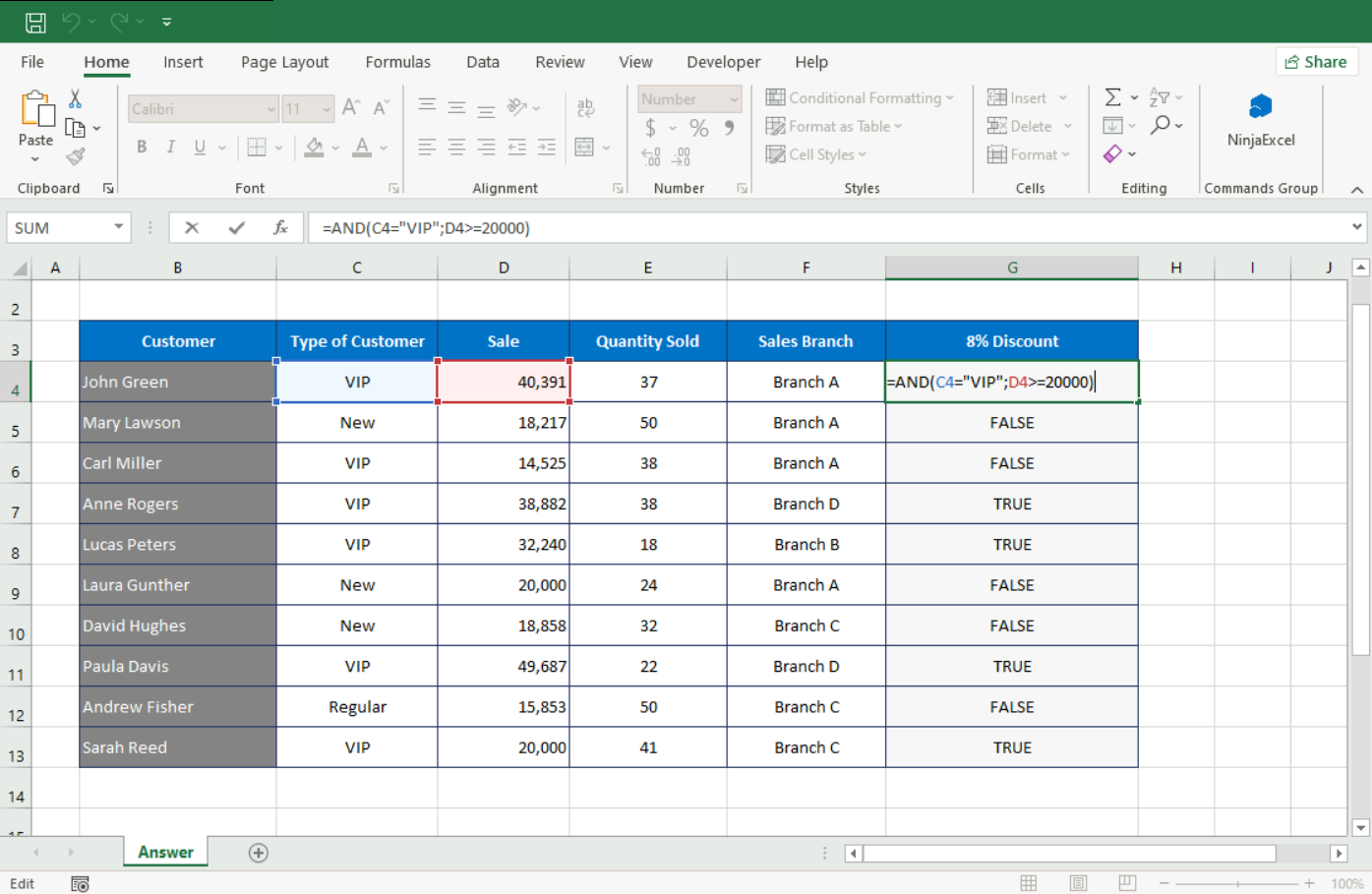
Structure: =AND(logical_value1, [logical_value2], ...)
Example: An 8% discount is applied only if the customer is “VIP” and the sale is greater than or equal to (>=) 20,000. Otherwise, it shows FALSE.
C. OR Function
Use this function when at least one condition needs to be true.
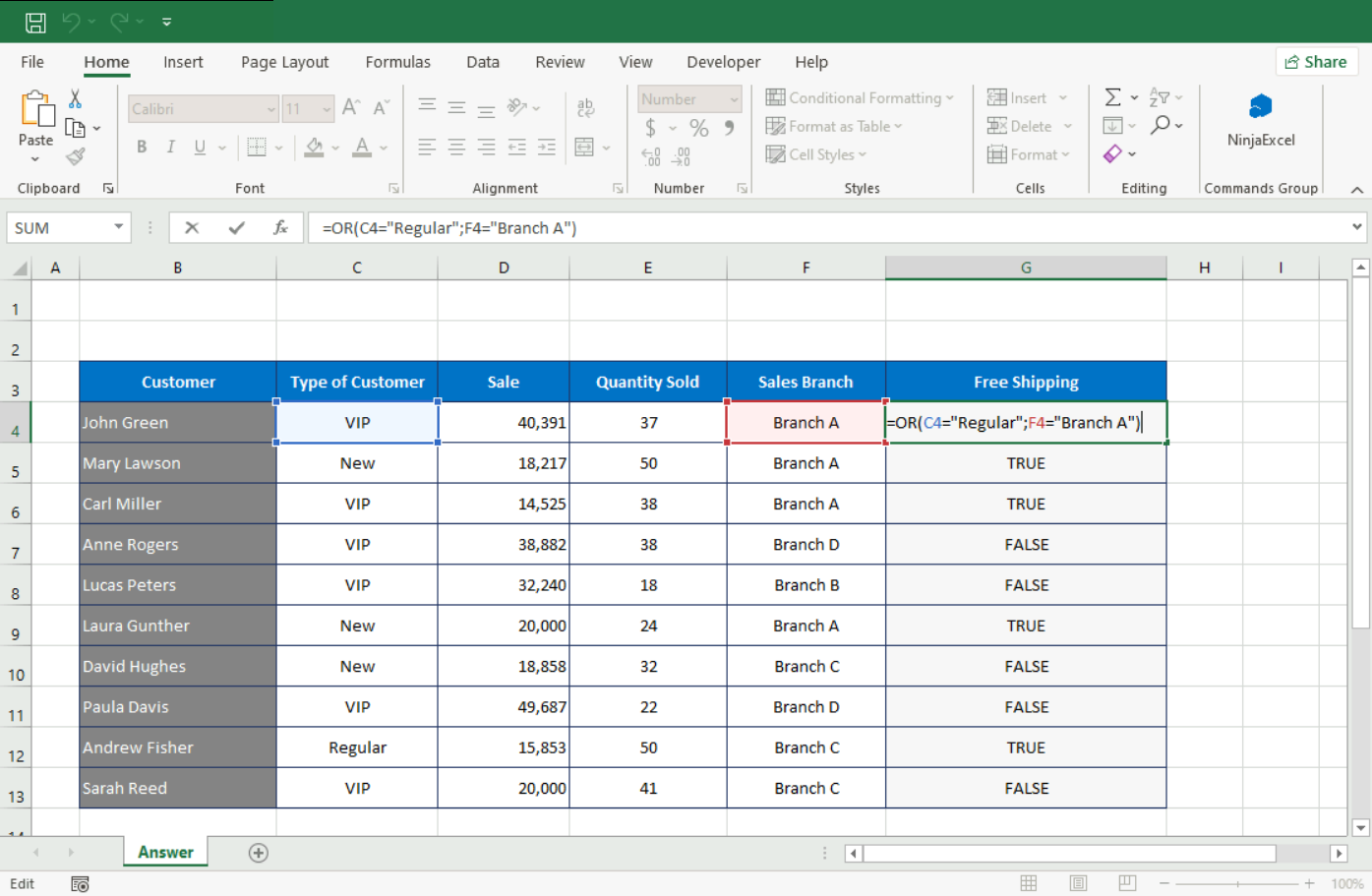
Structure: =OR(logical1, [logical2], ...)
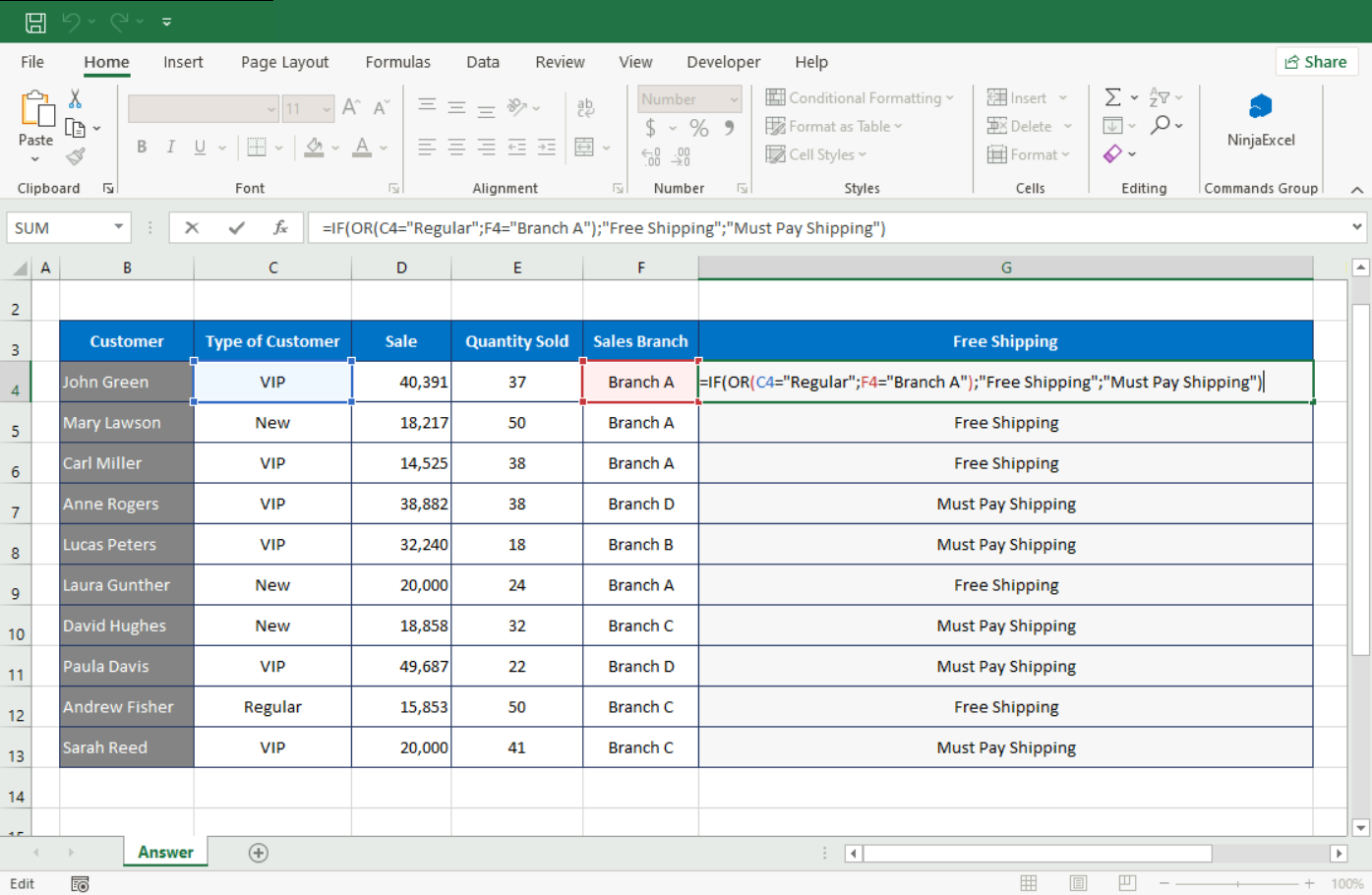
Example: Free shipping should be displayed as TRUE if the customer is “Regular” (=) or if the sale happened at Branch A (=). If none of the conditions are met, it shows FALSE.
D. Nesting logical functions
In the real world, decisions are rarely black and white. To handle complex logic, we nest functions, placing one inside another so Excel can process multiple layers of criteria.
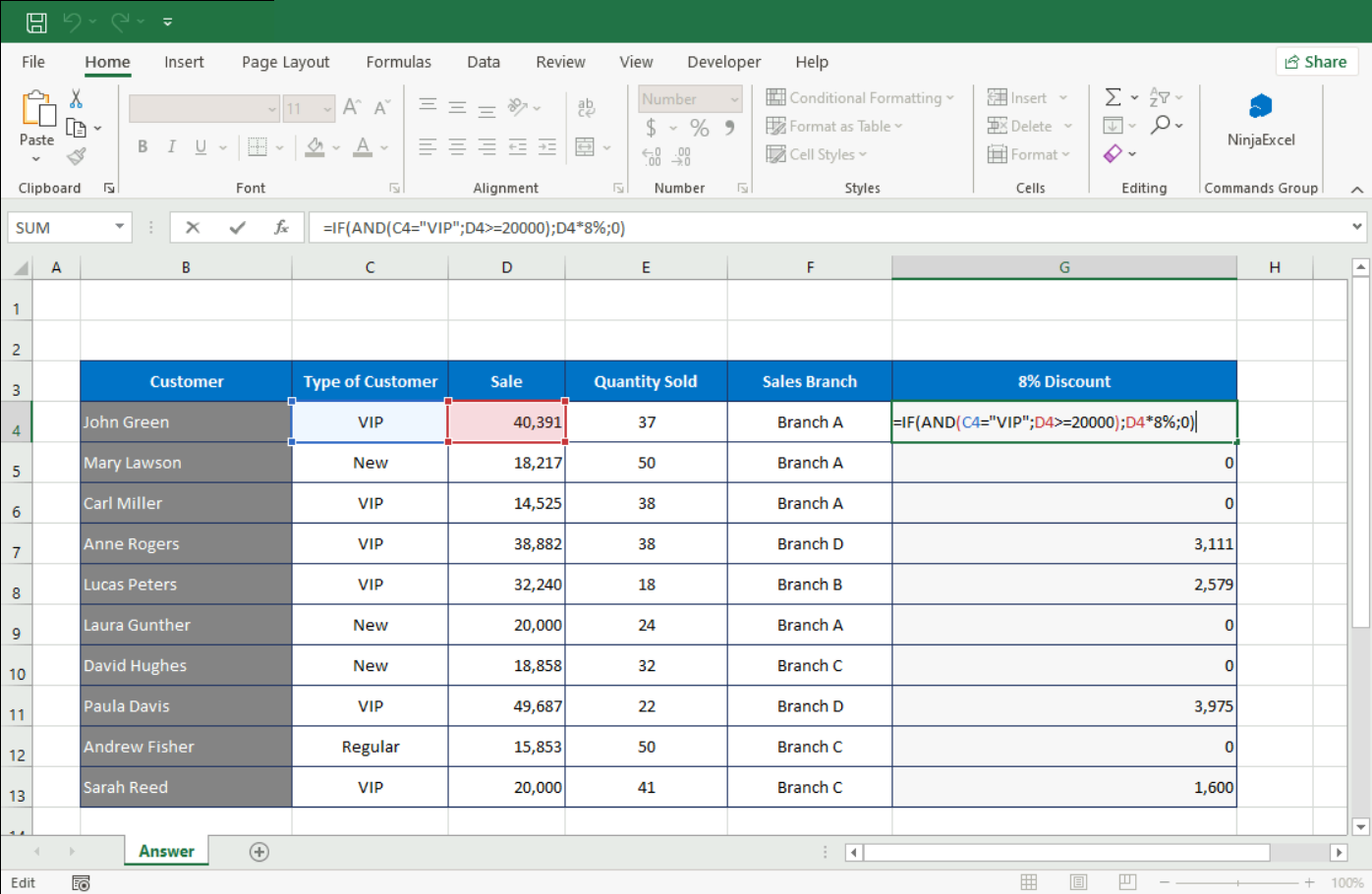
For example, an 8% discount is applied only if the customer is “VIP” (=) and the sale is greater than or equal to (>=) 20,000. Otherwise, it shows the number 0.
In this other example, free shipping is applied only if the customer is “Regular” (=) or if the sale happened at Branch A (=). Otherwise, it shows Must Pay Shipping.
If you still have questions about function nesting and how to apply it, please review this article.
2. Conditional operators in the COUNT and SUM functions
Excel has a specific family of functions for performing math only when certain conditions are met: SUMIFS and COUNTIFS. Unlike basic formulas, these allow for multiple layers of logic.
A. SUMIFS
Sums values that meet specific criteria.
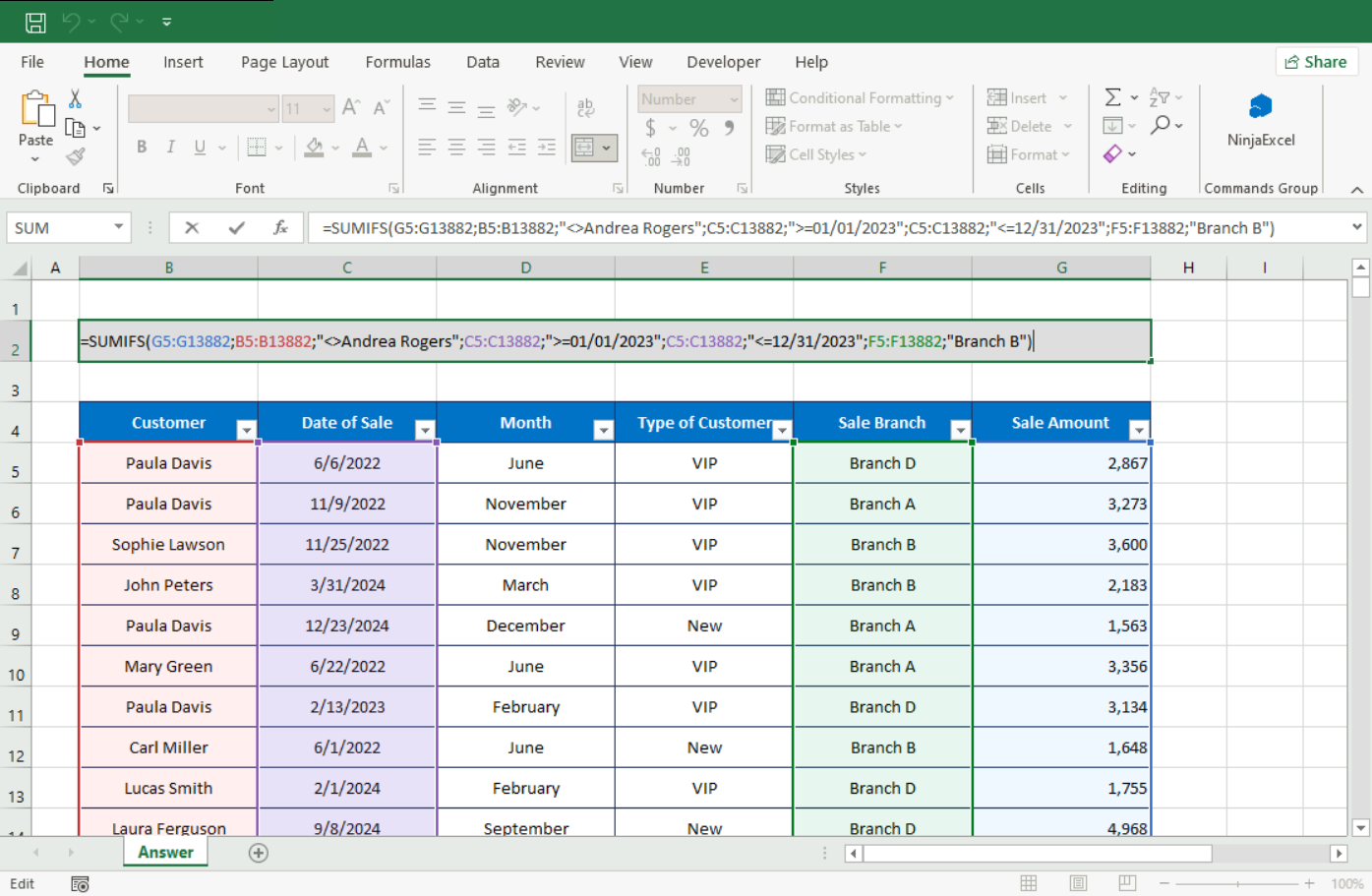
Structure: =SUMIFS(sum_range, criteria_range1, criteria1, [criteria_range2, criteria2], ...)
Example: Summing all sales from “Branch B” in 2023 (>=01/01/2023 and <=12/31/2023), made to customers other than Andrea Rogers (<>).
B. COUNTIFS
Counts how many times specific conditions are met across ranges.
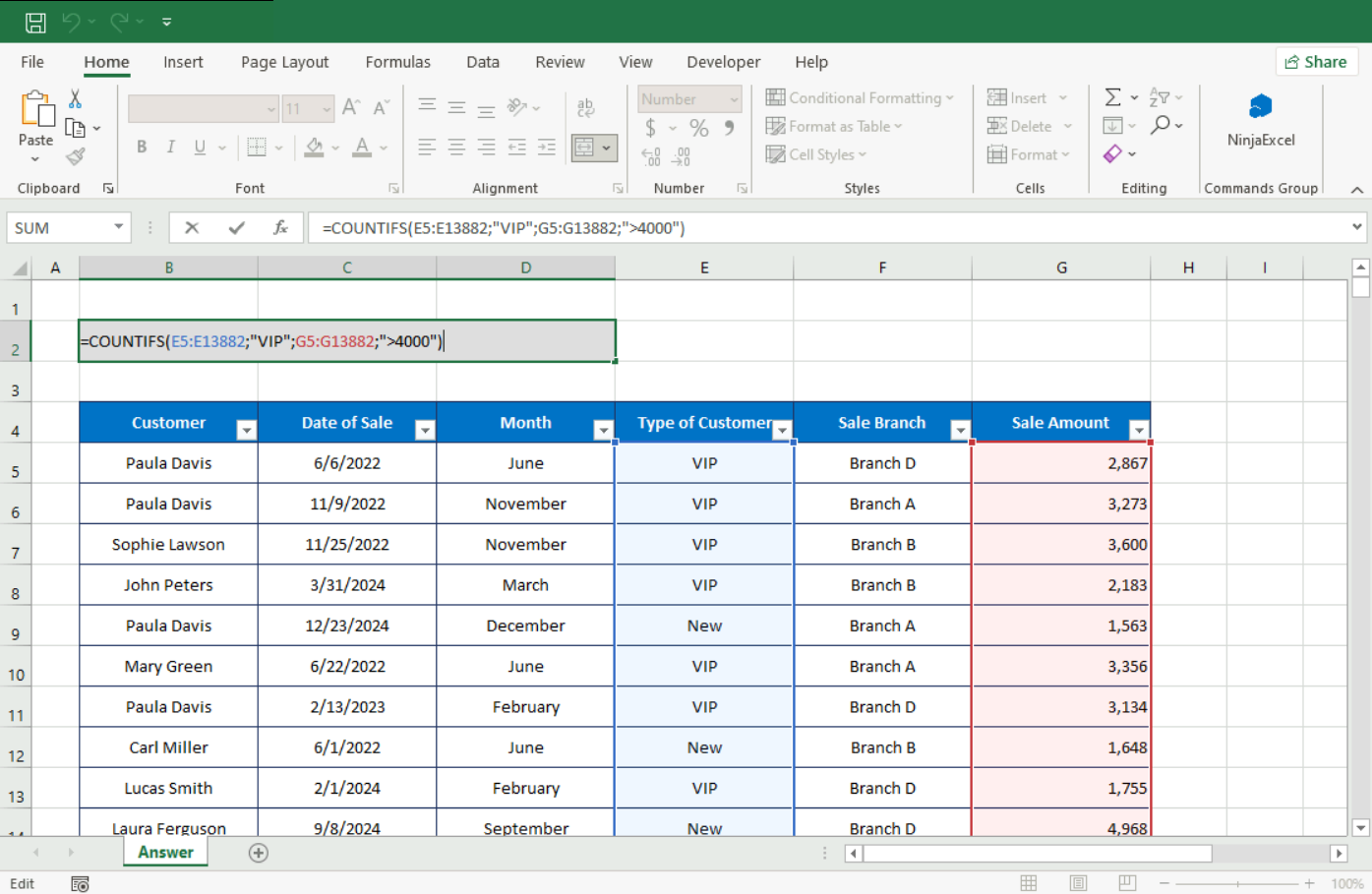
Structure: =COUNTIFS(range1, criteria1, [range2, criteria2], ...)
Example: Counting how many “VIP” customers had sales greater than 4000 (>).
Related Common Mistakes
If you are working at the A2 or higher level of Ninja Excel certifications, you will likely encounter situations where the formula is correct, but the result is not. These are the most typical errors:
Missing quotes: Typing >=2000 instead of ">=2000" in a SUMIFS/COUNTIFS formula will trigger a #NAME= error.
Incorrect spaces: Never put a space between symbols (e.g., < >). The operator must be a single unit (<>).
The "Not equal" symbol: Don’t use !=. Remember that in Excel, "not equal" is always <>.
If you want to know more about logical and conditional functions and how to differentiate them, check this article.
Was this article helpful?
That’s Great!
Thank you for your feedback
Sorry! We couldn't be helpful
Thank you for your feedback
Feedback sent
We appreciate your effort and will try to fix the article