If you're having trouble with an exercise—regardless of your level—start by asking yourself these baseline questions:
Syntax: Did you start your formula with an equal sign (=)? (Do not use the "+" sign).
Case sensitivity: Did you match the uppercase and lowercase letters exactly as required within the cells?
Invisible spaces: Are there any extra spaces inside your formulas or text strings? (Trailing spaces are the #1 cause of validation errors).
Validation workflow: Did you click "Validate answers" before trying to move to the next class?
The active cell: Did you hit Enter or Tab to exit the cell before validating?
If you’ve cleared the checklist but are still stuck, here are the most common hurdles in the B1 (Intermediate) Certification:
1. Text function issues
Problem: The MID function is returning the wrong string of characters.
Solution: Re-examine your arguments: MID(text, start_num, num_chars). A common mistake is confusing the total number of characters to extract with the ending position of the string.
Problem: When using TEXTJOIN, spaces from empty cells appear in the result.
Solution: Ensure the second argument of the function is set to TRUE so Excel ignores empty cells. The correct structure is =TEXTJOIN(".", TRUE, range).
Problem: The result of SUBSTITUTE or REPLACE doesn't match the answer key.
Solution: These functions are case-sensitive and literal. If you are replacing a space with a period, ensure the space is in quotes " " and the period is also in quotes ".". Any discrepancy in the original text will prevent the function from working.
2. Time and date function issues
Problem: When I try to sum hours, I get incorrect numbers.
Solution 1: Excel treats time as a fraction of 1 (24 hours). If you try to sum hours like whole numbers, the math will fail. To add a specific number of hours to a time value, you must divide that number by 24 (e.g., + (8/24) to add 8 hours).
Solution 2: If your total exceeds 24 hours, change the cell format to Custom and use the type [h]:mm. The brackets [ ] allow the hour counter to go beyond 24 rather than resetting to zero.
Problem: I can't extract the hour from a cell using the LEFT function.
Solution: For time calculations, do not use text functions. Instead, use specific time functions like HOUR, MINUTE, and SECOND.
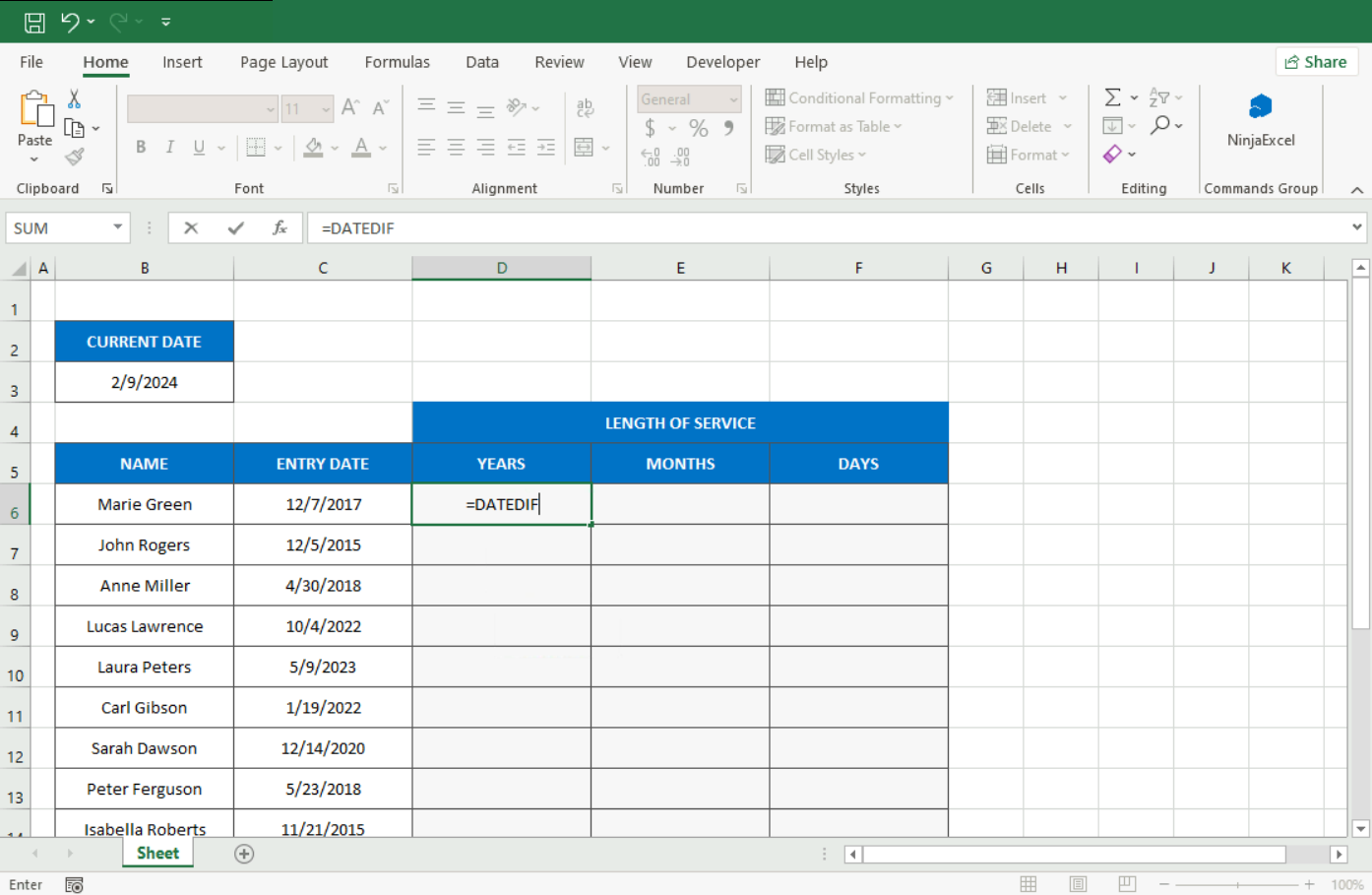
Problem: I can't see the syntax tooltip when I type DATEDIF.
Solution: DATEDIF is a "hidden" function in Excel; it doesn't appear in the standard catalog or show a tooltip. You must type it manually: =DATEDIF(start_date, end_date, unit). Ensure your unit arguments (like "Y", "YM", "MD") are always in double quotes.
3. Outlines and subtotals
Problem: My subtotals look messy or disorganized.
Solution: This happens if you apply the tool without preparing your data. You must sort the column you wish to group (e.g., A to Z) before applying the Subtotal tool.
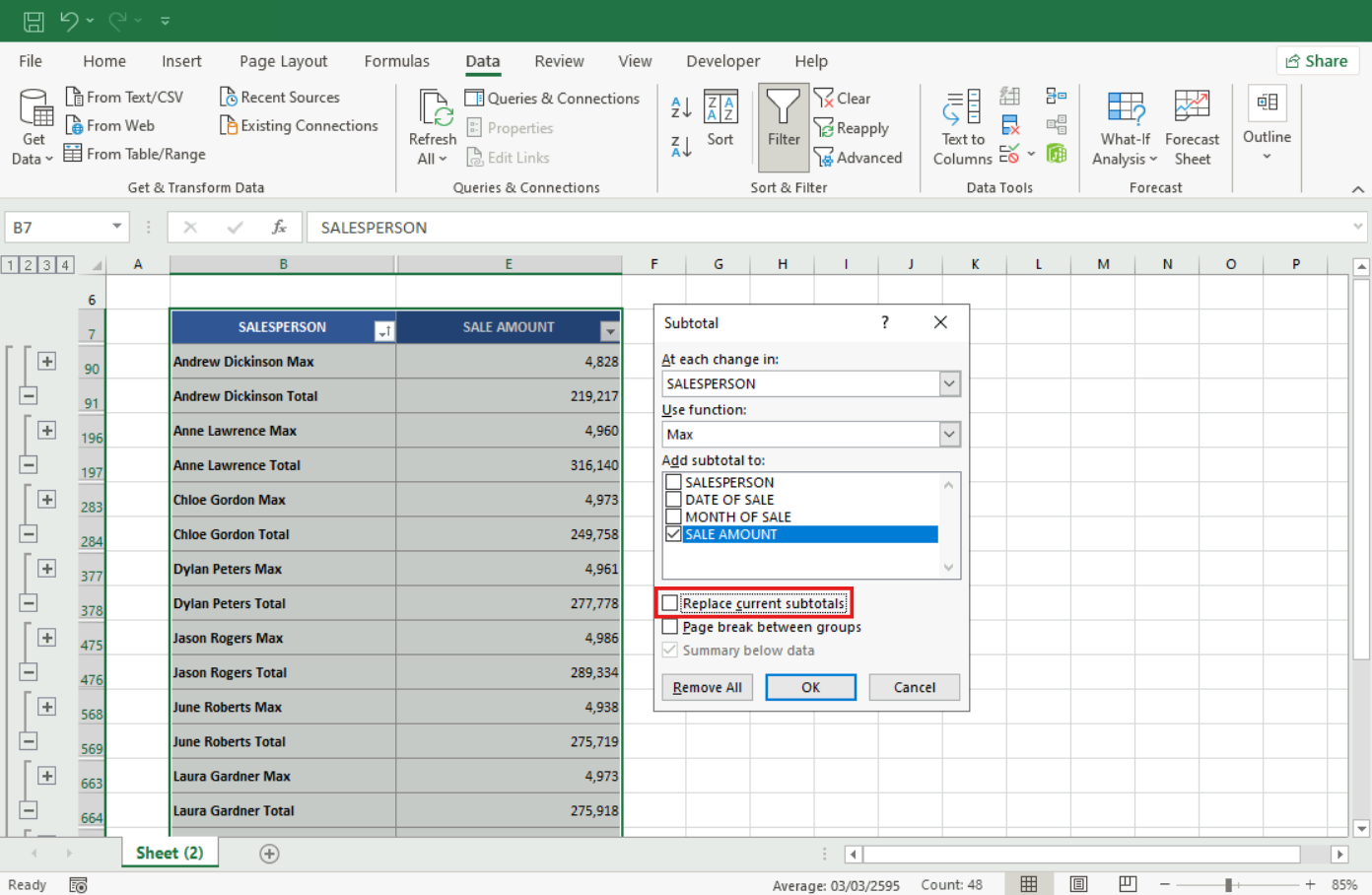
Problem: I can't see the second level of subtotals (e.g., showing both Sum and Max).
Solution: When applying the second subtotal, you must uncheck the box that says "Replace current subtotals" in the dialog window. Otherwise, the new calculation will overwrite the old one.
4. Data forecast
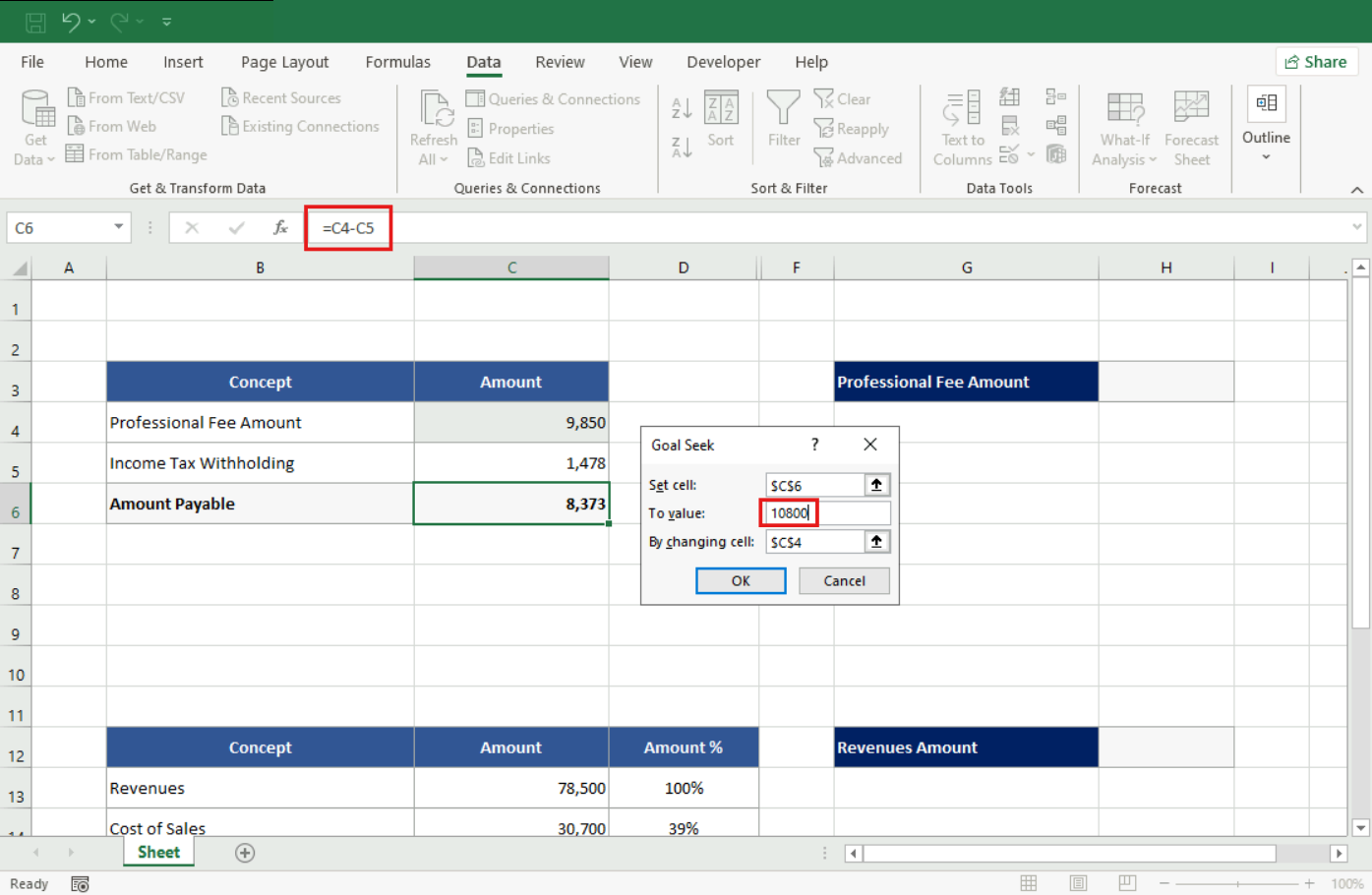
Problem: Goal Seek tells me "Cell must contain a formula."
Solution: In the "Set cell" field, you must select a cell that contains a mathematical operation. Also, in the "To value" field, enter the number cleanly (e.g., 10800) without manual thousand separators.
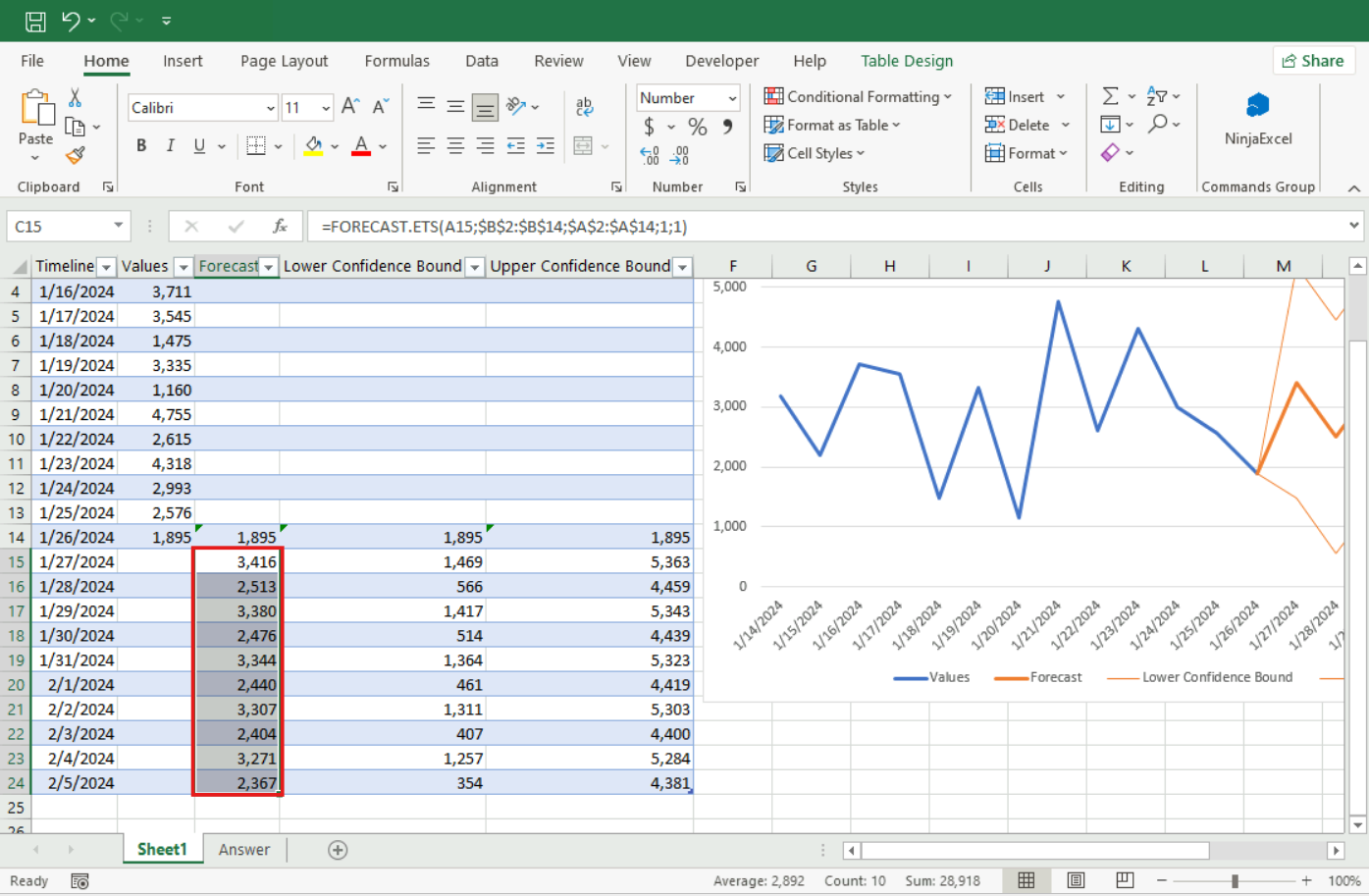
Problem: The Forecast Sheet creates a new tab and I don't know what to copy.
Solution: The tool generates a table with projected values. Copy only the range of the projected amounts (typically in a specific range like C14:C24) and paste them back into your original sheet.
5. PivotTables
Problem: The data doesn't update when I change the source report.
Solution: Pivot Tables do not update automatically. You must right-click anywhere on the Pivot Table and select "Refresh."
Problem: If I add new rows, the Pivot Table doesn't include them even after a refresh.
Solution: This happens if the new data is outside the original range. Go to the PivotTable Analyze tab > Change Data Source and expand the range to include the new rows.
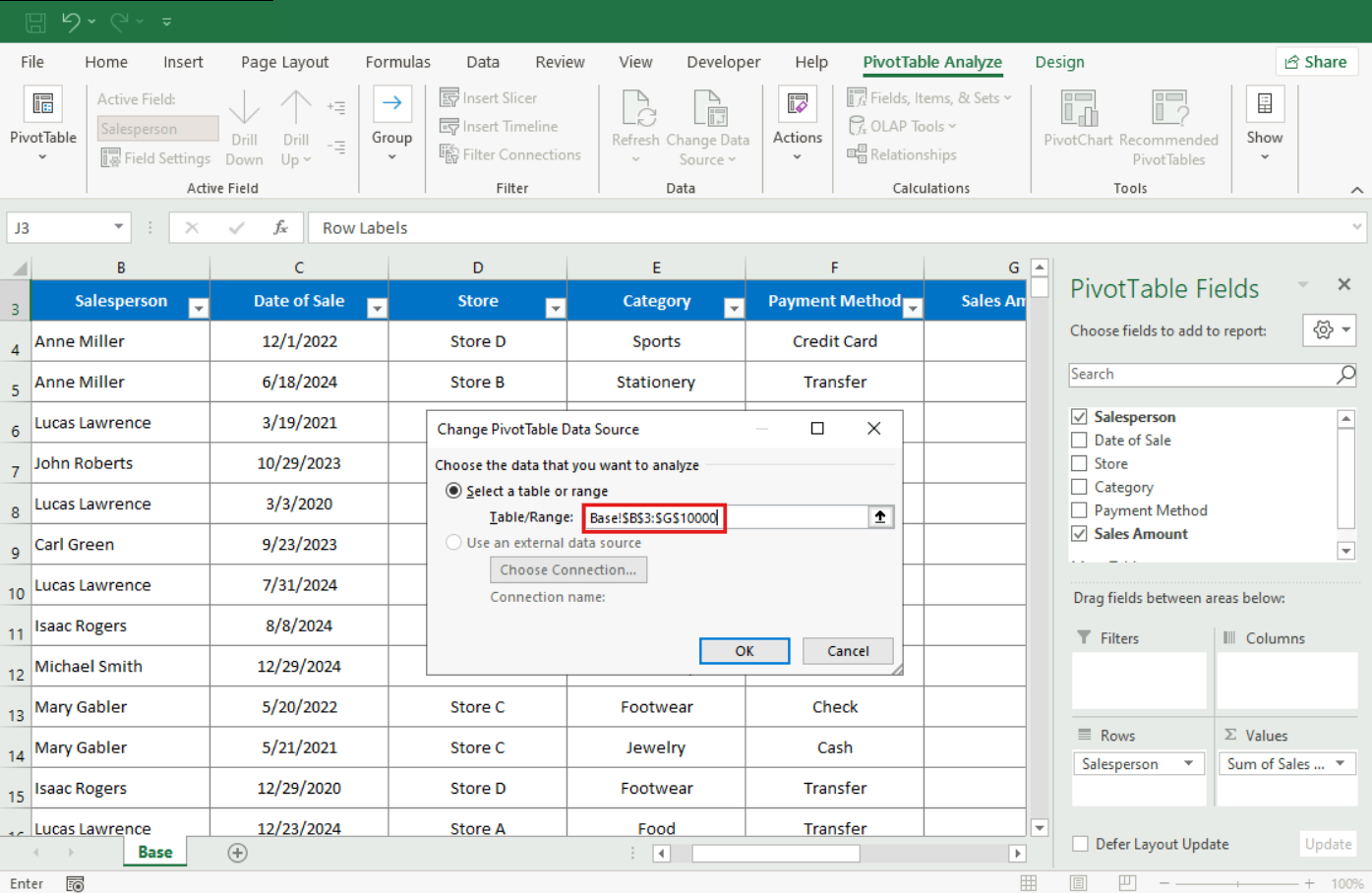
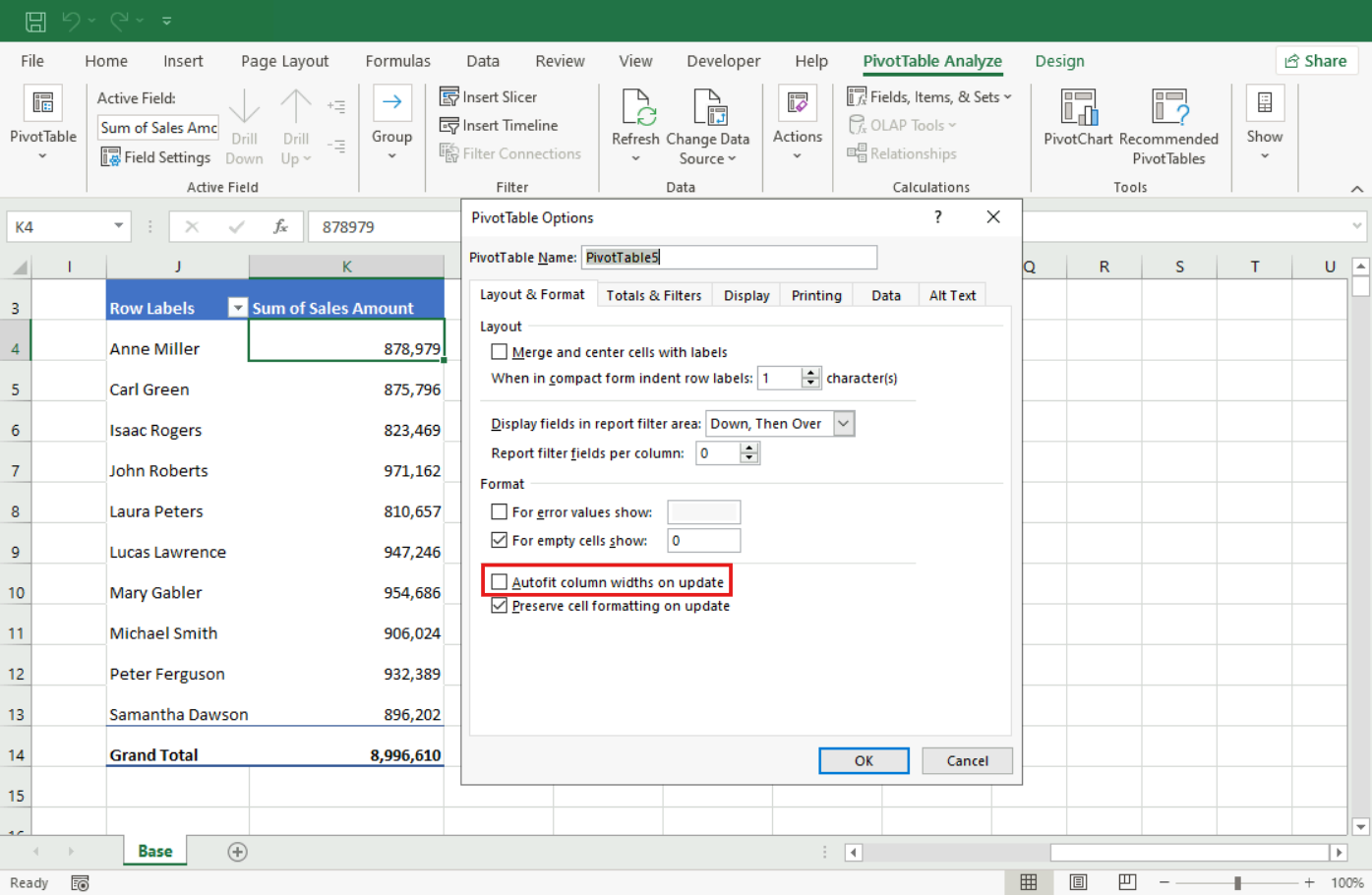
Problem: When I refresh the Pivot Table, my custom column widths disappear.
Solution: Right-click the table > PivotTable Options and uncheck the box for "Autofit column widths on update."
6. PivotCharts
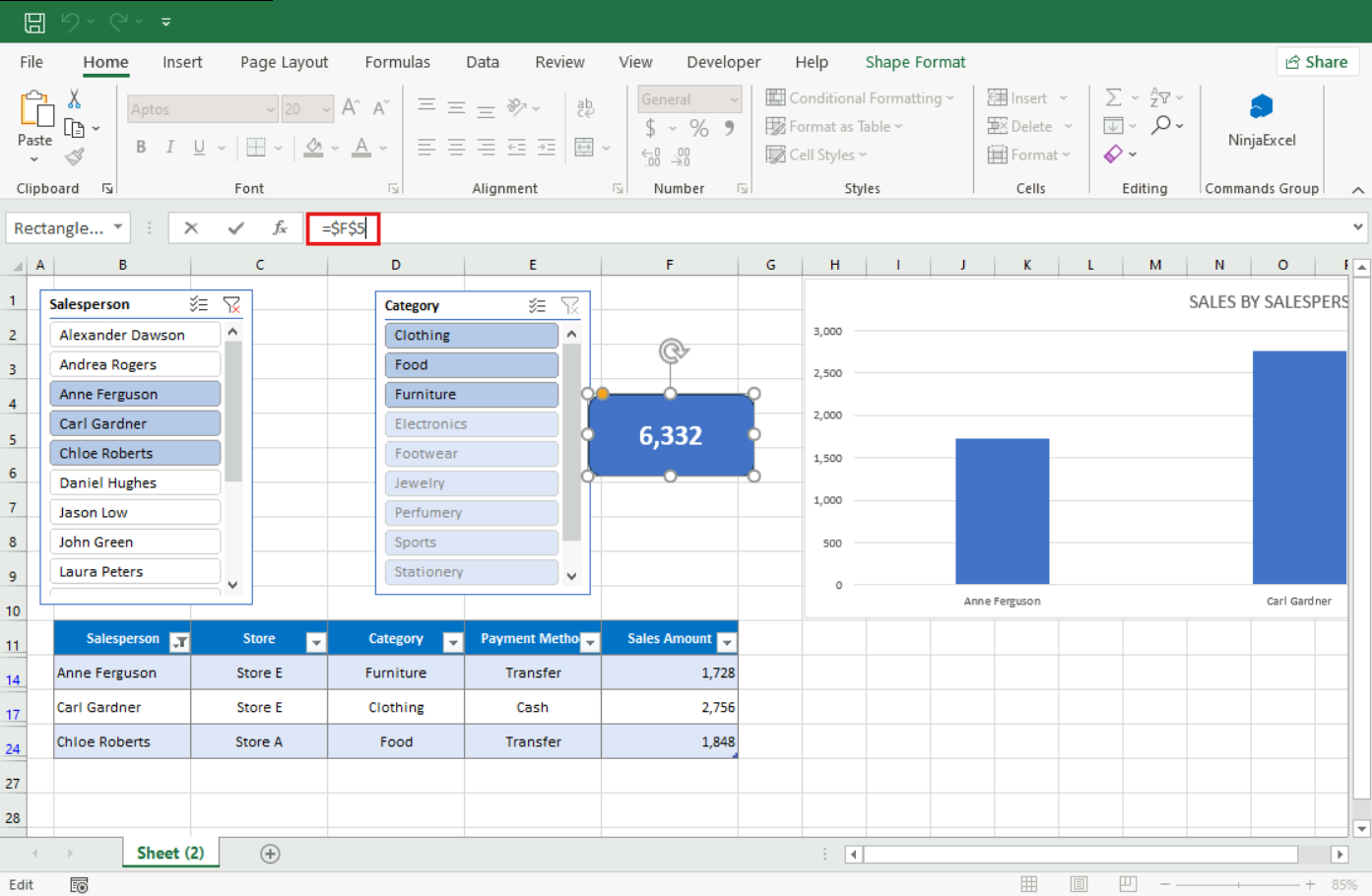
Problem: A shape/rectangle linked to a cell isn't showing the value.
Solution: To link a shape to a cell (e.g., F5), select the border of the rectangle, click inside the Formula Bar, type =, and then click cell F5. Do not type the text inside the box manually.
Problem: I can't select non-consecutive dates on the Timeline.
Solution: Timelines only support continuous periods. You can use the Shift key to select a range, but you cannot use the Ctrl key to select random, non-consecutive months like you can with Slicers.
Are you having problems specifically with a B1 Certification Final Exam exercise? Review “Guide to solve the most common exam errors in B1 - Intermediate”.
Was this article helpful?
That’s Great!
Thank you for your feedback
Sorry! We couldn't be helpful
Thank you for your feedback
Feedback sent
We appreciate your effort and will try to fix the article