If you're having trouble with an exercise—regardless of your level—start by asking yourself these baseline questions:
Syntax: Did you start your formula with an equal sign (=)? (Do not use the "+" sign).
Case sensitivity: Did you match the uppercase and lowercase letters exactly as required within the cells?
Invisible spaces: Are there any extra spaces inside your formulas or text strings? (Trailing spaces are the #1 cause of validation errors).
Validation workflow: Did you click "Validate answers" before trying to move to the next class?
The active cell: Did you hit Enter or Tab to exit the cell before validating?
If you’ve cleared the checklist but are still stuck, here are the most common hurdles in the B2 (Upper-Intermediate) certification:
Conditional Formatting
Problem: Rules aren’t working, or I can’t modify one without deleting everything.
Solution: You don't need to start over! Use the Manage Rules tool. Select "Edit Rule" to change the type (color scales, data bars), the logic (e.g., changing "greater than" to "less than"), the fill colors, or even the "Applies to" range. If you want to know more about conditional formats, read this article.
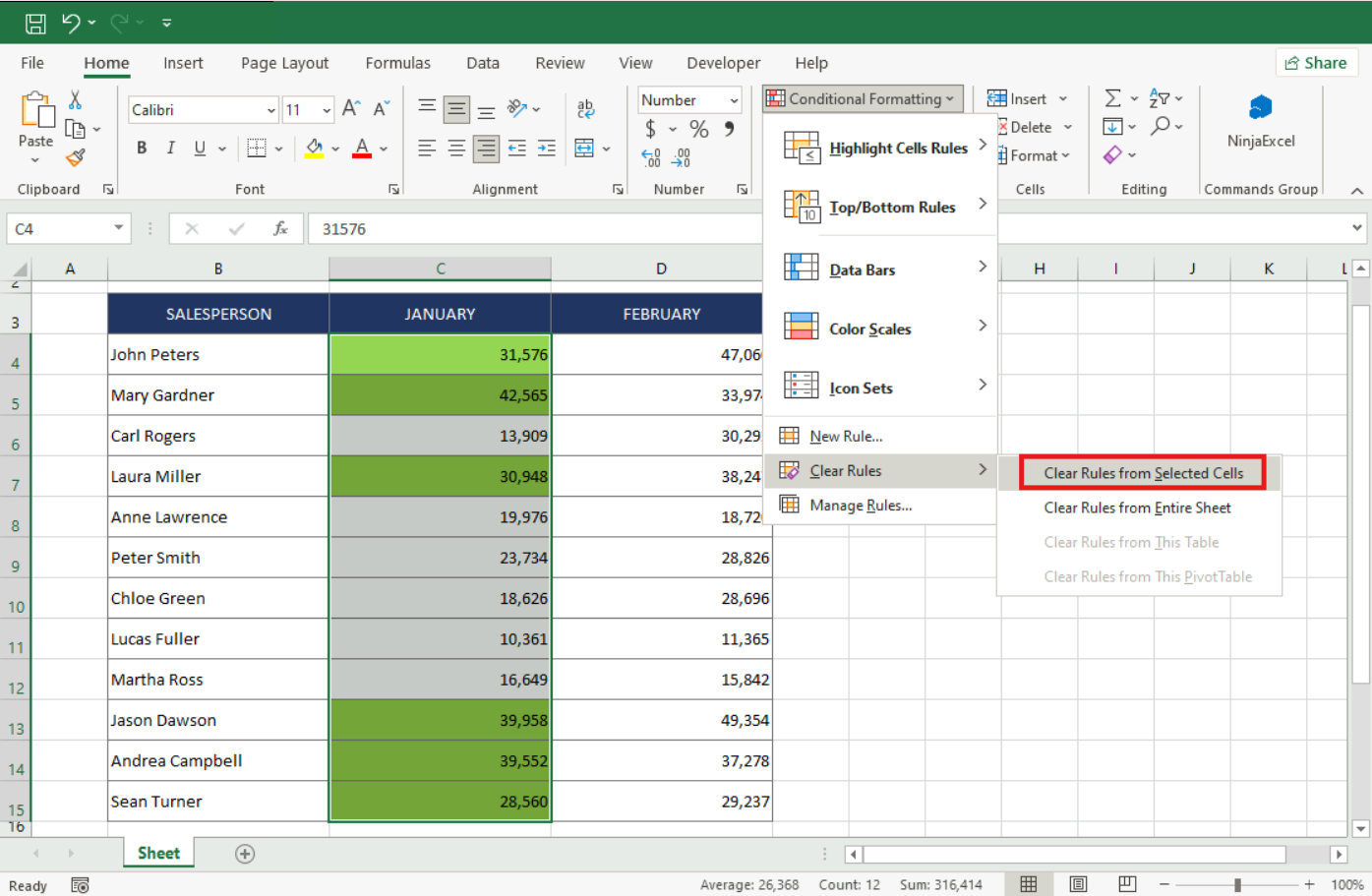
Problem: The formatting disappears when I delete data or try to clear a specific area.
Solution: If you use "Clear All", you remove both data and formatting. To remove only the formatting, go to Conditional Formatting > Clear Rules and select "From Selected Cells."
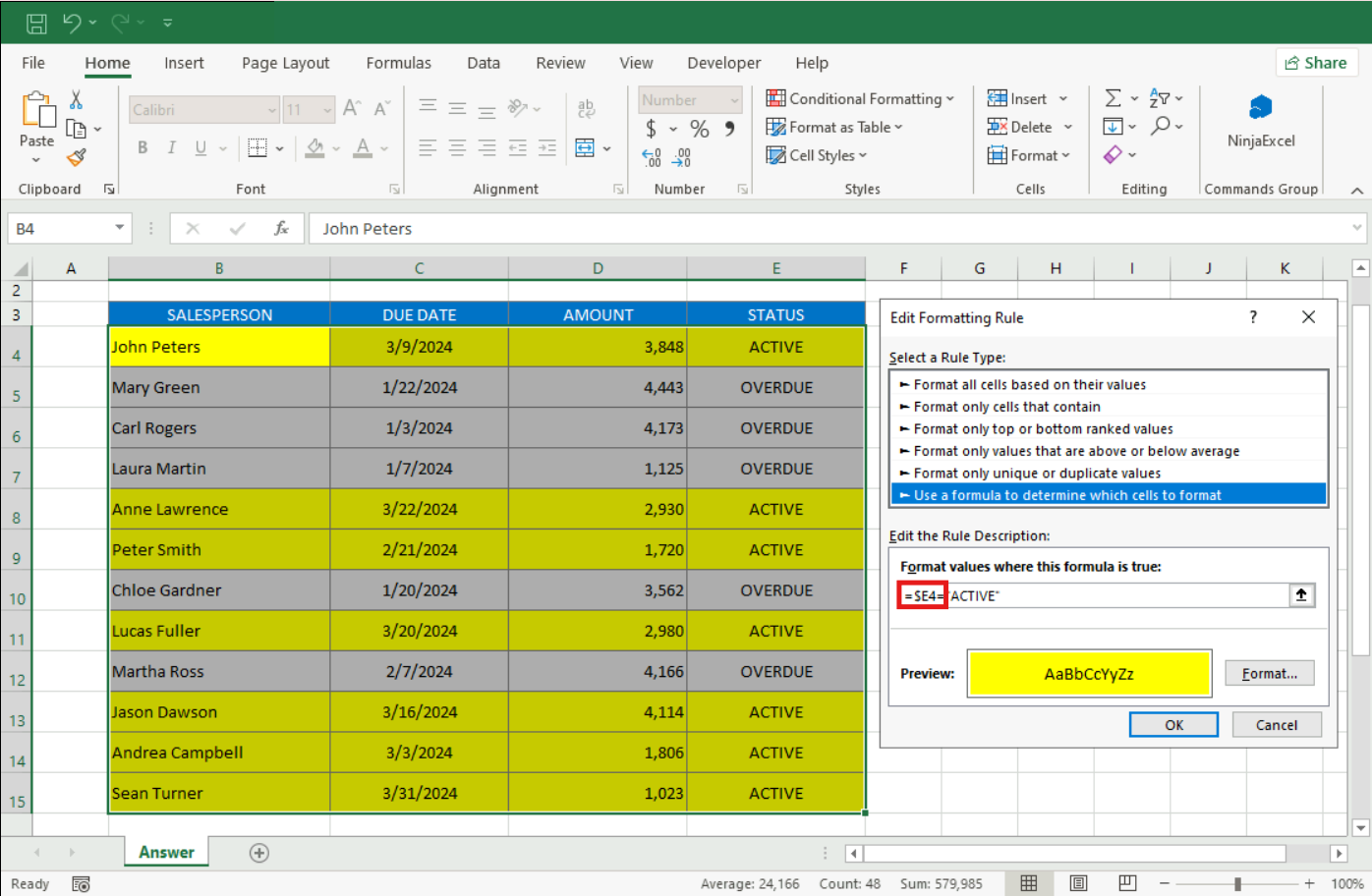
Problem: A formula-based rule isn't highlighting the entire row.
Solution: This usually happens because the column isn't fixed. To highlight a whole row based on one column’s value, your formula needs a $ sign before the letter (e.g., =$A1>100) so Excel always checks that specific column as it moves across the row.
Data Tools
Problem: Leading zeros disappear when I use “Text to Columns”.
Solution: When using the Text to Columns wizard (especially in “Fixed Width”), you must change the column data format from "General" to "Text." This prevents Excel from treating numbers like "00123" as "123."
Problem: When consolidating data, the headers appear as data points or aren't aligned.
Solution: Make sure to check the "Top row" and "Left column" boxes so Excel recognizes your titles and groups the categories correctly.
Data validation
Problem: Users can still enter invalid data even though I set a restriction.
Solution: This happens when your Error Alert style isn't set to "Stop." Only the "Stop" style actually blocks wrong data entry; "Warning" and "Information" just show a message but let the user proceed anyway.
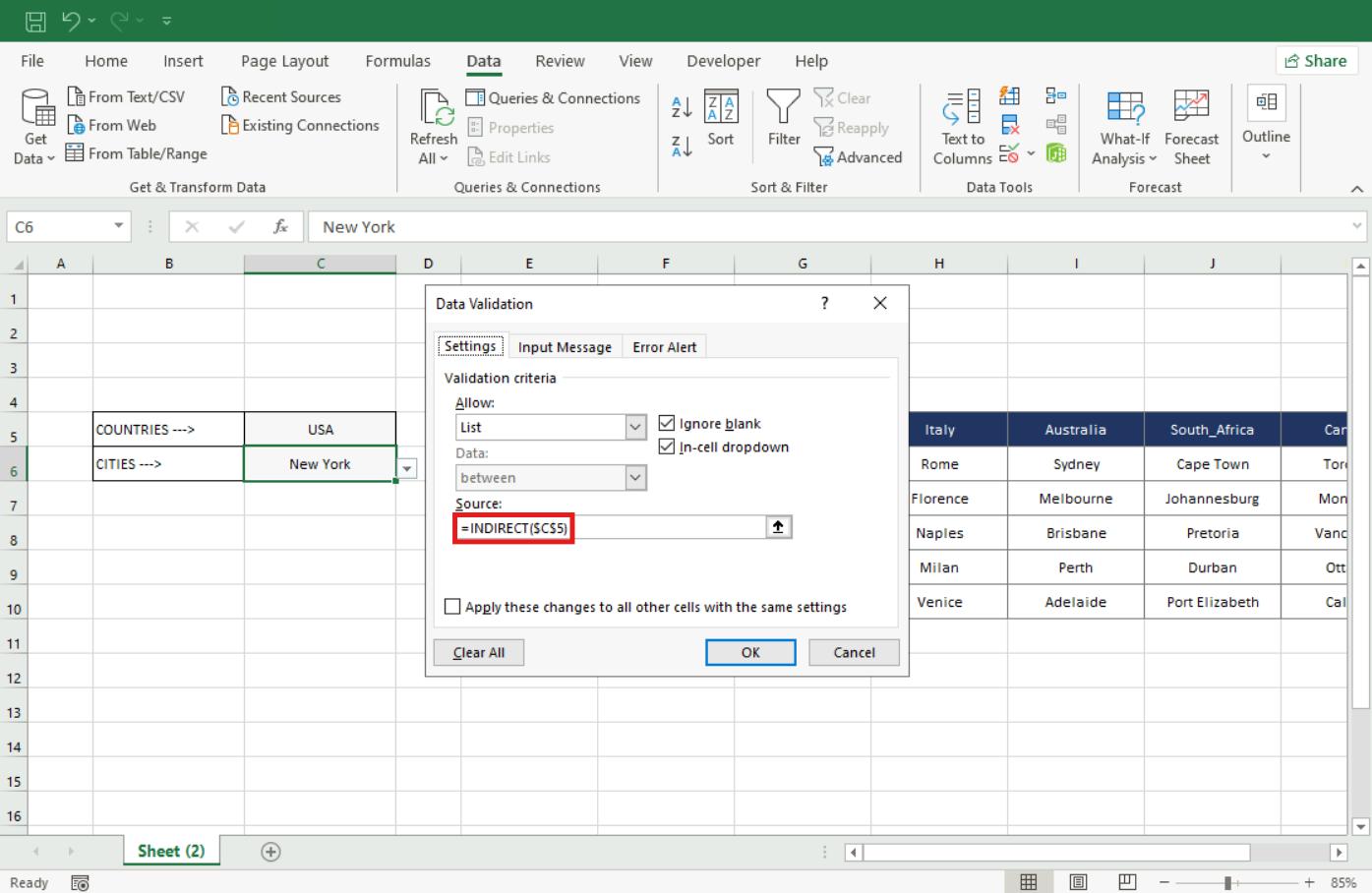
Problem: Dependent drop-down lists aren't showing options or aren't working row-by-row.
Solution: First, create your Named Ranges using the "Create from Selection" (Top row) tool. Then, in the Data Validation settings for your second list, use the INDIRECT function and make sure you are referencing the correct cell.
Problem: Text lengths validation is failing.
Solution: Double-check your logic: ensure you chose "Text length" and the correct operator (like "equal to" or "less than or equal to") as requested.
Lookup functions
Problem: I keep getting a #N/A error with VLOOKUP or HLOOKUP.
Solution: You likely forgot the final argument: 0 or FALSE for an exact match. Also, check for extra spaces in either your lookup value or the source table.
Problem: When I drag my VLOOKUP formula down, the results turn into errors.
Solution: You need to use absolute references for your table array (e.g., $B$4:$D$6). If you don't fix the table with dollar signs, the range shifts down as you drag the formula.
Problem: INDEX-MATCH returns data from the wrong row or column.
Solution: The order of arguments is strict: =INDEX(Array; Num_Row; Num_Column). Inside your two MATCH functions, the first should find the vertical value (row) and the second should find the horizontal value (column).
Formula Auditing
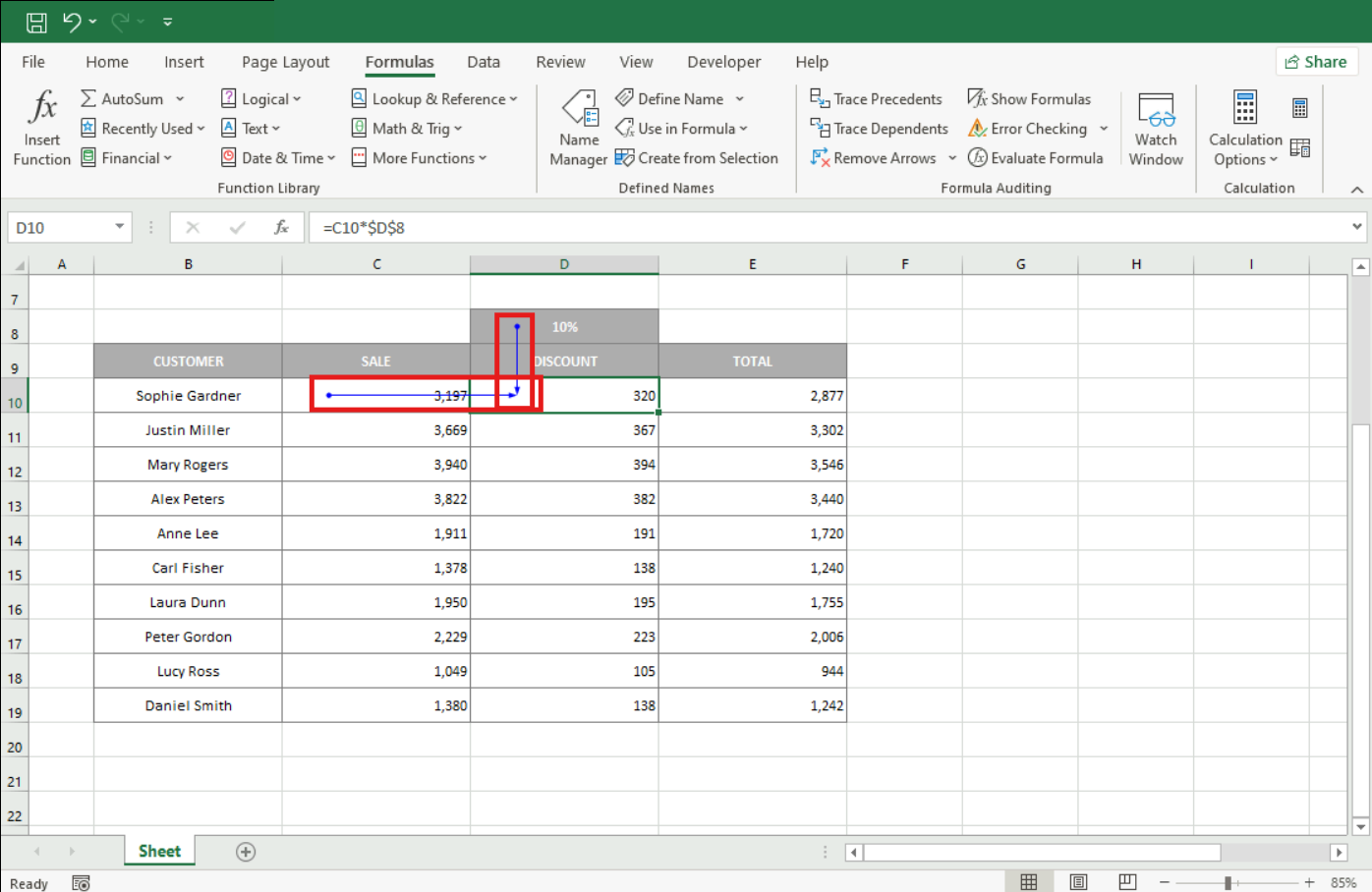
Problem: I can't see which cells are affecting my result.
Solution: Use the Trace Precedents tool located on the Formulas tab. Excel will draw blue arrows showing exactly where the data is coming from.
Problem: Excel indicates there's a "Circular reference" error.
Solution: This means your formula is trying to calculate itself. Go to Formulas > Error Checking > Circular References to find the offending cell and fix the range (e.g., changing =SUM(C6:C16) to =SUM(C6:C15) if your formula is located in row 16).
Problem: The "Evaluate Formula" tool moves too fast.
Solution: Press the "Evaluate" button step by step. This allows you to see how Excel solves every calculation step (e.g., first subtraction, then multiplication) to detect where the error is.
Custom PivotTable Tools
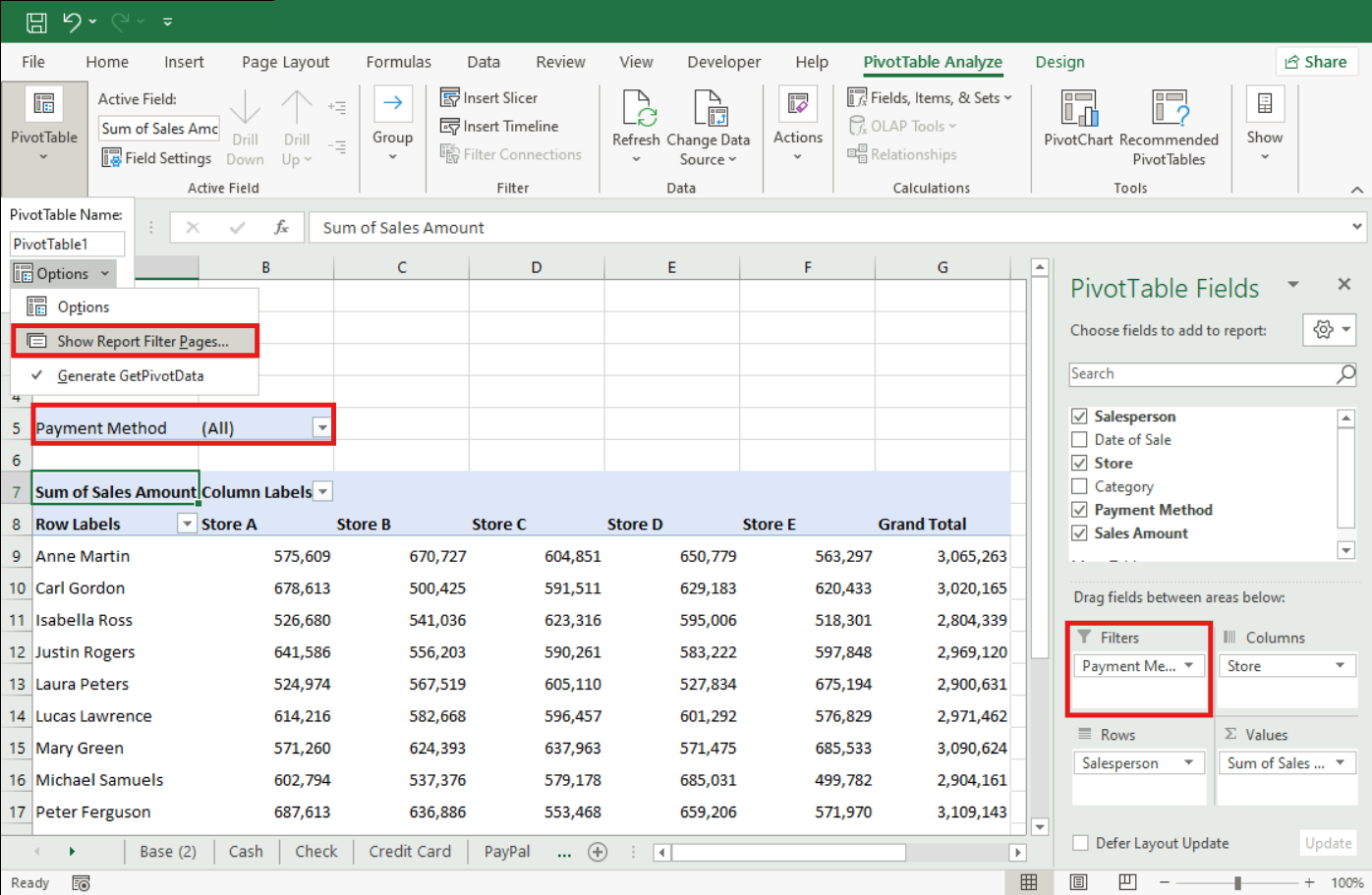
Problem: The "Show Report Filter Pages" option is grayed out.
Solution: This tool only works if you have at least one field located in the FILTERS area of the PivotTable. If the field is in Rows or Columns, the option will appear in gray.
Problem: My Slicer buttons are too small or stuck in one long column.
Solution: Click the Slicer, go to the "Slicer" tab in the ribbon, and in the "Buttons" group, increase the number of columns (e.g., to 2) to spread the buttons out.
Problem: The Timeline won’t let me select specific years.
Solution: Change the time level in the Timeline header from "MONTHS" to "YEARS." To select a range (like 2023 through 2024), hold Shift while clicking.
Are you having problems specifically with a B2 Certification Final Exam exercise? Review “Guide to solve the most common errors in the B2 exam”.
Was this article helpful?
That’s Great!
Thank you for your feedback
Sorry! We couldn't be helpful
Thank you for your feedback
Feedback sent
We appreciate your effort and will try to fix the article