If you're having trouble with an exercise—regardless of your level—start by asking yourself these baseline questions:
Syntax: Did you start your formula with an equal sign (=)? (Do not use the "+" sign).
Case sensitivity: Did you match the uppercase and lowercase letters exactly as required within the cells?
Invisible spaces: Are there any extra spaces inside your formulas or text strings? (Trailing spaces are the #1 cause of validation errors).
Validation workflow: Did you click "Validate answers" before trying to move to the next class?
The active cell: Did you hit Enter or Tab to exit the cell before validating?
If you’ve cleared the checklist but are still stuck, here are the most common hurdles in the C1 (Advanced) Certification:
1. Advanced PivotTable Design
Problem: Column width keeps changing, causing validation to fail.
Solution: In "PivotTable Options," uncheck the box for "Autofit column widths on update." If an exercise requires a specific width and this is checked, your changes will be overwritten every time the table refreshes, breaking the validation.
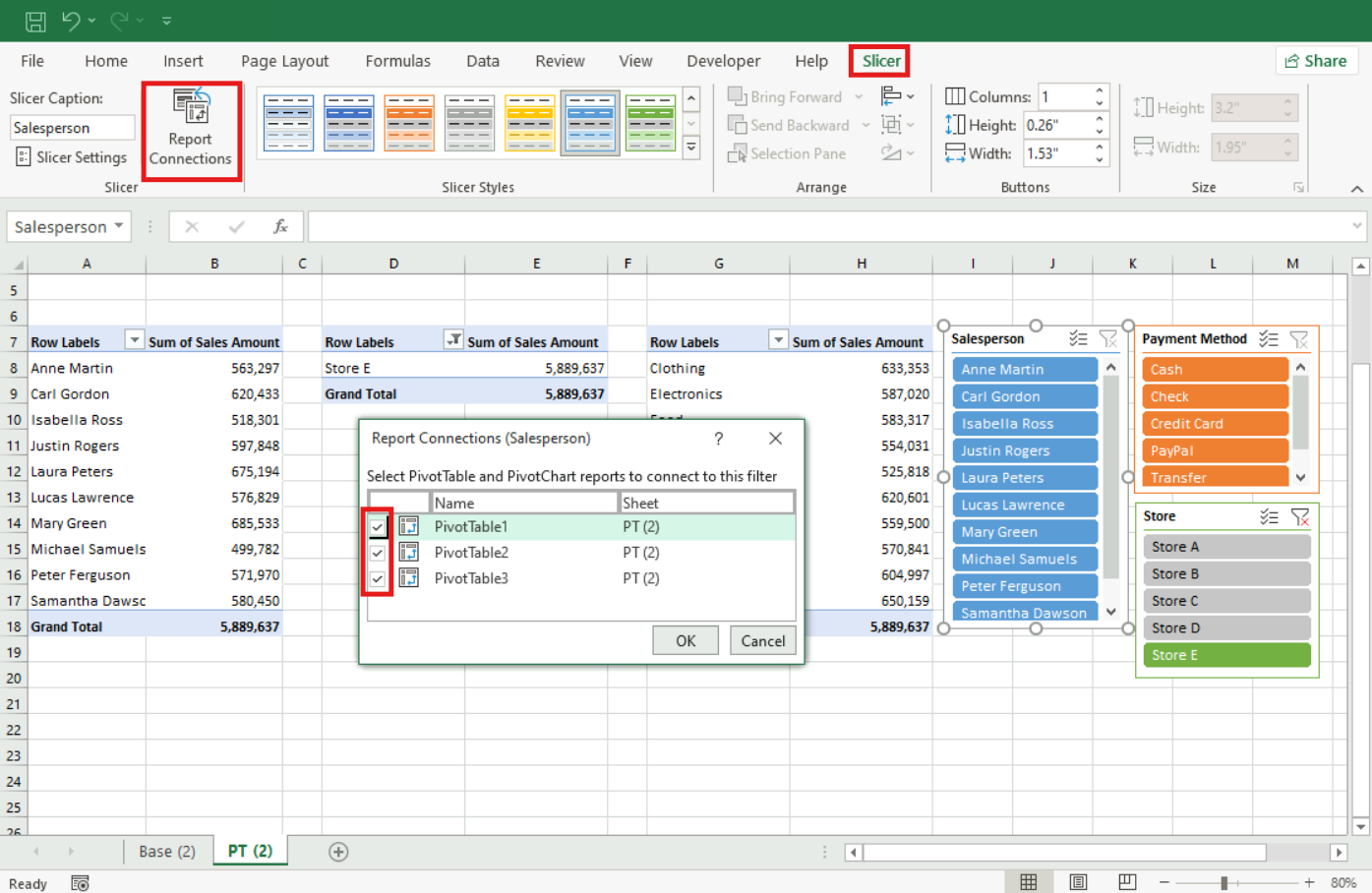
Problem: The slicer only filters one table instead of all of them.
Solution: Right-click the Slicer, go to "Report Connections", and make sure you’ve checked all PivotTables that need to respond to that filter.
Problem: Calculated Fields or Items are returning errors.
Solution: The platform validates only functions starting with "=". Be sure to select the names of the fields in the list to avoid typing errors and use a semicolon ";" to separate arguments.
Example: =IF('Sale Amount'>10000; 'Sale Amount'*8%; 'Sale Amount'*3%).
2. Advanced Lookup Functions
Problem: The OFFSET function isn't starting at the right point.
Solution: Check the base reference cell. If you have to start from cell B58, ensure that it is your first argument and that it is fixed with F4 or Fn + F4 (or manually if you are a Mac user).
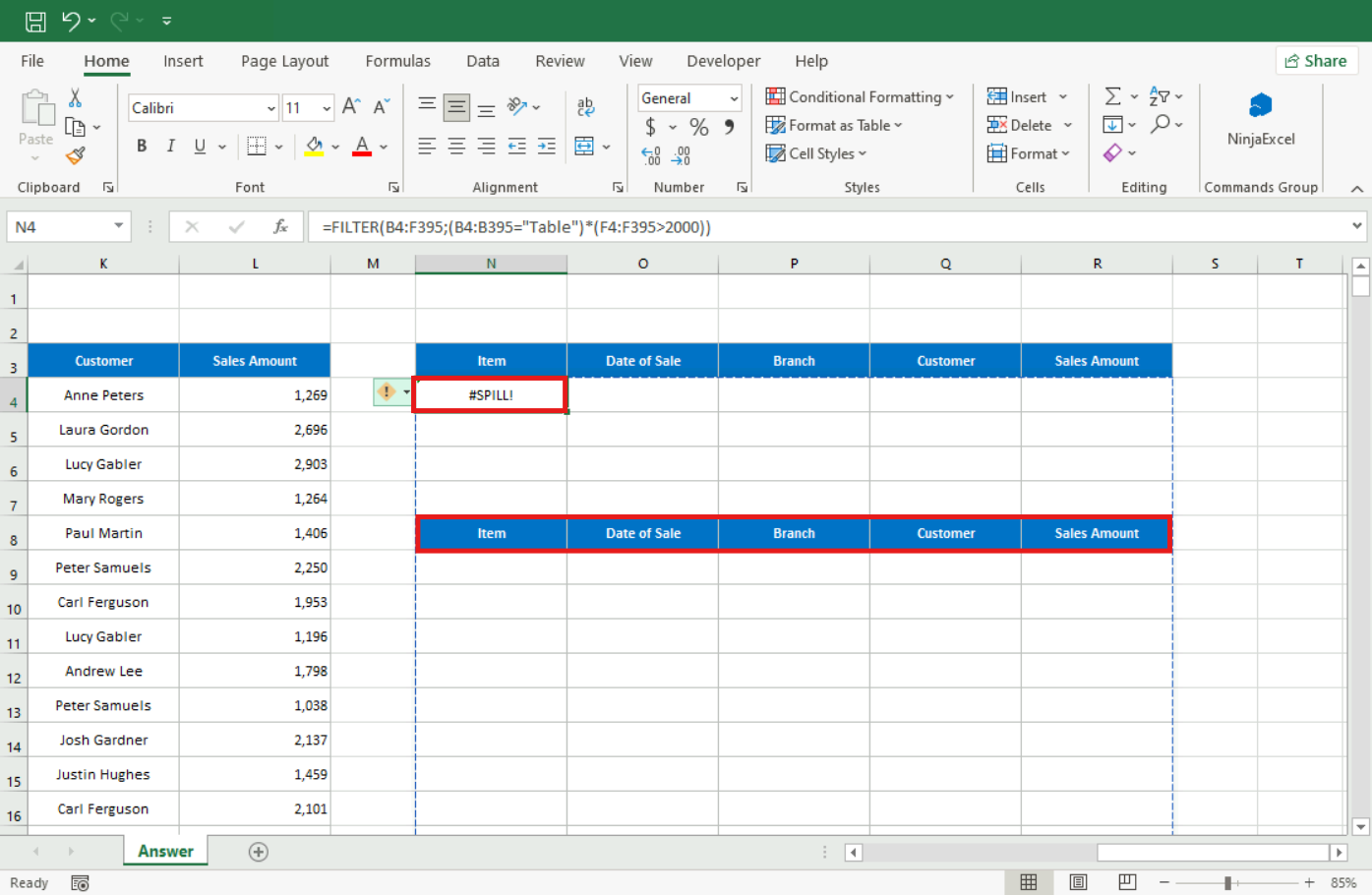
Problem: I’m getting a #SPILL! error with FILTER, UNIQUE, or SORT.
Solution: These are Dynamic Array functions. They need empty "runway" space to output their results. Ensure the cells below and to the right of your formula are completely empty; even an invisible space will block the "spill" and trigger the error.
Problem: XLOOKUP returns an error instead of my custom message.
Solution: The "Not found" message must be the fourth argument of the function and must be in double quotes.
Example: =XLOOKUP("John Green",E9:E18,D9:D18,"Not found").Problem: SUM with INDIRECT returns a #REF! error.
Solution: This happens when the Named Range doesn't perfectly match the text in your reference cell. If your range is named "JANUARY," the dropdown must say "JANUARY" exactly (with no extra spaces).
3. Form controls
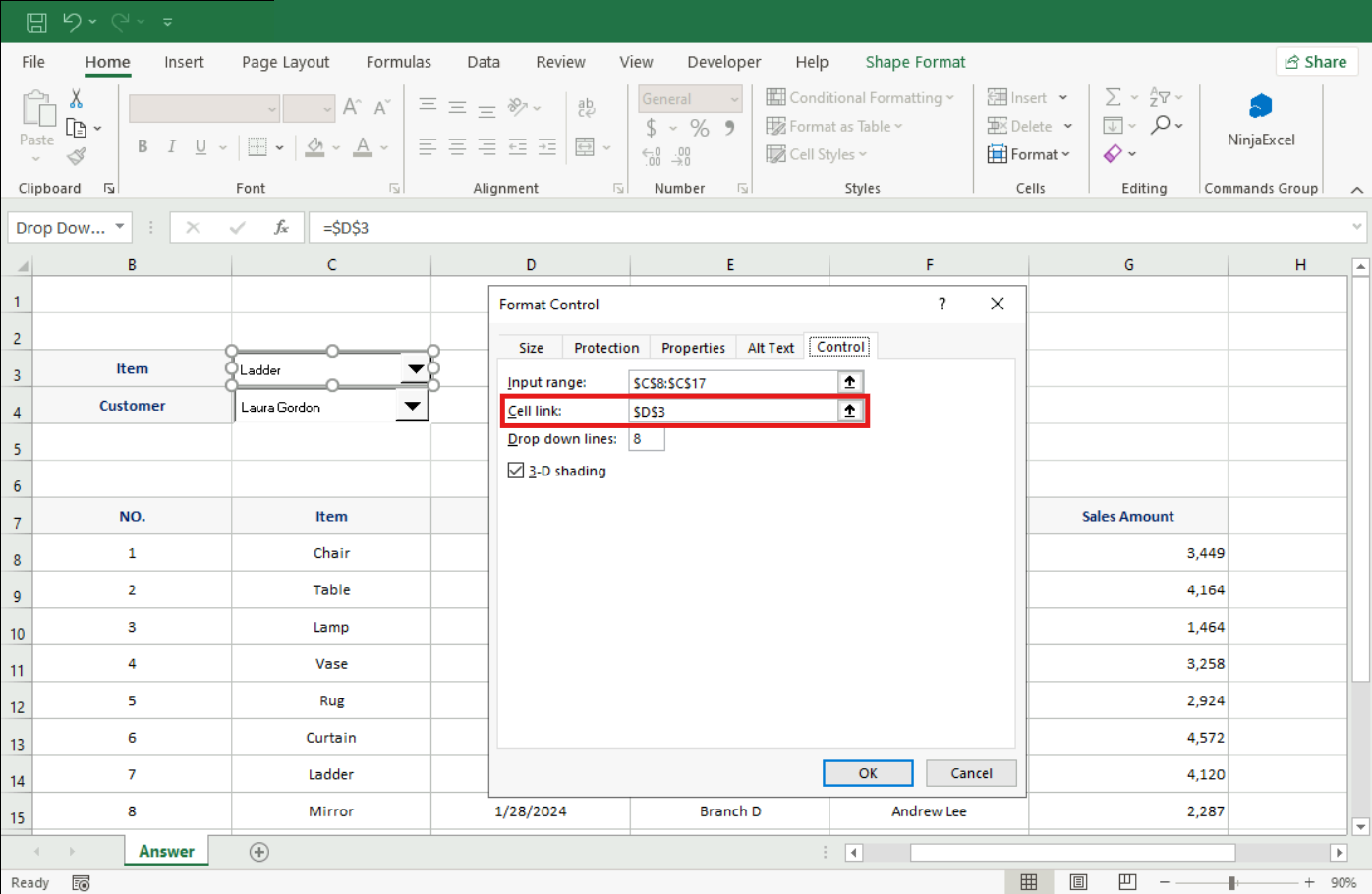
Problem: The Combo box or Checkbox isn’t doing anything.
Solution: Right-click the form control, go to "Format Control," and check the "Cell link." Without a linked cell, your lookup formulas have no "signal" to tell them when to update.
Problem: The Combo Box dropdown is empty.
Solution: Check the "Input range" in Format Control. You must select the range containing the names/items (e.g., F121:F129). If this is blank, the list will be empty.
Problem: The chart shows February data when I select March.
Solution: Check the CHOOSE or INDEX function driving the chart. The Index_num argument must point to the cell linked to the option buttons (e.g. I134). If you linked the button to one cell but your formula points to another, the chart won't react.
4. Advanced Filters
Problem: The advanced filter shows no results or copies the whole database.
Solution: Your Criteria Range headers must be a 100% exact match to the database headers (including accents and spaces). Also, ensure your criteria dates are in MM/DD/YYYY order.
Problem: "AND" vs. "OR" logic isn't working as expected.
Solution: Remember the Golden Rule: Criteria on the same row use "AND" logic (both must be true). Criteria on different rows use "OR" logic (either can be true).
Problem: Wildcards (asterisks and question marks) aren't working.
Solution: Use an asterisk (*) for any number of characters (e.g., *north* finds anything containing "north") or a question mark (?) for exactly one character (e.g., 202? finds 2023, 2024, etc.).
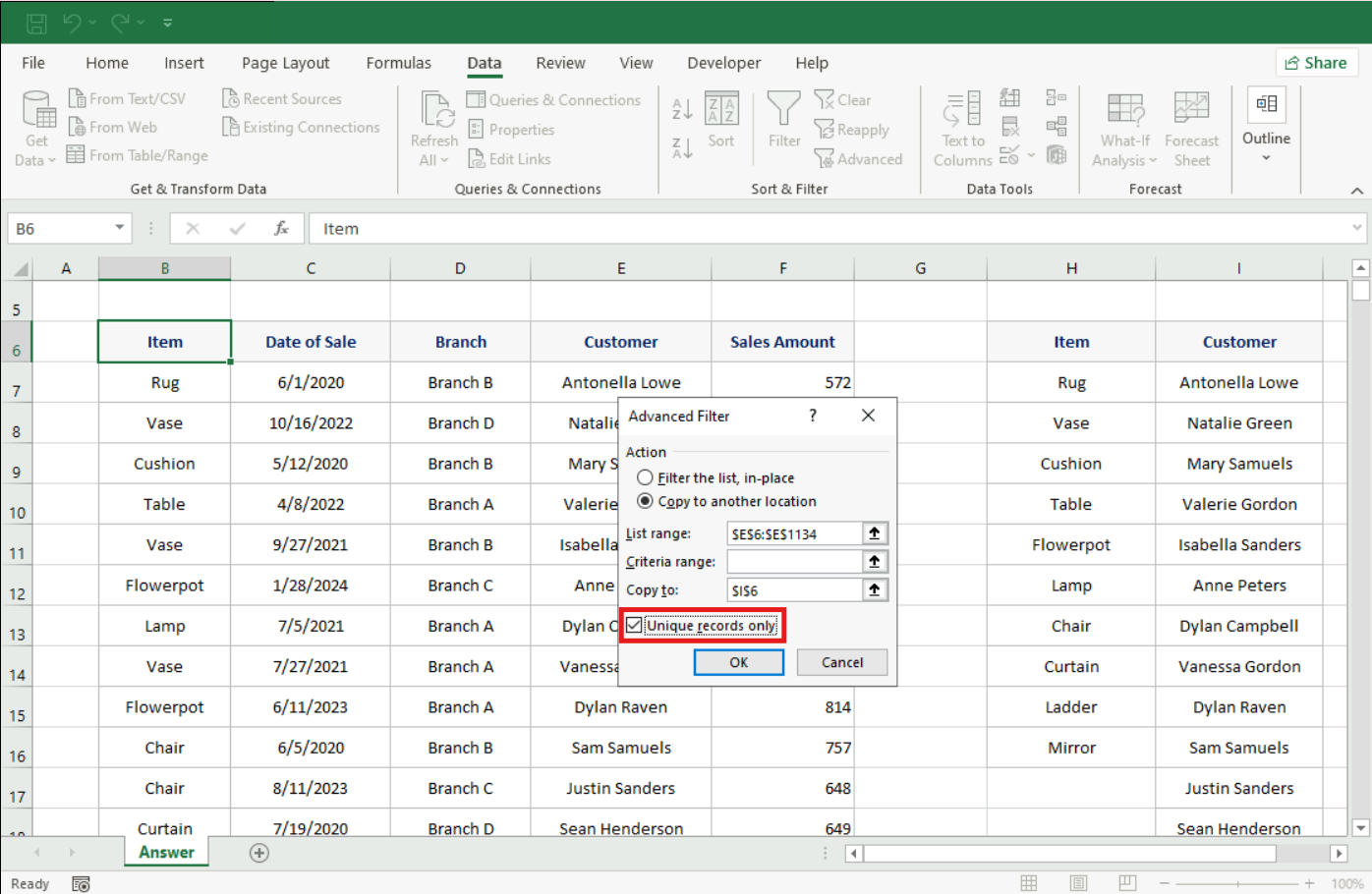
Problem: The advanced filter does not extract only unique records.
Solution: Be sure to check the"Unique records only" box in the Advanced Filter dialog box before pressing OK.
5. Data validation
Problem: The dynamic range using OFFSET doesn’t include new data.
Solution: Usually, the issue is with the COUNTA function. Ensure your COUNTA range covers much more space than you currently need (e.g., $B$8:$B$500) so it can "see" new entries as you add them.
Problem: My "Prevent Duplicates" validation isn't working.
Solution: In your COUNTIF formula, the range must be absolute ($A$1:$A$100), but the evaluation cell must be relative (no $ signs) so it adjusts for each row.
Example: =COUNTIF($D$3:$D$14, D3)=1
Problem: Validation to prevent irregular spaces is failing.
Solution: Check your custom formula. A common error is using SPACE instead of TRIM.
Example: =LEN(B6)=LEN(TRIM(B6))
Are you having problems specifically with a C1 Certification Final Exam exercise? Review “Guide to solve the most common errors in the C1 exam”.
Was this article helpful?
That’s Great!
Thank you for your feedback
Sorry! We couldn't be helpful
Thank you for your feedback
Feedback sent
We appreciate your effort and will try to fix the article