The diagnostic assessment allows you to know the Excel level of each participant before assigning them a training plan tailored to their needs.
In this article you will learn:
How to access the diagnostic assessment option
How to complete the diagnostic configuration fields
How to enroll participants and finish creation
1. Steps to create a diagnostic assessment
In the side menu of the platform, click on Diagnostic test.
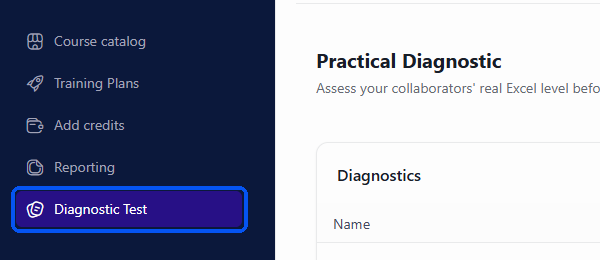
Side menu with the "Diagnostic test" option
Click on the Create practical diagnostic button.

"Create practical diagnostic" button
Fill in the fields of the Diagnostic data form.
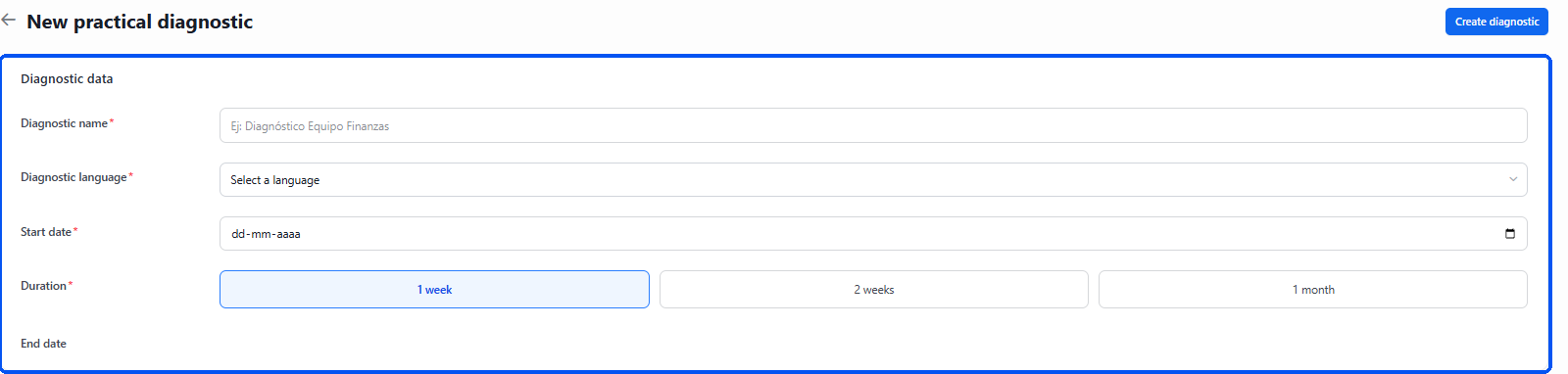
"Diagnostic data" form
In the Participants section, enter the corporate email addresses of the users who will take the assessment.
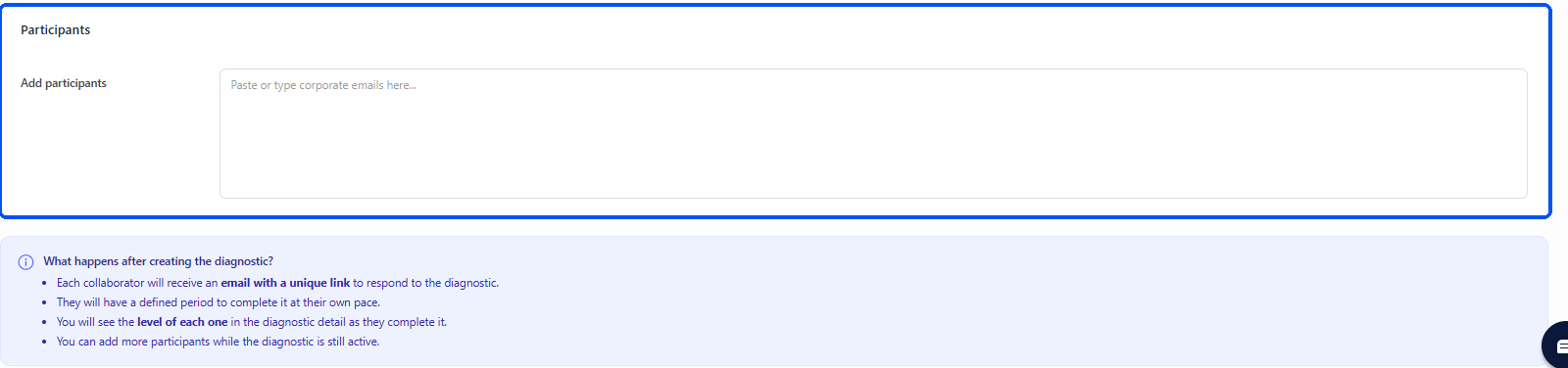
"Participants" section
Click on Create diagnostic to save the settings.
2. Explanation of form fields
When configuring a new diagnostic assessment, you must complete the following fields:
Diagnostic name: Name with which you will be able to identify the assessment within the Administrator Profile.
Diagnostic language: Language in which the participant will take the test. If you need to assess in multiple languages, create one assessment for each language.
Start date: Day on which the assessment process starts. On this date, participants will receive an email invitation.
Duration: Period of time during which the assessment will remain active for users.
Subsequent considerations
On the scheduled date, enrolled collaborators will receive an email notification with access instructions. The test will be available only during the period established in Duration.
Now that you know how to create a diagnostic assessment, log in to your Administrator Profile and measure your team's Excel level. If you have any questions or issues, write to us at soporte@ninjaexcel.com.
Was this article helpful?
That’s Great!
Thank you for your feedback
Sorry! We couldn't be helpful
Thank you for your feedback
Feedback sent
We appreciate your effort and will try to fix the article