If you're having trouble with your A1 - Beginner certification exercises, make sure you can answer "Yes" to these questions before reaching out to a teacher:
If you are working with filters: Did you clear the previous filter before starting the next instruction?
If you are working with absolute references: Did you correctly "lock" the cells by using the $ sign in the specified range?
If you are sorting data: Did you use the "Add Level" feature in the Sort dialog box, or did you try to sort them separately?
If you are working with number formats: Did you manually configure the decimal places and enable the thousands separator from the Format Cells dialog box?
If you’ve answered all these questions and you’re still having issues, check the following guide with common errors in the A1 final exam and how to solve them:
Problem #1: In the second filter exercise (Monitors and Credit Card), the result is incorrect.
Solution: This usually happens because you didn't clear the previous filter (like the "PayPal" one). If you apply a new filter on top of an existing one, Excel will try to find records that match both "PayPal" and "Credit Card" simultaneously. Go to the Data tab and click "Clear" before filtering for "Monitor."
Problem #2: When I calculate the tax and drag the formula down, I get 0 or an error.
Solution: You likely used a relative reference instead of an absolute reference. In your formula, make sure to "lock" the tax rate cell by pressing F4 (or Fn + F4) so it looks like this: $F$152. If you want to know more about references, read this article.
Problem #3: The "Brand" or "Quantity" data isn't sorting correctly.
Solution: This happens when you try to sort two different criteria one after the other. To fix this, you must apply multiple levels at the same time: Sort first by "Item" (A to Z), click "Add Level," choose "Quantity Sold," and change the order to "Largest to Smallest."
Problem #4: The platform isn't validating my percentage or number format.
For percentages: Beyond just clicking the "%" button, you must open the Format Cells dialog box and manually set it to 2 decimal places as requested in the instructions.
For numbers (Subtotal/Total): Even if you remove the decimals, you must check the box for "Use 1000 Separator (,)" to ensure the format is exactly what the platform is looking for.
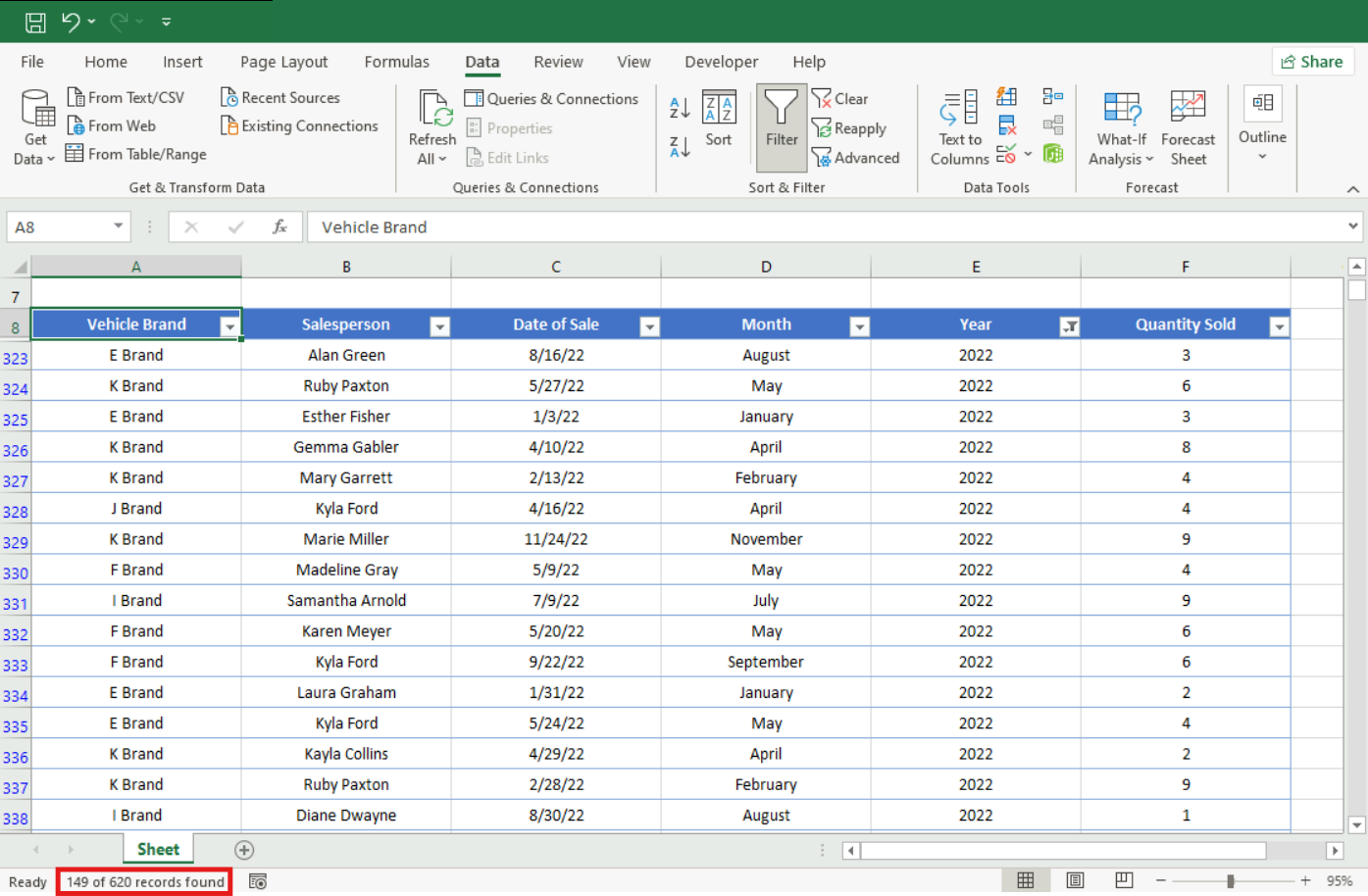
Problem #5: I wrote down the filter result, but it’s being marked as wrong.
Solution: Double-check where you are getting your data. After applying a filter, look at the Status Bar (bottom-left corner), which will say "X of Y records found." This is the exact number you need to type into the answer cell. Do not try to count or sum the visible cells manually!
Are you still having trouble with a specific A1 task? Check out our related article on common errors for more tips on mastering formulas and data organization!
Was this article helpful?
That’s Great!
Thank you for your feedback
Sorry! We couldn't be helpful
Thank you for your feedback
Feedback sent
We appreciate your effort and will try to fix the article