If you're having trouble with an exercise—regardless of your level—start by asking yourself these baseline questions:
Syntax: Did you start your formula with an equal sign (=)? (Do not use the "+" sign).
Case sensitivity: Did you match the uppercase and lowercase letters exactly as required within the cells?
Invisible spaces: Are there any extra spaces inside your formulas or text strings? (Trailing spaces are the #1 cause of validation errors).
Validation workflow: Did you click "Validate answers" before trying to move to the next class?
The active cell: Did you hit Enter or Tab to exit the cell before validating?
If you’ve cleared the checklist but are still stuck, here are the most common hurdles in the A0 (Intro level) Certification:
Navigation and location in a spreadsheet
Problem: I can’t find a specific cell
Solution 1
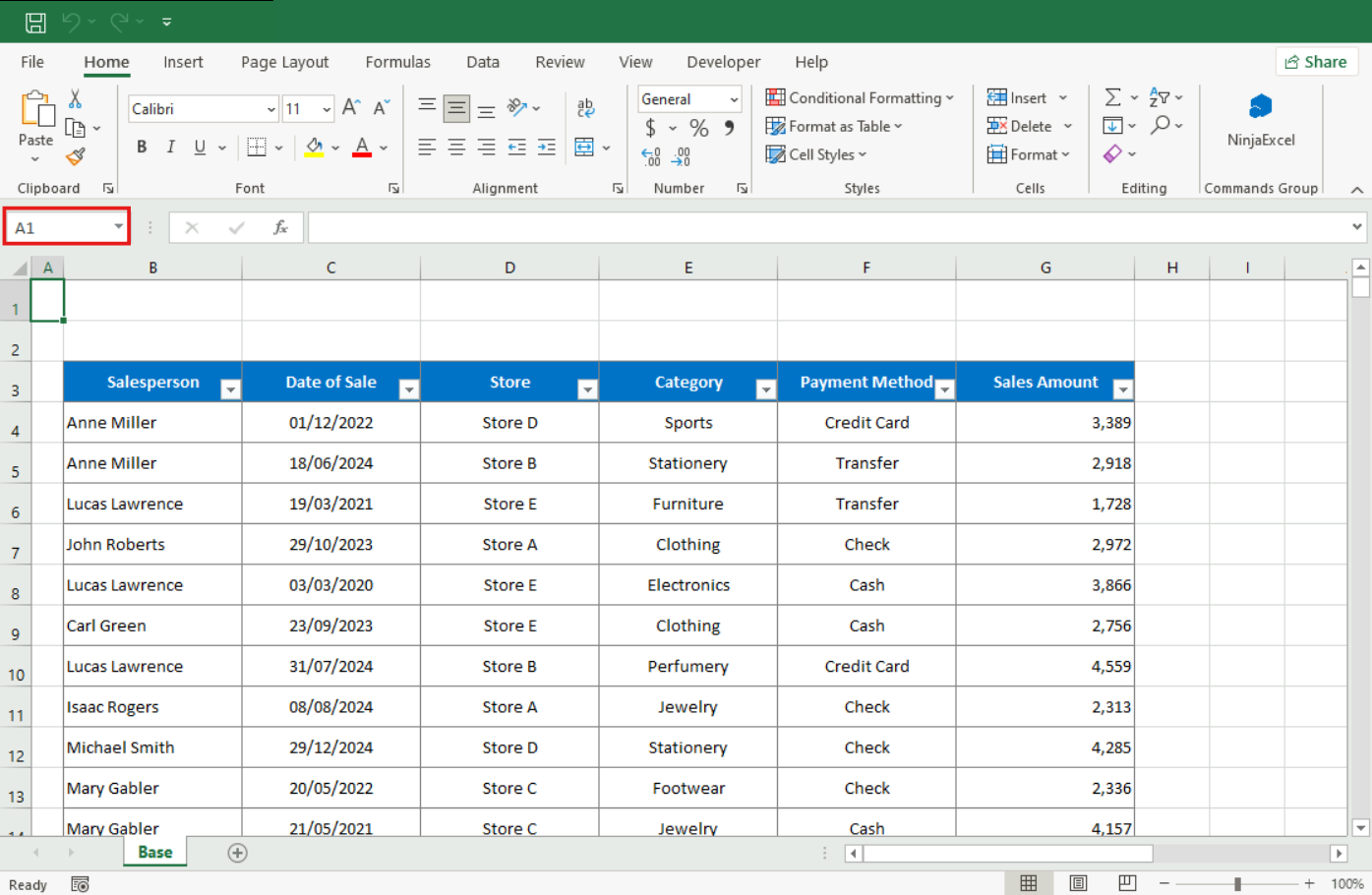
Use the Name Box: For seamless navigation and to avoid moving data manually, you can enter the assigned cell in the Name Box.
Solution 2
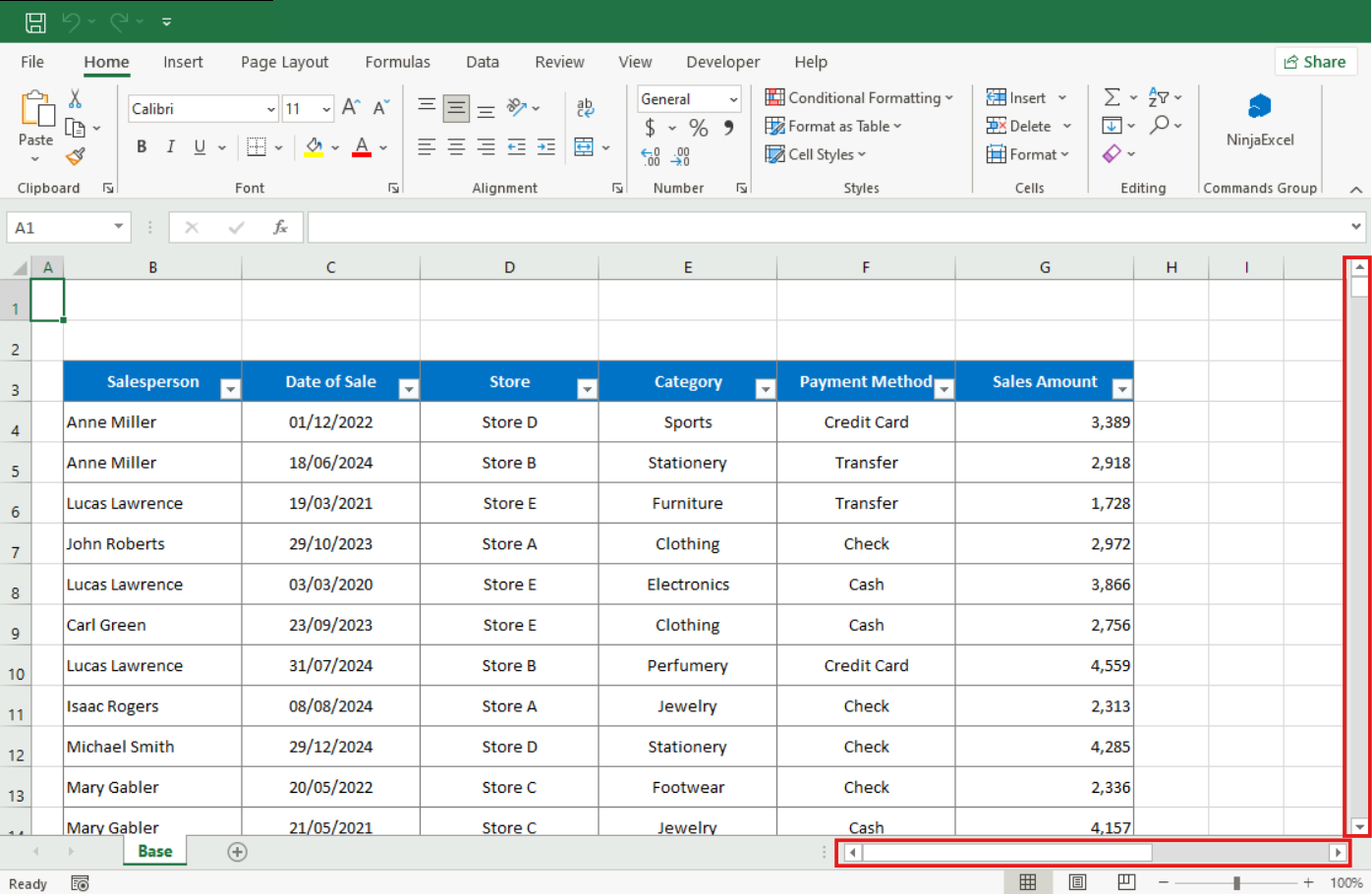
Scroll bars: Click the scroll arrows and move through a page (a preset interval) of values by clicking the region between the scroll box and either scroll arrow (right and down).
Solution 3
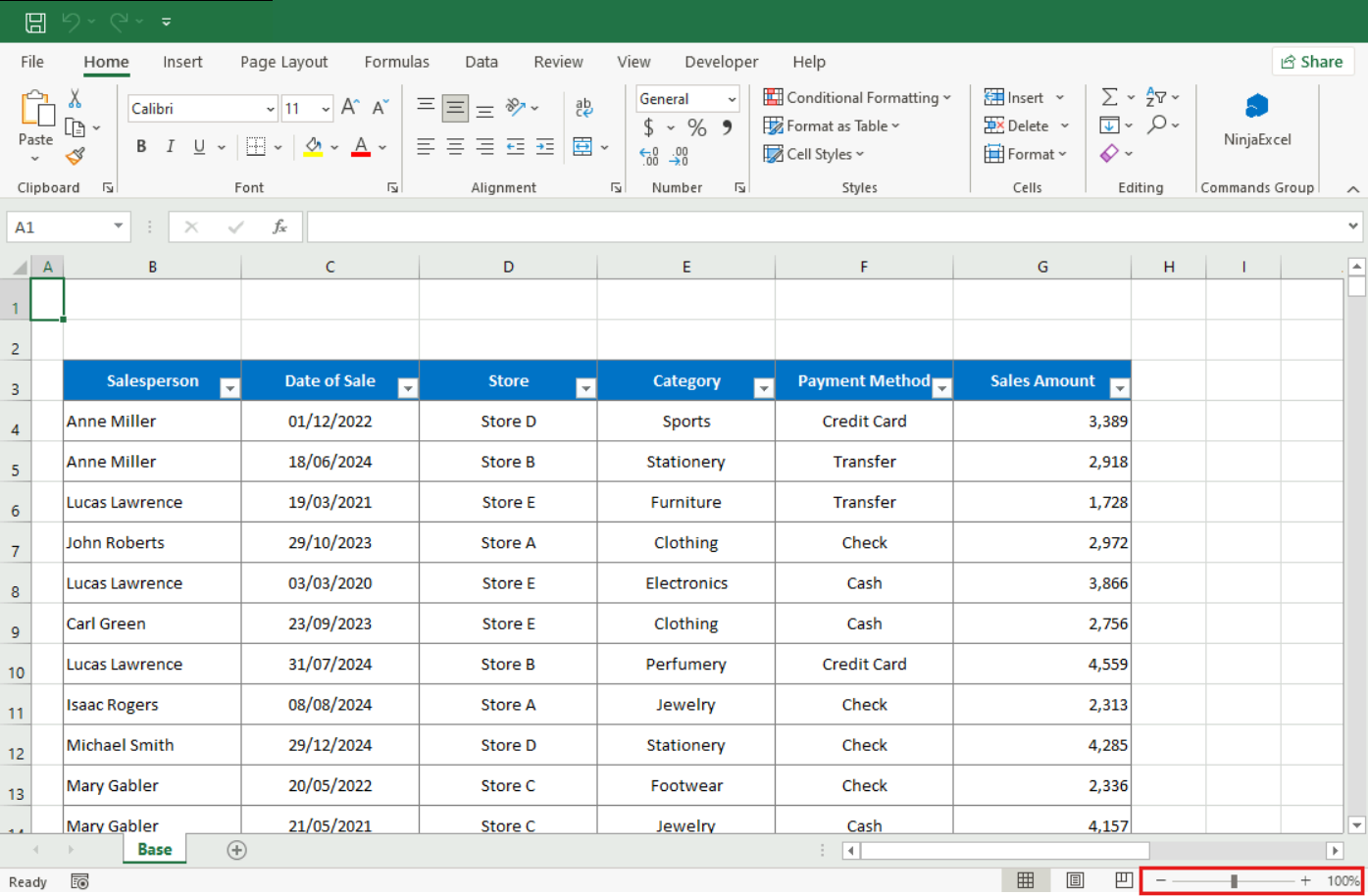
Zoom in and out: Zoom in to get a close-up view of your file using the Zoom bar located in the bottom-right corner of the Excel window on the status bar.
Selecting cells and ranges
Problem: I’m unable to select non-adjacent cells in Excel using the keyboard
Solution: Excel does not allow selecting separate cells using only the keyboard; you must use the mouse + Ctrl key. To do so, click the first cell with the mouse, hold Ctrl, and then click on the rest of the cells you want to select.
Problem: I mistakenly selected a rectangular range when I wanted to choose a specific one.
Solution: For contiguous ranges, use Shift + arrow keys. For multiple, scattered selections, use Ctrl + Mouse.
Note: If you are a Mac user and you are trying these shortcuts with Command, you should know that they will only work with the Ctrl key. To learn more about the differences between Windows and Mac keyboards, check the "Excel Command Guide: Mac shortcuts the Platform".
Content and format visualization
Problem: Text or numbers don’t fit in the cell or seem incomplete
Solution 1
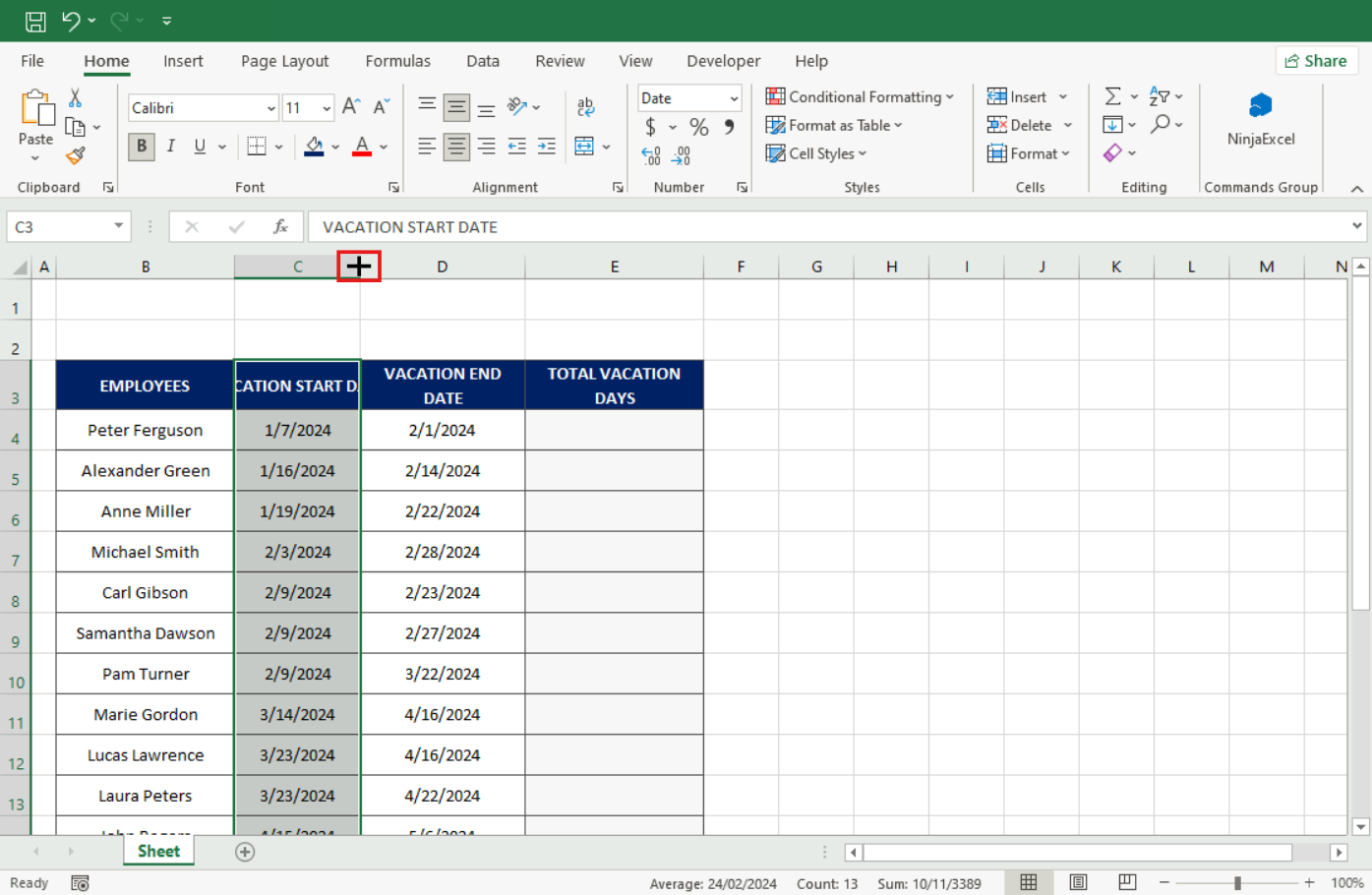
Auto-Fit Column Width: Move your mouse cursor over the line between the column headers (e.g., the line between A and B) until it becomes a two-sided arrow. Double-click.
Solution 2
Dragging manually: Click and drag the edge of the column or row to change size.
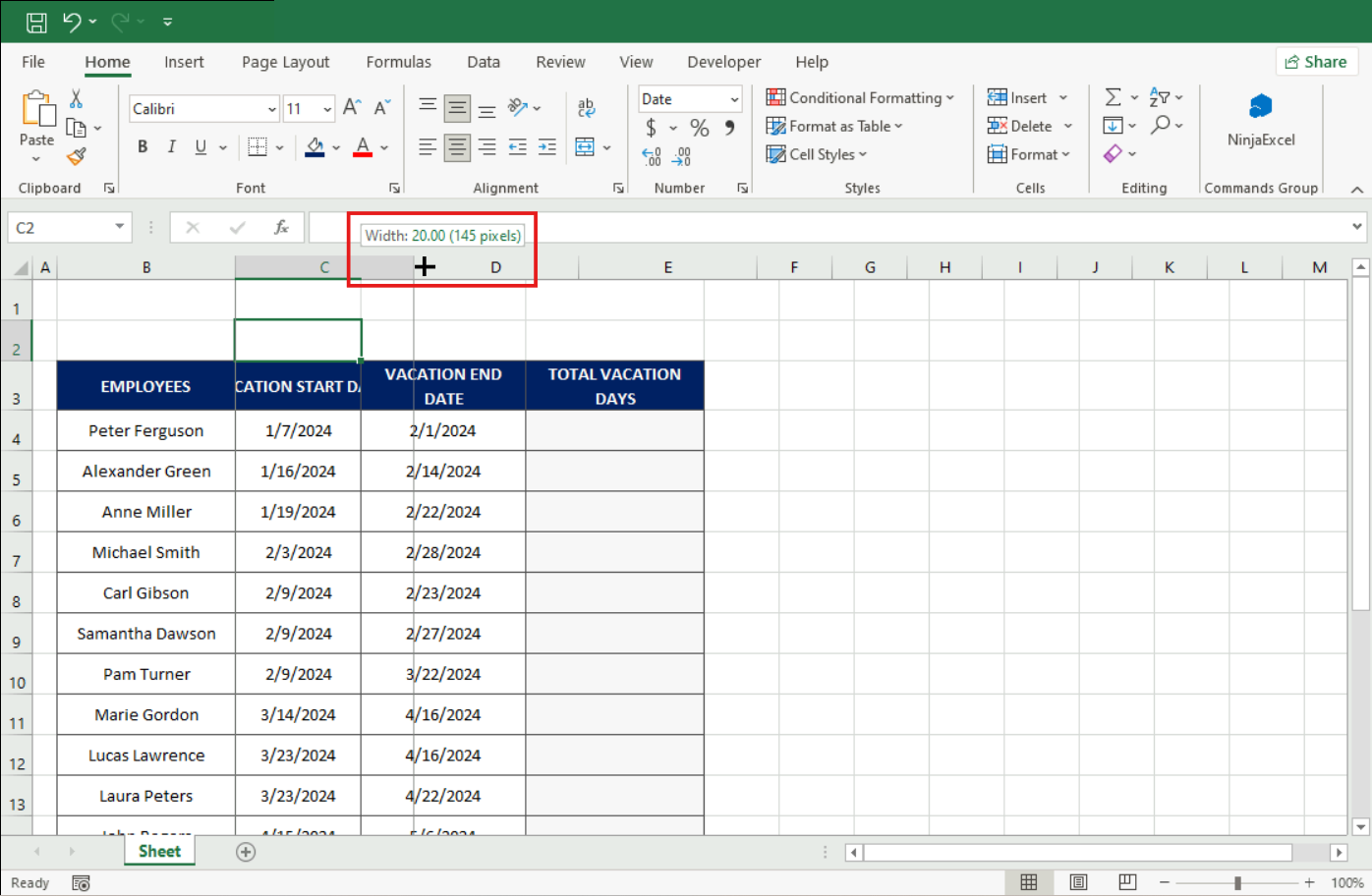
Problem: I applied a fill color, and the text is not clearly visible
Solution: If you fill a cell with a dark color, you must change the font color to white or a light color to make it visible.
Interface and “vanished” tools
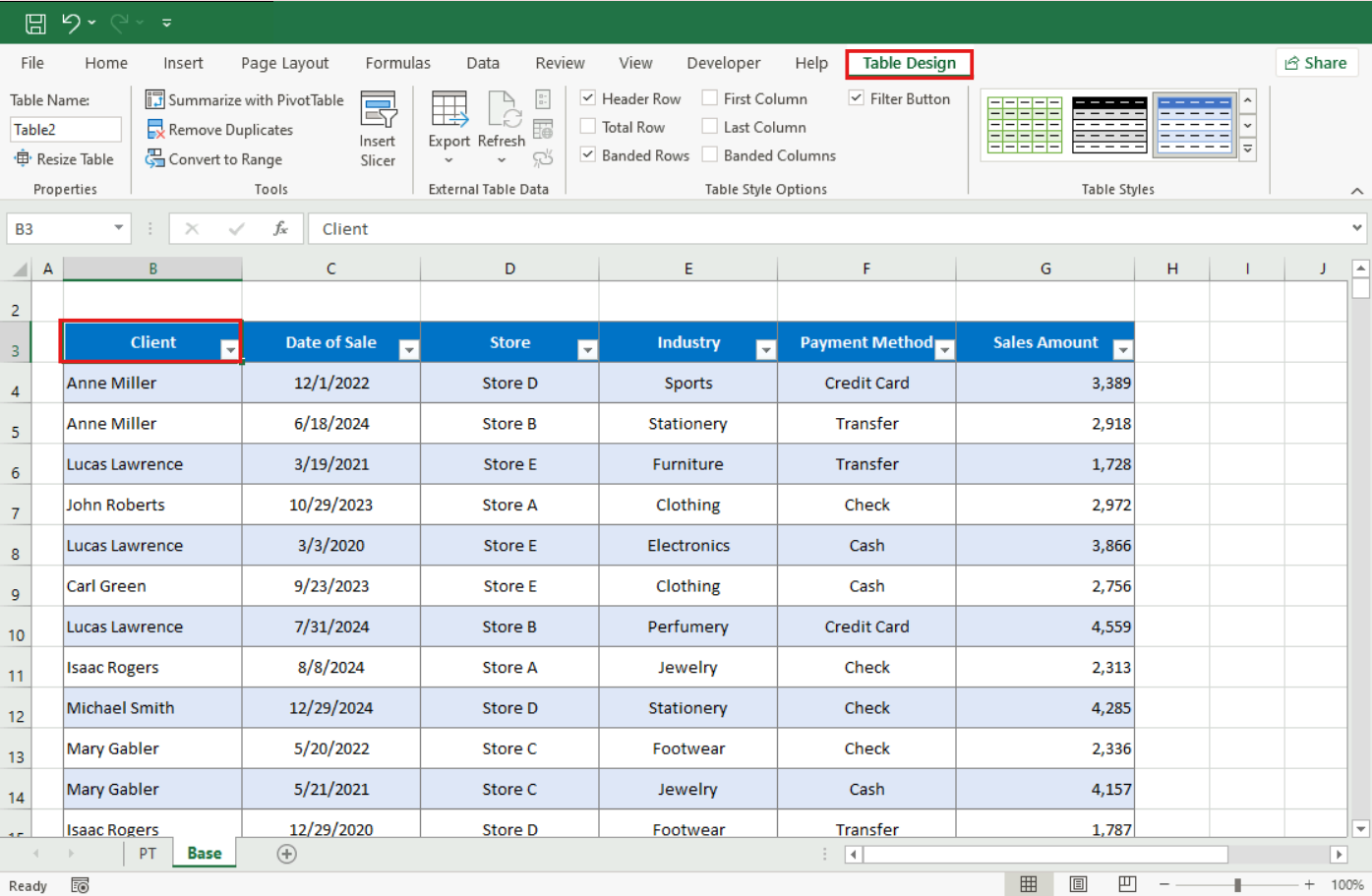
Problem: A specific tab, such as “Table Design,” is not available
Solution: Special tabs known as Contextual Tabs only appear when the actual tool is actively selected. Click back on the chart or table to bring the tabs back.
Problem: The menu buttons look different or smaller than in the course videos
Solution: Excel has a dynamic interface; if the window is shrunk, the buttons collapse to save space. Maximize the window or look for the icons within their groups, as the structure does not change.
Errors while editing
Problem: I accidentally erased content or entered wrong data
Solution: Press Ctrl+Z on Windows to undo actions immediately. To redo an action, use Ctrl+Y or the Redo button.
Are you having problems specifically with an A0 Certification Final Exam exercise? Review our “Guide to solve the most common exam errors in A0 - Intro Level”.
Was this article helpful?
That’s Great!
Thank you for your feedback
Sorry! We couldn't be helpful
Thank you for your feedback
Feedback sent
We appreciate your effort and will try to fix the article